

Teams
Say Ada runs the payments team. She makes a team called “Payments”, invites Sam as an editor and her manager as a viewer, and moves the checkout map in. Sam can change it; the manager can open, present and play scenarios on it, but can’t move a thing. When Sam wants to try something risky, it goes in a proposal for Ada to adopt.
A team is a workspace that several people share. Its maps belong to the team, and each person in it has a role that says what they can do. You need an account to make or join one, and you can be in any number of teams.
Make a team
Section titled “Make a team”Open the workspace switcher at the top left and choose New team…. Give the team a name of up to 60 characters, which you can change later. You become its owner, Flozu switches to it, and its People page opens so you can invite people.
Each person in a team has one role:
| Role | Can |
|---|---|
| Owner | Everything an admin can, and make other owners. A team always keeps one. |
| Admin | Invite people, change their roles, remove them and rename the team. Edits maps. |
| Editor | Make, change and delete maps, folders, versions and proposals. |
| Contributor | Open maps and suggest changes as proposals, changing only their own. |
| Viewer | Open and present maps, and read their history. |
The People page
Section titled “The People page”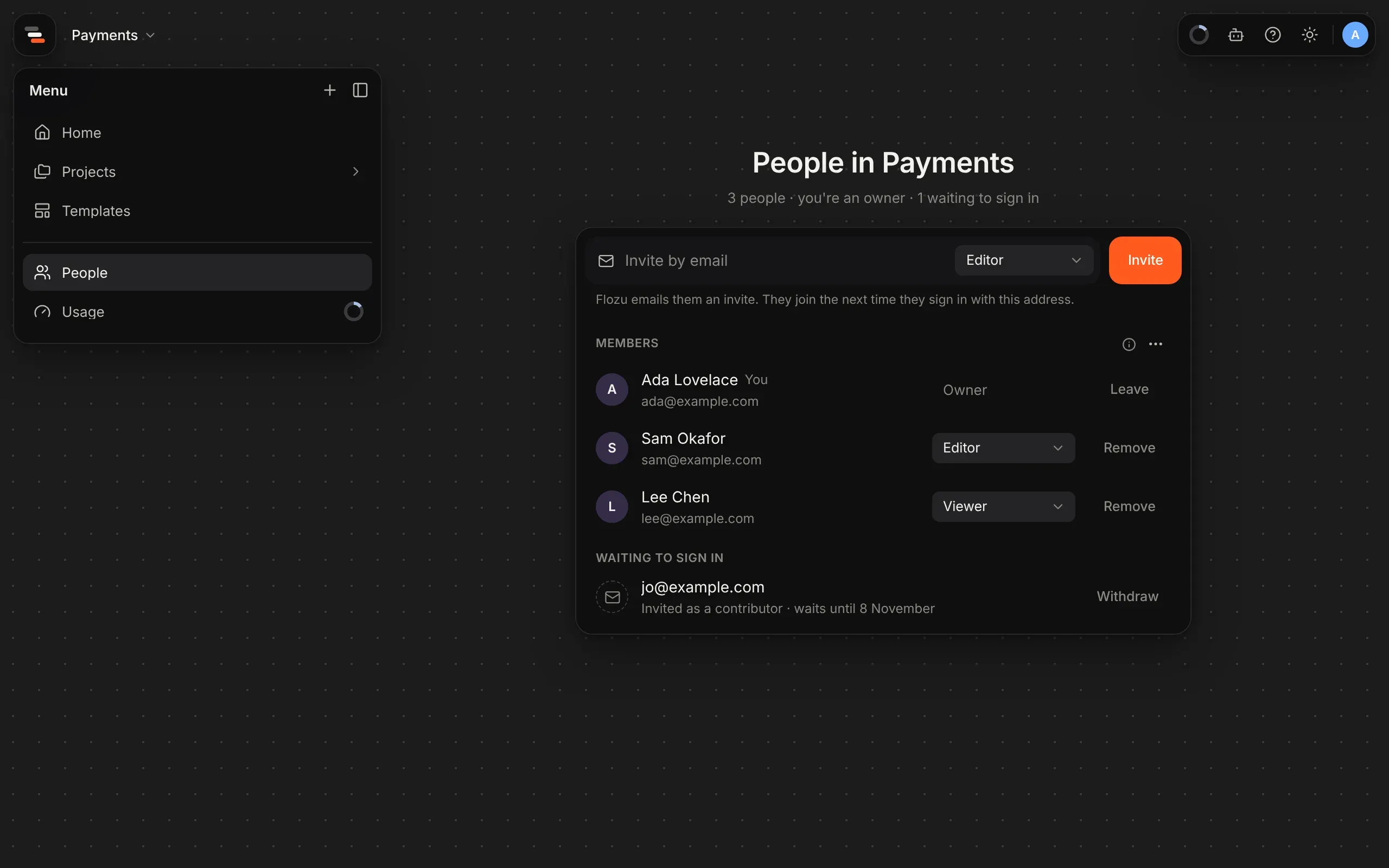
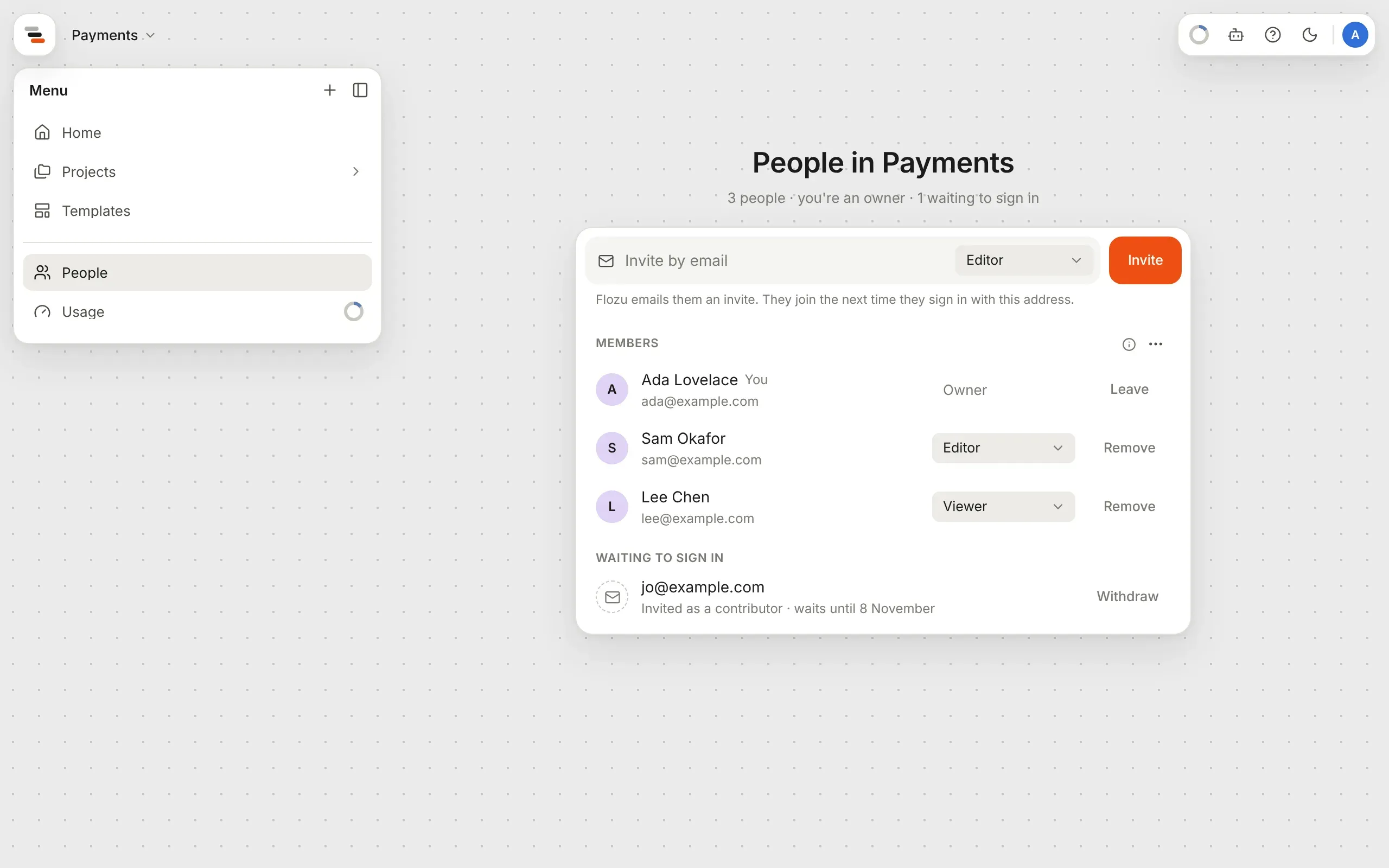
People, in the panel’s menu, opens the People page for the workspace on show. In a team, it lists everyone with their role, and the invites still waiting and when each runs out. The ⓘ beside Members says what each role can do. Owners and admins manage the team here:
- Invite by email, with the address they sign in with and the role beside it: admin, editor, contributor or viewer.
- Change someone’s role, or remove them, after asking.
- Withdraw an invite, or rename the team from the ⋯ beside Members.
An admin can’t change or remove an owner, and nobody changes their own role. Everyone else sees the same list, without the controls. Anyone can Leave team, after asking, except its last owner, and leaving takes you back to your own workspace.
Invites
Section titled “Invites”Flozu emails the person you invite: who it’s from, the team, their role, and to sign in with that address. The People page says “Flozu emailed them how to join”. If it didn’t email them, it says so, and asks you to let them know to sign in. They join the next time they sign in with the address you invited, once Google or GitHub has confirmed it’s theirs, so nobody else can take the invite up. An invite waits 30 days. Inviting the same address again replaces it, and someone already in the team keeps their role.
Share a map with the team
Section titled “Share a map with the team”Make a map in the team’s workspace, or move one in: choose Move to… from the map’s menu and pick the team in the workspace picker, then a folder. The map takes its versions and proposals with it, and the maps inside its parts too, so no part opens onto nothing. The dialog lists your own workspace and each team where you’re an owner, admin or editor, and says who’ll see the map.
Maps you can’t change
Section titled “Maps you can’t change”A contributor or viewer opens a team’s map to look at and present it. The mode menu has no Edit, and a note above the island says your role and what you can do, with the map’s proposals.
As a contributor, Suggest a change starts a proposal from the map as it is, named after you, and opens it to change freely. Your edits save into the proposal, and an editor can compare and adopt it. You can rename or delete your own proposals from their Actions menu. Someone else’s proposal opens compared with where it began, to read.
In a team, a map’s history says who made each version and proposal: “by you” or by their name.
Archive a team
Section titled “Archive a team”When a team is finished with, its owners can archive it with Archive team… in the ⋯ beside Members on the People page. An archived team keeps its maps, history and people. Everyone in it can still open, present, compare and export its maps, but nobody can change them, owners included, and nobody new can be invited.
An archived team leaves the workspace switcher and the Move to… dialog. It’s listed under Archived teams on the People page, where you can open it to look at, and where its owners Restore team. Nobody can delete a team, so its maps are never lost with it.