

A tour of the editor
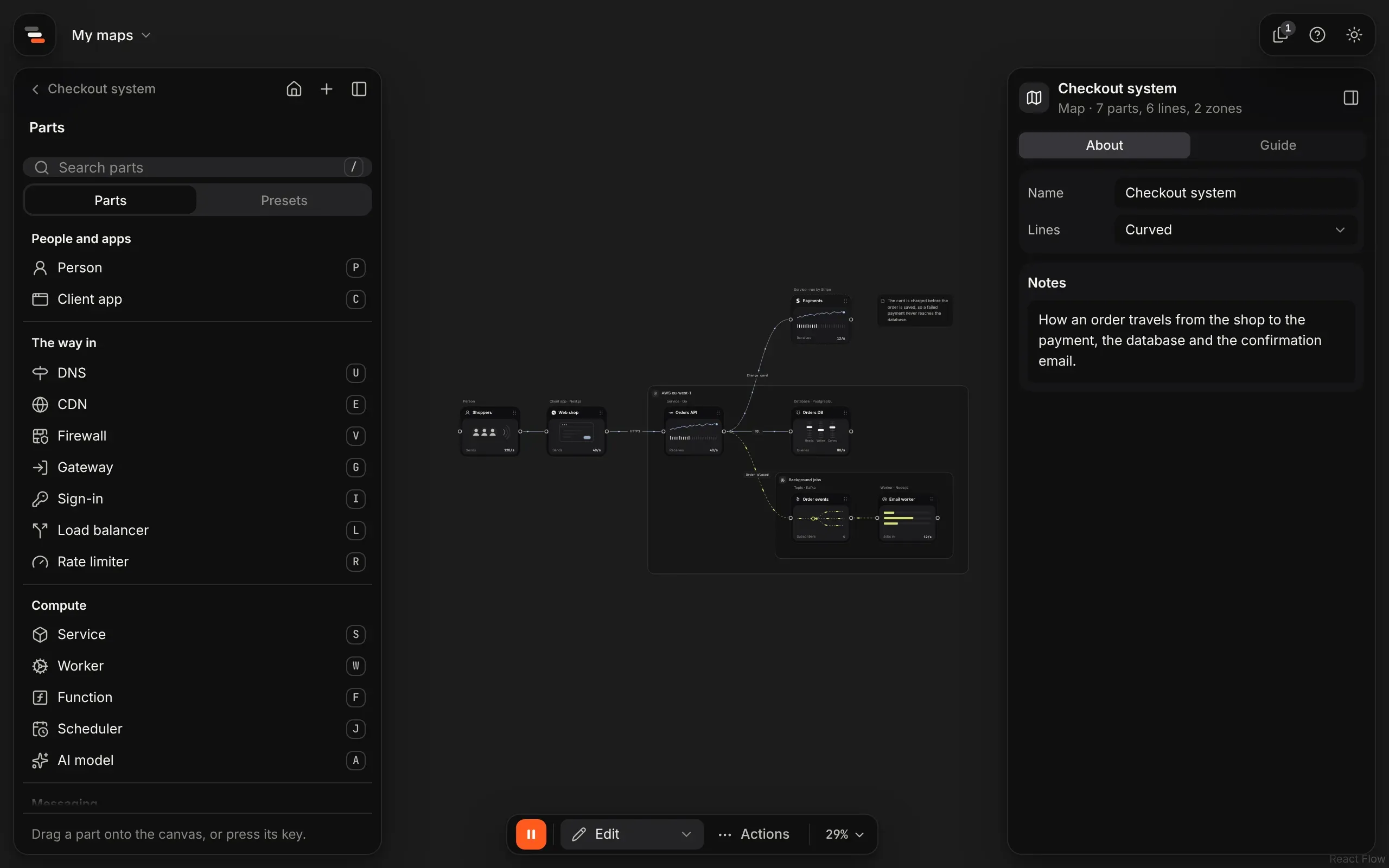
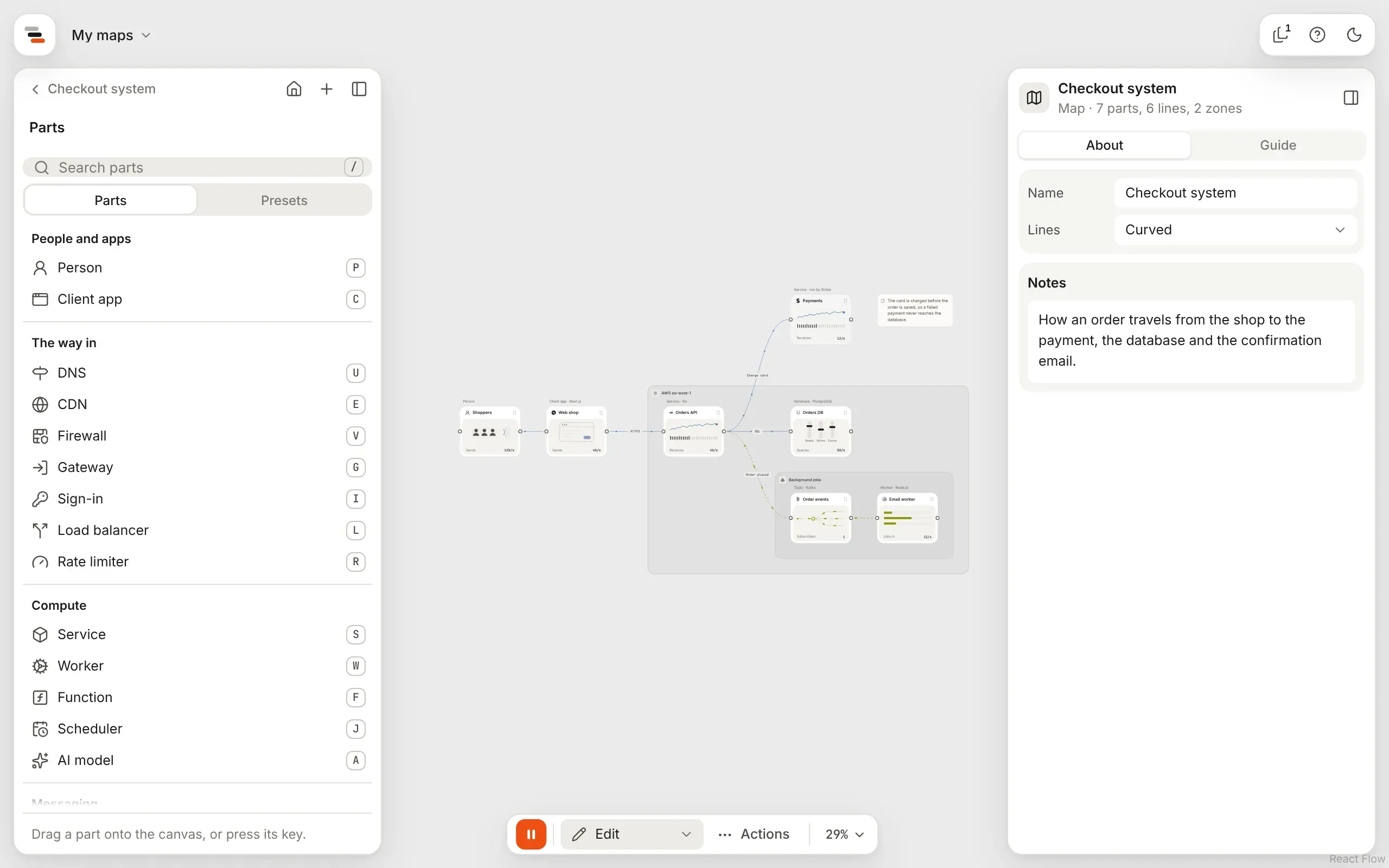
The canvas fills the window, and everything else floats over it. Flozu’s mark and the workspace you’re in sit at the top left, with the panel under them. Help and the theme switch sit in a small bar at the top right, with your usage and a button to connect an AI assistant once you’re signed in. The inspector floats on the right; the button at its top right folds it into a small box in the corner, and that box brings it back. The island at the foot holds everything you do to the map, and ends with the canvas menu.
The panel on the left shows the map’s own menu: Add parts shows the parts library in its place, and Scenarios, Stories and Versions and proposals open theirs there too, each with a way back. Back to Menu at its top goes to Flozu’s menu, where the map is the first row, to go back in. Fold the panel and it shrinks into a slim rail with the same buttons. See getting around for the rest of the panel.
A map inside a part shows a trail at the top centre of the window: the maps above it, each a way back out.
Getting around
Section titled “Getting around”Flozu has no bar across the top. The page or the canvas runs to the edges, and a few things float over it.
- The top left shows Flozu’s mark and the workspace you’re in: My maps for the maps on this device, or, once you’ve signed in, your own workspace and each of your teams. Choose it to switch.
- The top right has a small bar with Help and the button that switches between the light and dark themes, and once you’re signed in, your usage and a button to connect an assistant. While you have maps open, a page with how many comes first, and lists them, to move between them from anywhere.
- The panel down the left is one panel you move through. It’s only as tall as what it shows. Away from a map it shows the menu: Home, Projects and Templates, then Open, the maps you have open, and Recent, the maps you changed last. The top of every level keeps Home, + for a new map, a new project or an import, and the fold, however far in you’ve gone. Home and Templates open their pages; Projects shows your projects in the panel’s place, with Back to Menu at the top.
- In a map the panel shows that map’s own menu: Add parts, Scenarios, Stories, Versions and proposals and Maps inside, then Present and Map settings. Every level below works the same way: its name at the top, and one way back above it, named for the level above. Scenarios lists the map’s scenarios, then one scenario, then a part of it such as its Moments; Stories lists the stories, then one story’s steps. The map’s menu has Back to Menu at its top, and the menu has the map as its first row, to go back in. Going deeper slides in from the right, and going back from the left. The mode menu at the foot of the canvas opens the same things in the same place. Esc goes back one step too.
- Fold the panel with the button at its top right to give the page or the canvas the room. It shrinks into a slim rail of buttons under Flozu’s mark: the first brings the panel back, and the others go straight to a place, such as the parts, the scenarios or your projects. Flozu remembers your choice for maps and for the other pages separately.
On a phone, the rail runs along the bottom of the screen, and its buttons slide the panel over the page; pressing the same button again slides it away. On a phone or a window narrower than 1,100 pixels, the panel and the inspector take turns, so they never lie over each other or squeeze the map.
The parts library
Section titled “The parts library”The library on the left has two shelves. Parts holds the plain kinds of part, each with the key that adds it. Presets holds parts ready to go, such as a Redis cache or Stripe payments. Drag one onto the canvas, or click it to add it in the middle of the screen. Press / to search both shelves at once.
The scenario, versions and stories panels open in the library’s place, and showing the parts again closes them.
The canvas
Section titled “The canvas”The canvas is a grid you can pan and zoom. Drag on empty canvas or scroll to pan, pinch (or hold Ctrl or ⌘ while scrolling) to zoom, and drag across empty canvas with Shift held to select several things at once.
- Double-click empty canvas to search for a part and add it there.
- Drag from a part’s right port to draw a line.
- Hover a line and select its plus to put a part on it.
- Double-click a name to rename it in place.
The island
Section titled “The island”The island floats at the foot of the canvas and holds what you do to the map:
| Control | What it does |
|---|---|
| Play or pause | Start or stop the traffic. |
| Mode menu | Pick what you’re doing. It opens upward, and only one mode runs at a time. |
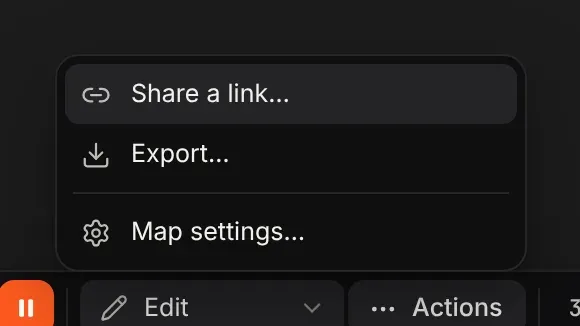
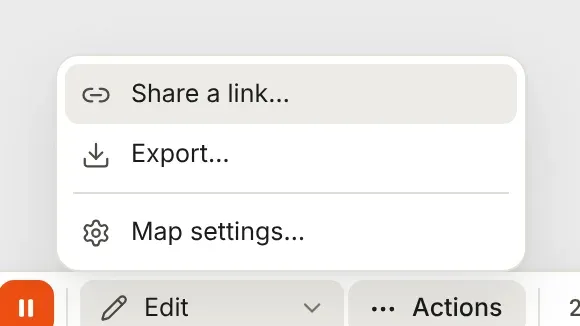
| Actions | Share, export, show or hide the panels, and the map’s settings. |
| Zoom level | Opens the canvas menu: undo and redo, zoom, fit and full screen. |
The mode menu offers:
| Mode | What it does |
|---|---|
| Edit | Build and change the map. This is where a map opens. |
| View | Present the map, read-only. |
| Scenario | Try a scenario, such as Black Friday, with its timeline along the bottom. |
| Story | Open the map’s stories, with a story’s steps along the bottom in the timeline’s place. |
| Versions | Look back through the map’s versions and proposals. |
The Actions menu offers:
| Action | What it does |
|---|---|
| Share a link… | Share a link that carries the map. |
| Export… | Export the map as a picture, a PDF or a file. |
| Map settings… | Rename or delete the map. |
Notices, such as “Saved as a copy”, float just above the island.
Map settings
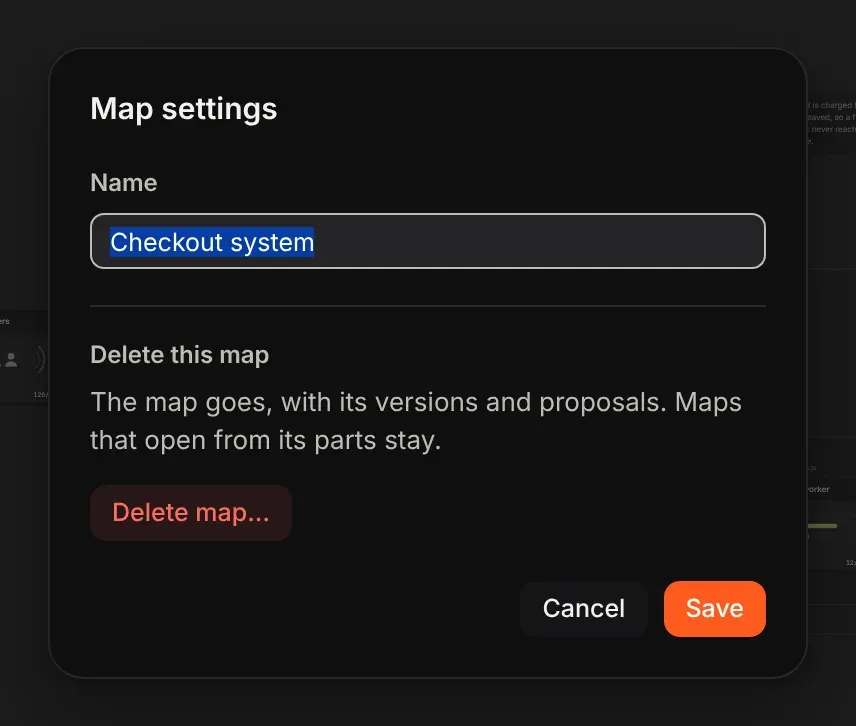
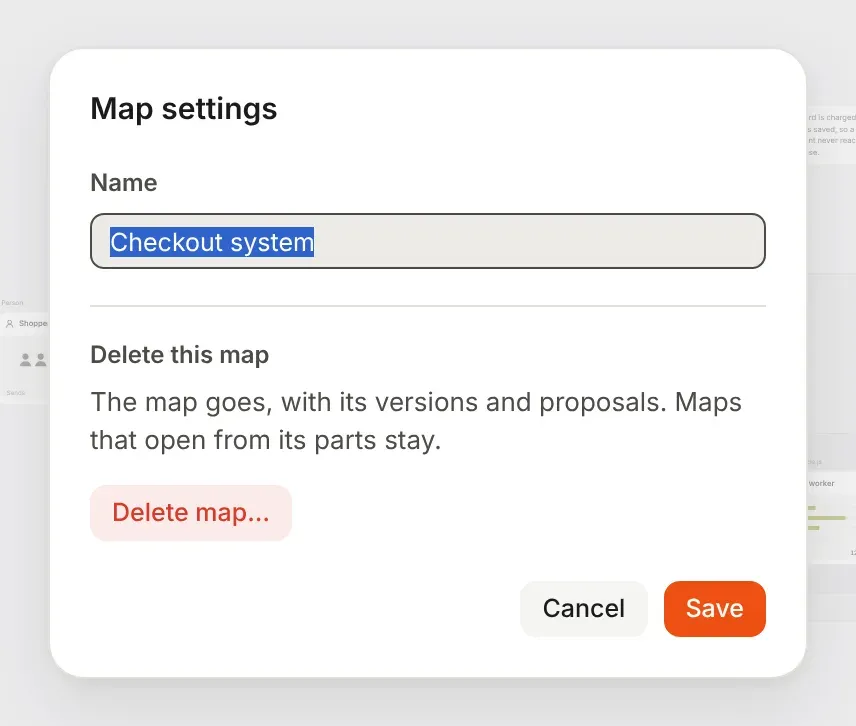
Section titled “Map settings”Choose Map settings… from the Actions menu to rename the map or delete it. A new name is one change you can undo. Delete map… asks first and offers to export a copy, then closes the map. Its versions and proposals go with it; maps that open from its parts stay. Who can see a map follows the workspace it’s in: move it into a team to share it.
The canvas menu
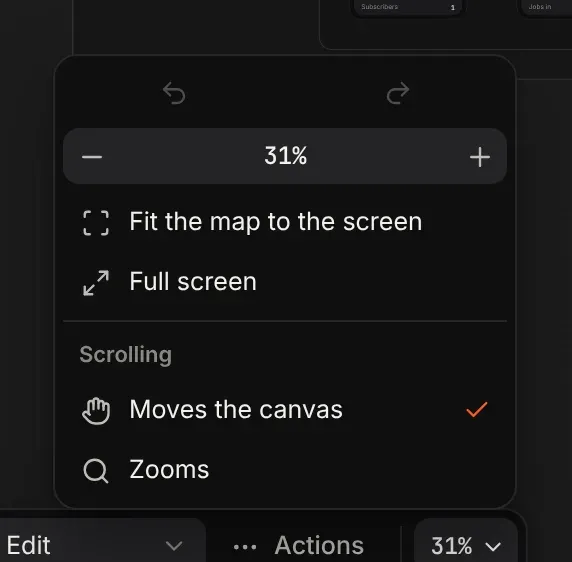
Section titled “The canvas menu”The zoom level at the end of the island opens the canvas menu, which holds what’s about the canvas rather than the map:
| Control | What it does |
|---|---|
| Undo and redo | Take back a change, or put it back. ⌘Z and Shift⌘Z do the same. |
| Zoom out, the zoom level, zoom in | Step the zoom. Select the level to go back to 100%. |
| Fit the map to the screen | Frame the whole map. |
| Full screen | Fill the screen, where the browser allows it. |
| Scrolling | Moves the canvas or Zooms. |
The menu stays open while you use it, so you can step the zoom; press Esc or click elsewhere to close it.
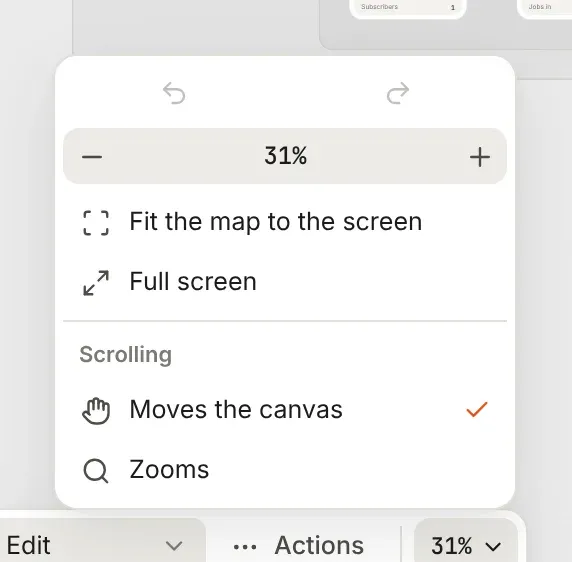
Scrolling, such as two fingers on a trackpad, moves around the canvas. If you’d rather it zoomed, choose Zooms under Scrolling. Flozu remembers the choice in this browser.
The theme switch, at the top right of every screen, swaps between the light and dark themes.
The inspector
Section titled “The inspector”The inspector edits whatever is selected. With nothing selected, it shows the map: its name and notes under About, and under Guide, how to read the map and the keys that build it.
Its tabs split each thing’s settings so the panel never becomes one long scroll:
| Selected | Tabs |
|---|---|
| A part | About (at a glance, then name, kind, technology, who runs it, notes), Look (size, card, drawing, style), Traffic (how it copes, limits and auto-scaling), Lines (how many come in and go out, then each line and what it carries) |
| A line | About (what it carries, direction, label, protocol), Look (style, effect, route and ends), Traffic (rate) |
| A zone | About (name, kind, notes), Look (style), Inside (what it holds) |
| A note | About and Look |
| The map | About (name, how its lines run), Guide |
Flozu remembers the tab you picked for each kind of thing, so clicking from one part to the next stays on the same tab. The arrow keys move between tabs, and actions such as Delete part stay at the foot of every tab, below a line. A delete asks first: the button turns red, and pressing it again within three seconds deletes. Otherwise it goes back on its own.
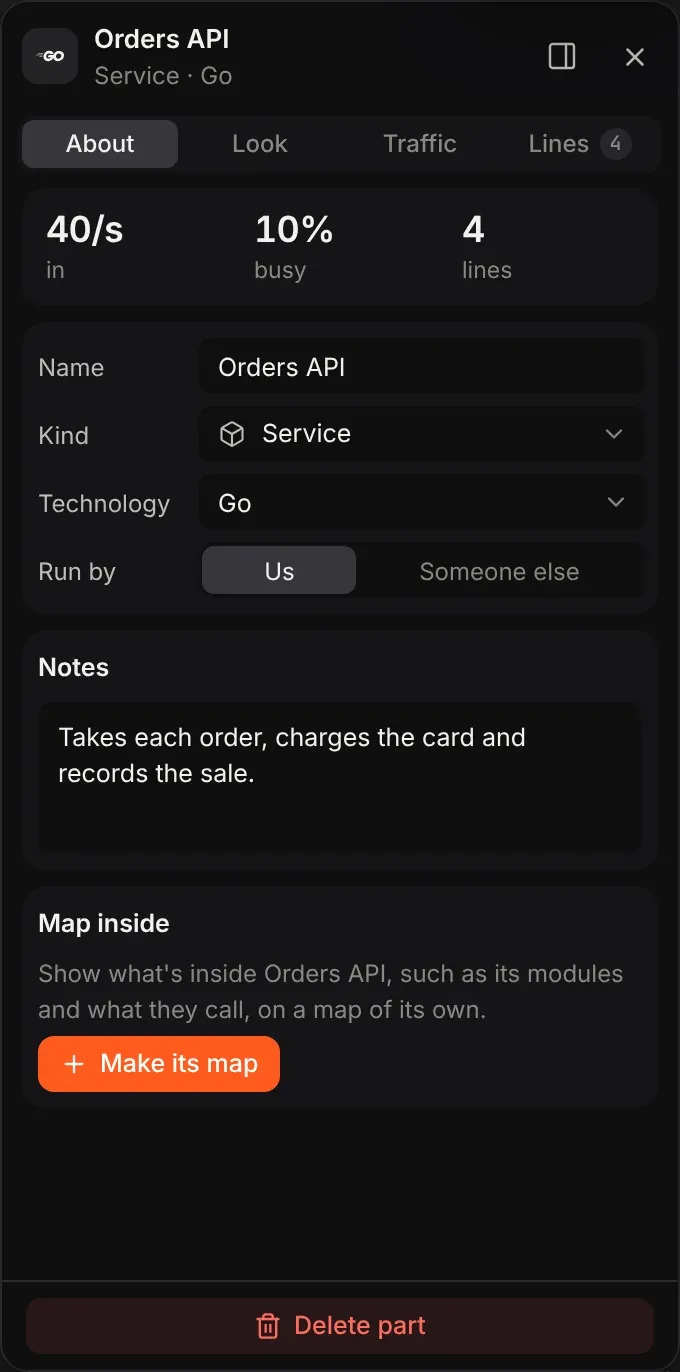
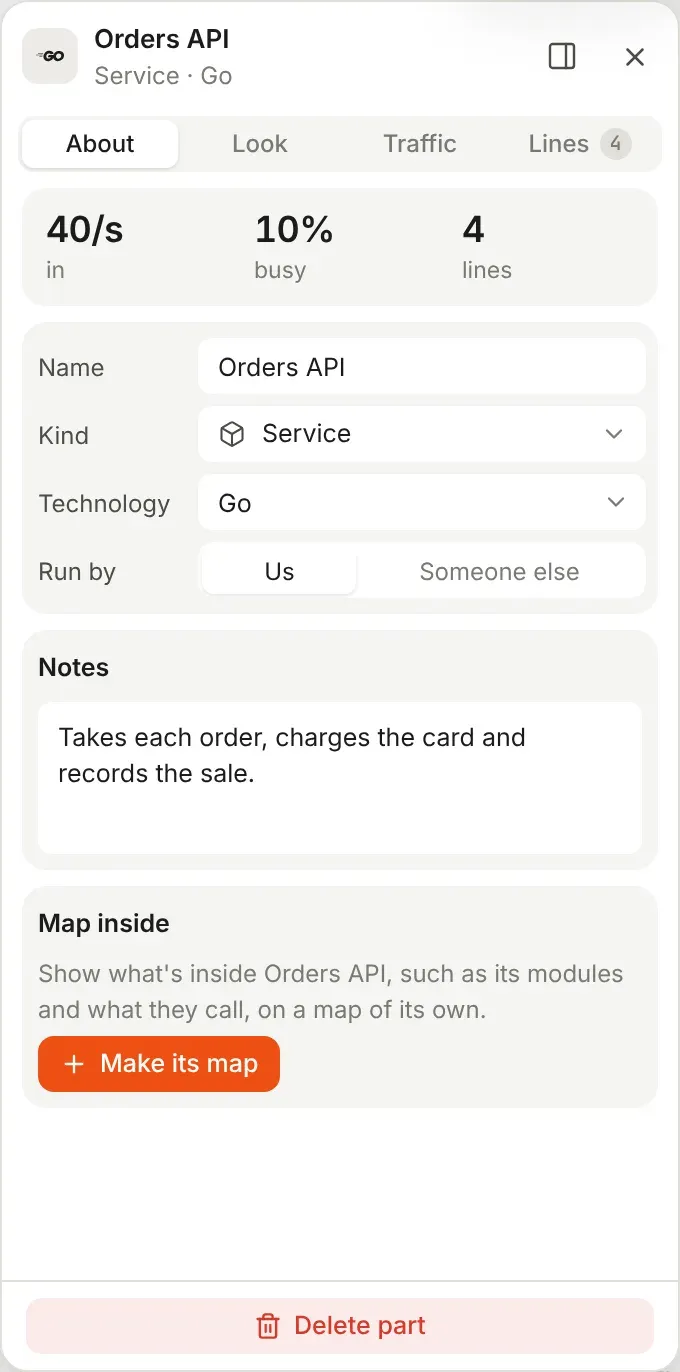
A part’s About tab starts with it at a glance: what comes in each second, how busy it is and how many lines it has, on a normal day or at its busiest in the scenario running. Choose one to open the tab it comes from. Each group of fields sits in its own card.
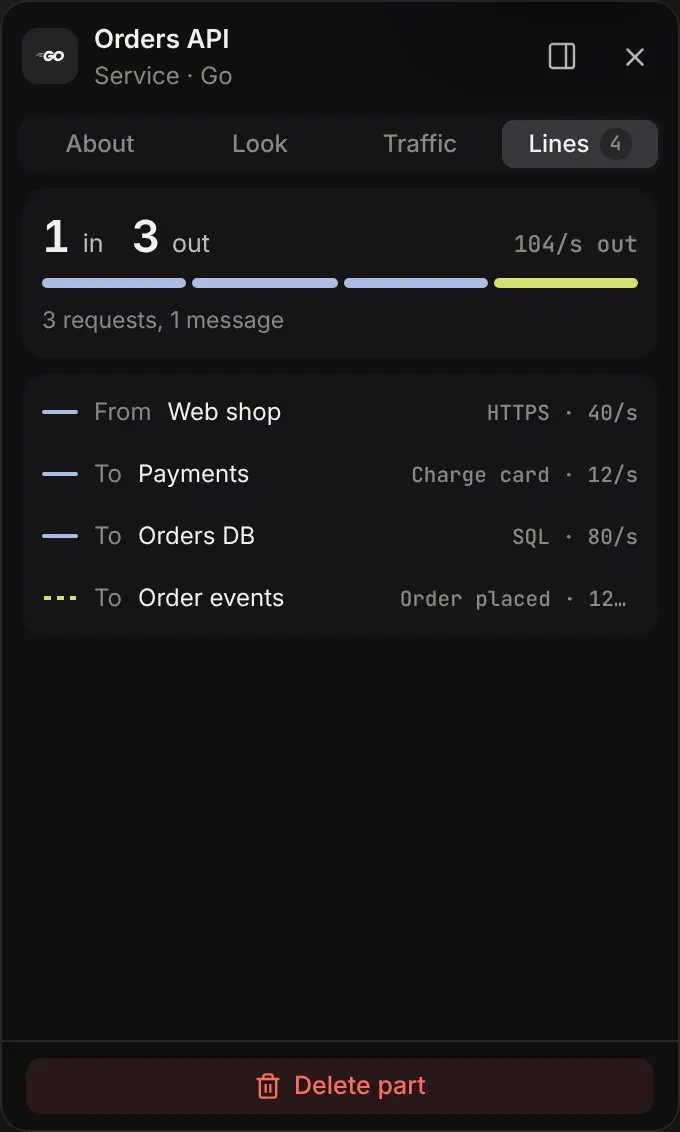
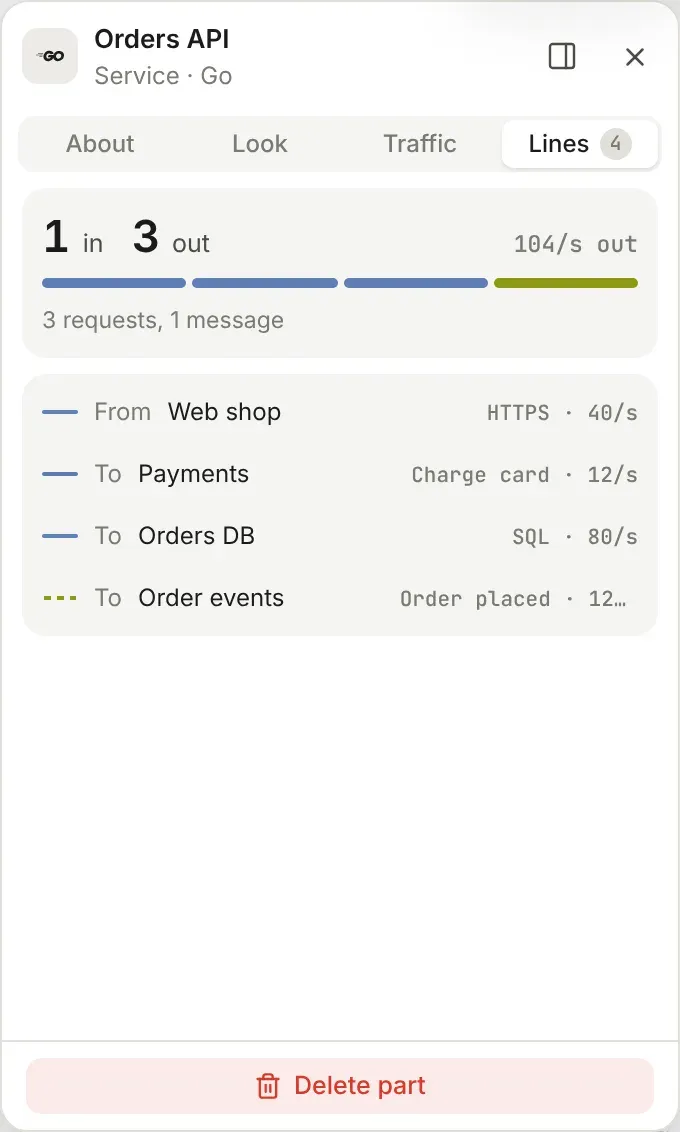
Its Lines tab counts the lines in and out, with a bar coloured by what each carries, then lists them with their label and what they carry each second. Choose one to select it.
Small screens
Section titled “Small screens”On a narrow window the library and inspector start hidden, so the canvas keeps its room. The library hides below 1,200 pixels wide and the inspector below 760. Add parts in the map’s menu, or the box at the top right, brings either back. Below 1,100 pixels only one side panel stays out at a time: showing the inspector folds the panel on the left, and bringing the panel back folds the inspector. On a phone the rail lies along the bottom of the screen, its buttons slide the panel in over the map, and pinching zooms the canvas.