

Your account
As a guest, your maps live in one browser on one computer. Sign in, and they follow you: start a map on your laptop, open it on the office desktop, and share it with your team.
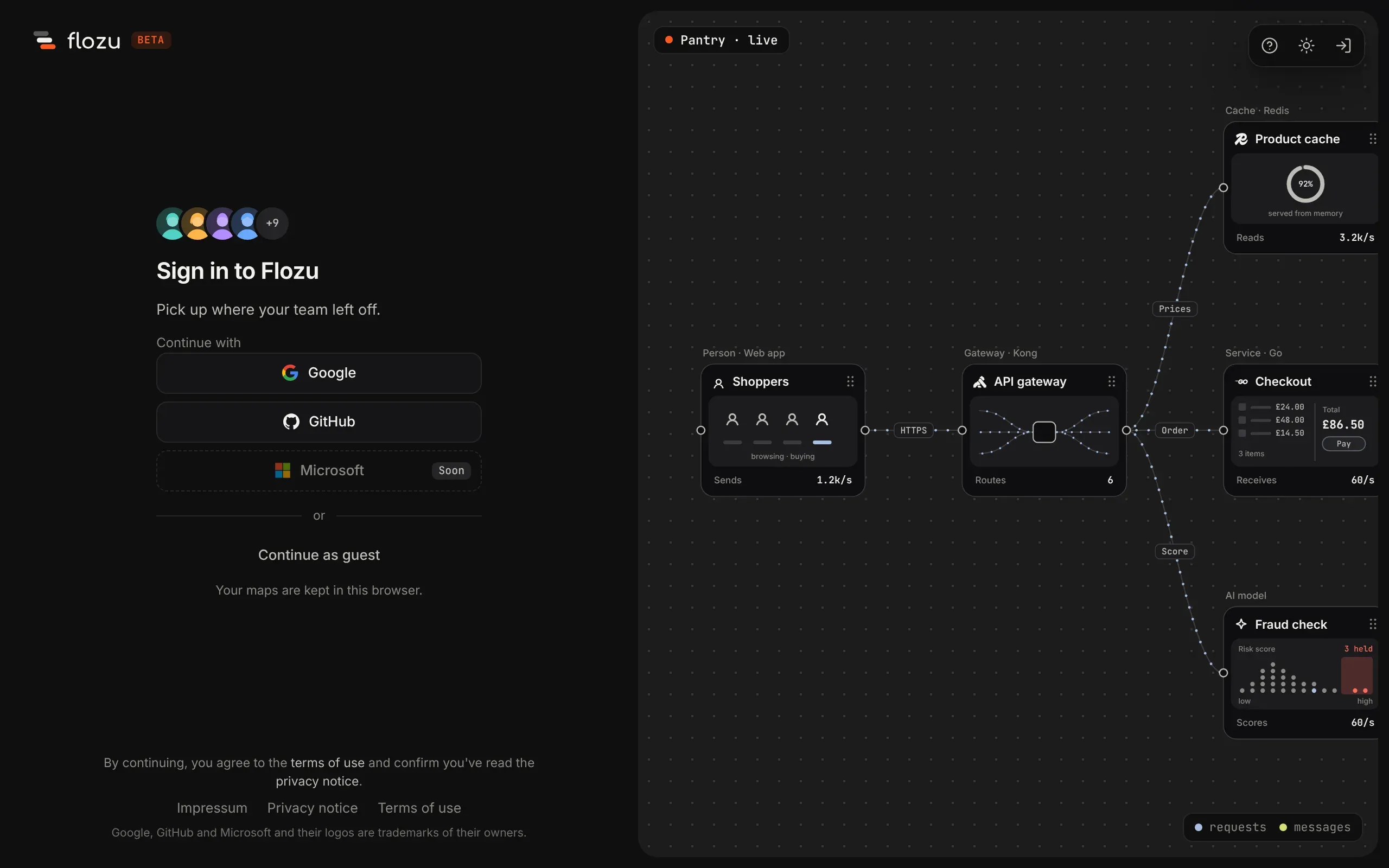
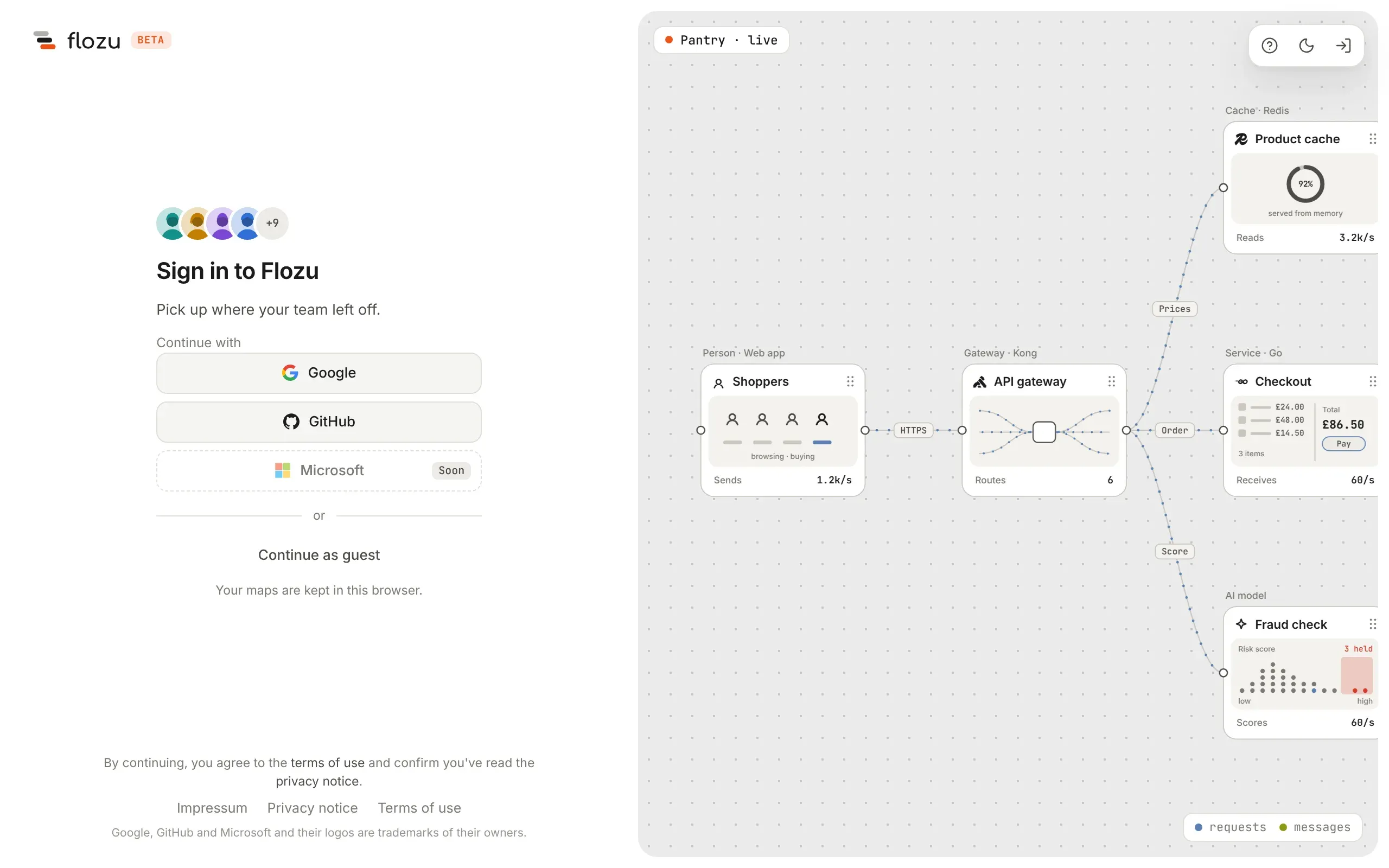
On the web, Flozu opens on its sign-in page. Sign in to keep your maps in your account, where they open on any computer and can be shared with a team. Or choose Continue as guest to keep them in this browser, as files are kept on a computer.
Sign in
Section titled “Sign in”Under Continue with, choose Google or GitHub, and sign in there. The first time, Flozu makes your account with the name, email address and picture they share. Microsoft is shown as coming soon.
Continuing agrees to the terms of use, and says you’ve read the privacy notice. Both are linked from the sign-in page, and from Help in the app.
Your first sign-in
Section titled “Your first sign-in”The first time you sign in, Flozu asks three quick questions before your maps: where you heard about it, what you do, and what you’d like to use it for. Pick a tile to answer. The first two move on as soon as you pick; the last takes as many as you like, then Finish. Skip, at the top right, goes straight to your maps, and you won’t be asked again either way. Your answers are kept with your account, and you can see them in Download my data.
Then, and each time you sign in after that, Flozu’s mark settles into its corner as your maps open. Click anywhere or press any key to skip it.
Continue as a guest
Section titled “Continue as a guest”Continue as guest opens home with nobody signed in. Your maps are saved in this browser only, so use the same browser each time, or export them to move them. Flozu remembers the choice in this browser, and signing in later is always there: Sign in, last at the top right.
A shared map’s link and the legal pages open for anyone, signed in or not, and the Mac app never asks you to sign in, since its maps are files on your Mac.
Workspaces
Section titled “Workspaces”Every map is kept in one workspace. The switcher at the top left lists the ones you can use:
| Workspace | Who sees it | Where you’ll see it |
|---|---|---|
| Your own | Only you | Signed in. It opens first. |
| Each team you’re in | Everyone in the team, each by their role | Signed in |
| This browser | Whoever uses this browser | As a guest, or signed out |
| This Mac | Whoever uses this Mac | In the Mac app, beside your account’s |
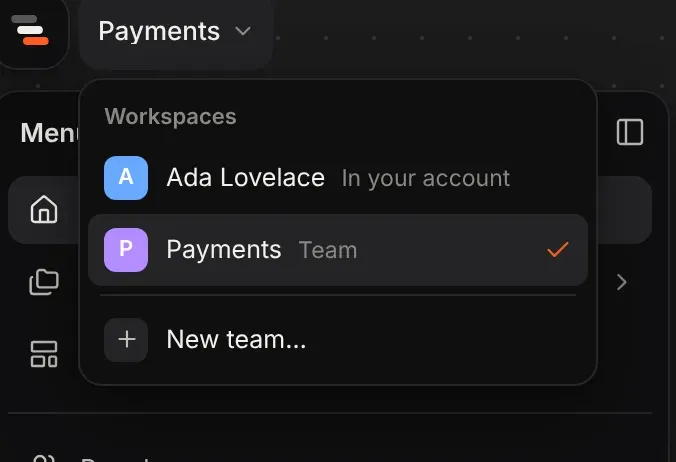
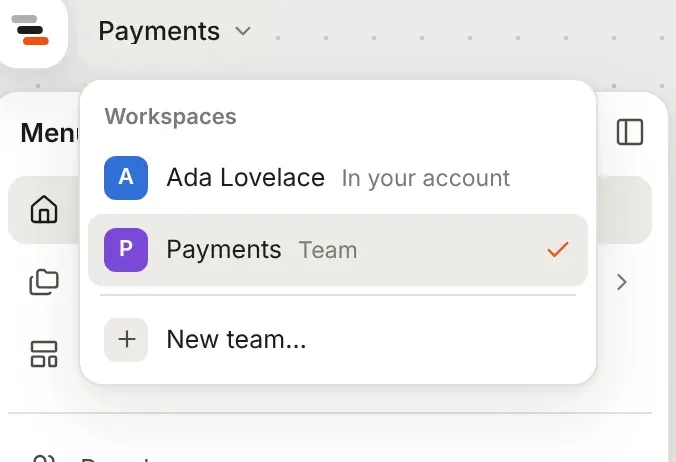
Choosing a workspace goes to its home and closes the maps you had open, since they belong to the other one. Flozu remembers the workspace you chose last on each device.
Maps you made as a guest
Section titled “Maps you made as a guest”Signed in on the web, Flozu shows your account’s maps only. The maps you made in this browser stay there, untouched, and show again if you sign out. Until then, home offers to move them into your own workspace, with their versions and proposals. Nothing moves until you ask. A map that can’t move, such as one whose copy is already in your account, stays in the browser, and home says which.
Saving
Section titled “Saving”A map in your account saves on its own, a moment after you stop editing, and at most every five seconds while you keep going. If you open the same map in two places and change both, nobody’s work is lost: the second save is kept as a proposal on the map. See where maps live for how saving works.
During the beta, an account has fair-use limits that normal use never meets:
| What | Up to |
|---|---|
| One map | 2 MB |
| Your own maps, with their history | 250 MB |
| A team’s maps, with their history | 1 GB |
| Versions and proposals on one map | 250 |
A full workspace still saves the maps already in it. It only stops taking new ones. The Usage page shows how much of each limit a workspace uses.
The beta has room for 5,000 accounts in all. Once it’s full, someone new is told so when they sign in, and everyone who already has an account carries on as before.
Your account menu
Section titled “Your account menu”Your picture, last at the top right after the theme switch, opens your account menu. Signed out, the same place has a button to sign in.
| Item | What it does |
|---|---|
| Usage | Shows how much of the beta’s limits the workspace on show uses. See usage. |
| Download my data | Saves one file with your own maps, their folders, versions and proposals, who you are, your teams and your first sign-in’s answers. Flozu can import it. |
| Privacy and terms | What Flozu keeps about you and why, and the rules for using it. |
| Sign out | Signs you out on this device and goes back to the maps on it, which are never touched. |
| Delete my account… | Deletes your account and your own maps for good, after asking and offering the download first. |
People, last in the panel’s menu, opens the People page for the workspace on show. With the panel folded, it’s at the foot of the rail.
Deleting your account
Section titled “Deleting your account”Deleting takes your own maps, their folders and history, your sign-ins, your places in teams, the invites you sent and the assistants you allowed. Maps and versions you made in a team stay with the team. A team always keeps an owner, so if you’re a team’s only owner, Flozu asks you to make someone else an owner first. Maps on your devices aren’t touched.