

Maps inside parts
A part on a big map often hides a whole system of its own. Payments on a shop’s map is a service with its own endpoints, modules and databases, and a module there might hide a map of its code. Any part can open into a map that shows what’s inside it, so a set of maps reads as one picture you can zoom through: the whole platform for a manager, one service for its team, the code for a new starter.
Try it
Section titled “Try it”-
Open Templates from home, and use the Pantry delivery platform showcase.
-
Find the Checkout part. Pages are stacked behind its card, and a badge at its lower right names the map inside. Click the badge.
-
The camera flies into the card, and Checkout’s own map opens: its endpoints, modules and databases. The trail at the top centre reads Pantry delivery platform › Checkout.
-
Press ⌘↑, or select Pantry delivery platform in the trail, to come back out.
Now run Black Friday on Pantry and go into Checkout again. The scenario comes with you, so you can see which module inside struggles when the whole platform is busy.
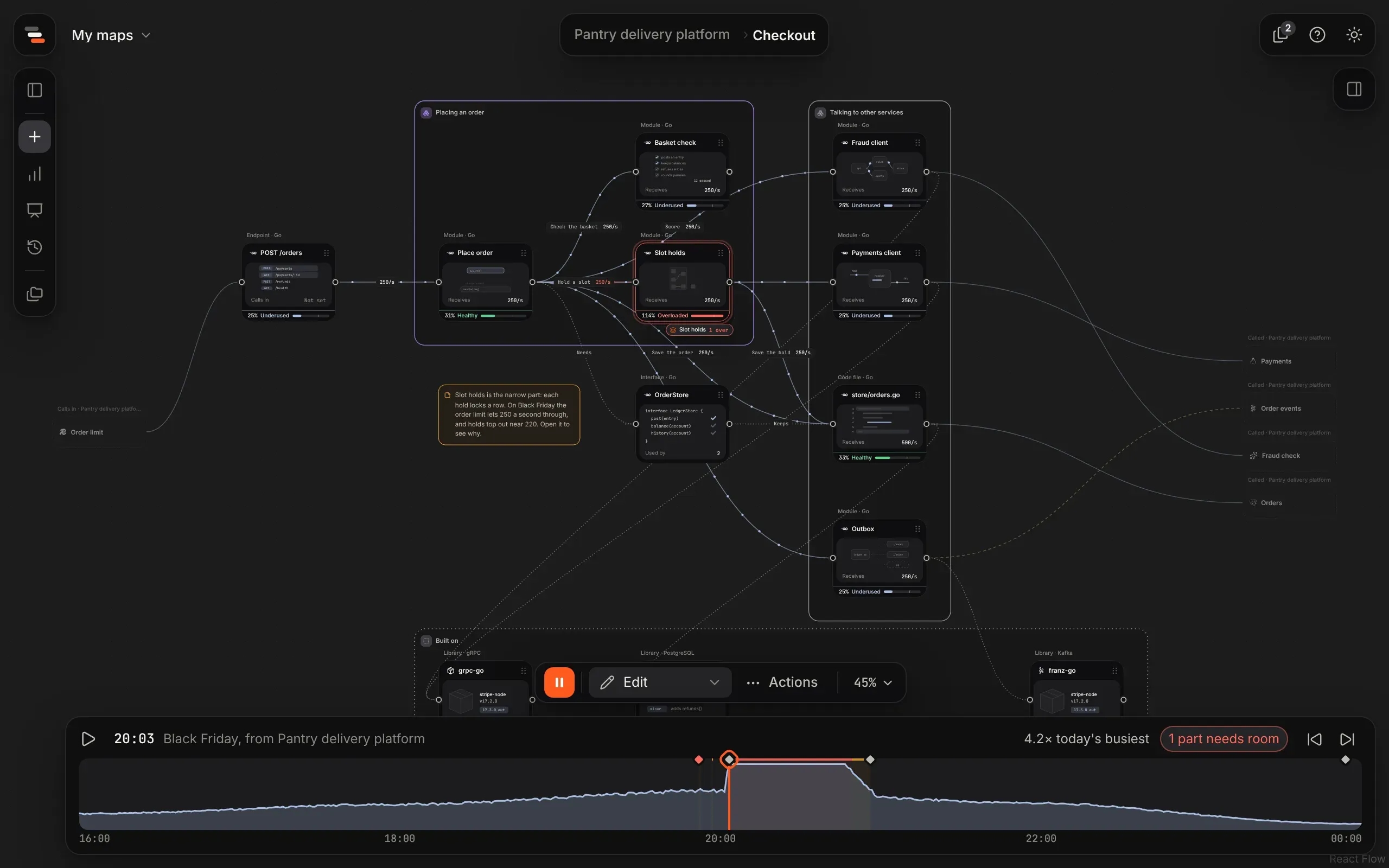
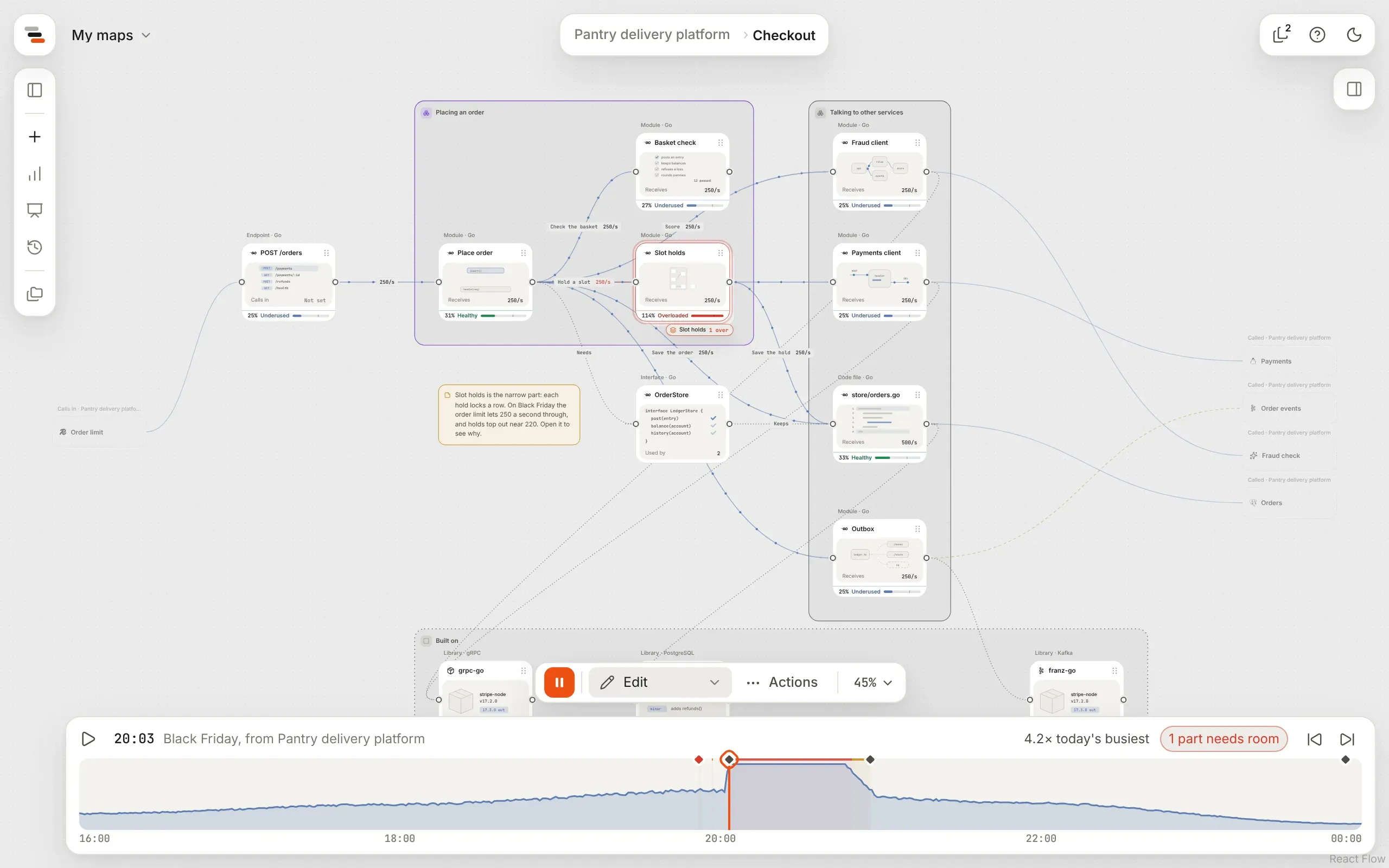
The map inside is an ordinary map. You can open, present, share and export it on its own, and several parts can open the same one, such as one sign-in service used by every team.
Go in and out
Section titled “Go in and out”To go in, do any of these:
- Click the badge.
- Select the part and press ⌘↓ (Ctrl+↓ on Windows and Linux).
- Select Open inside in the Map inside section.
The camera flies into the card, and the map inside grows into place and joins your open maps beside this one. Going back out, the map above settles back where you left it. With reduced motion, it simply opens.
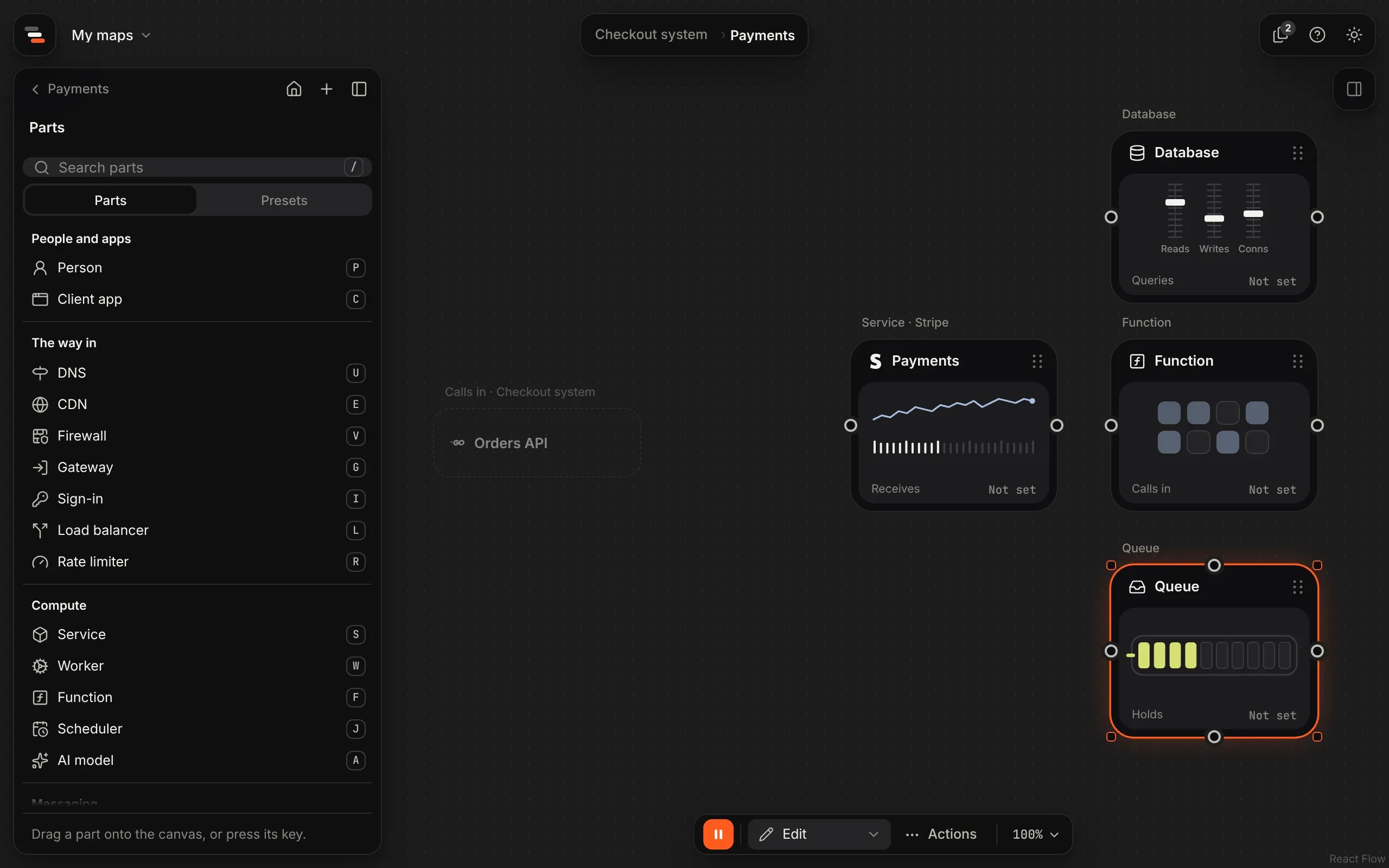
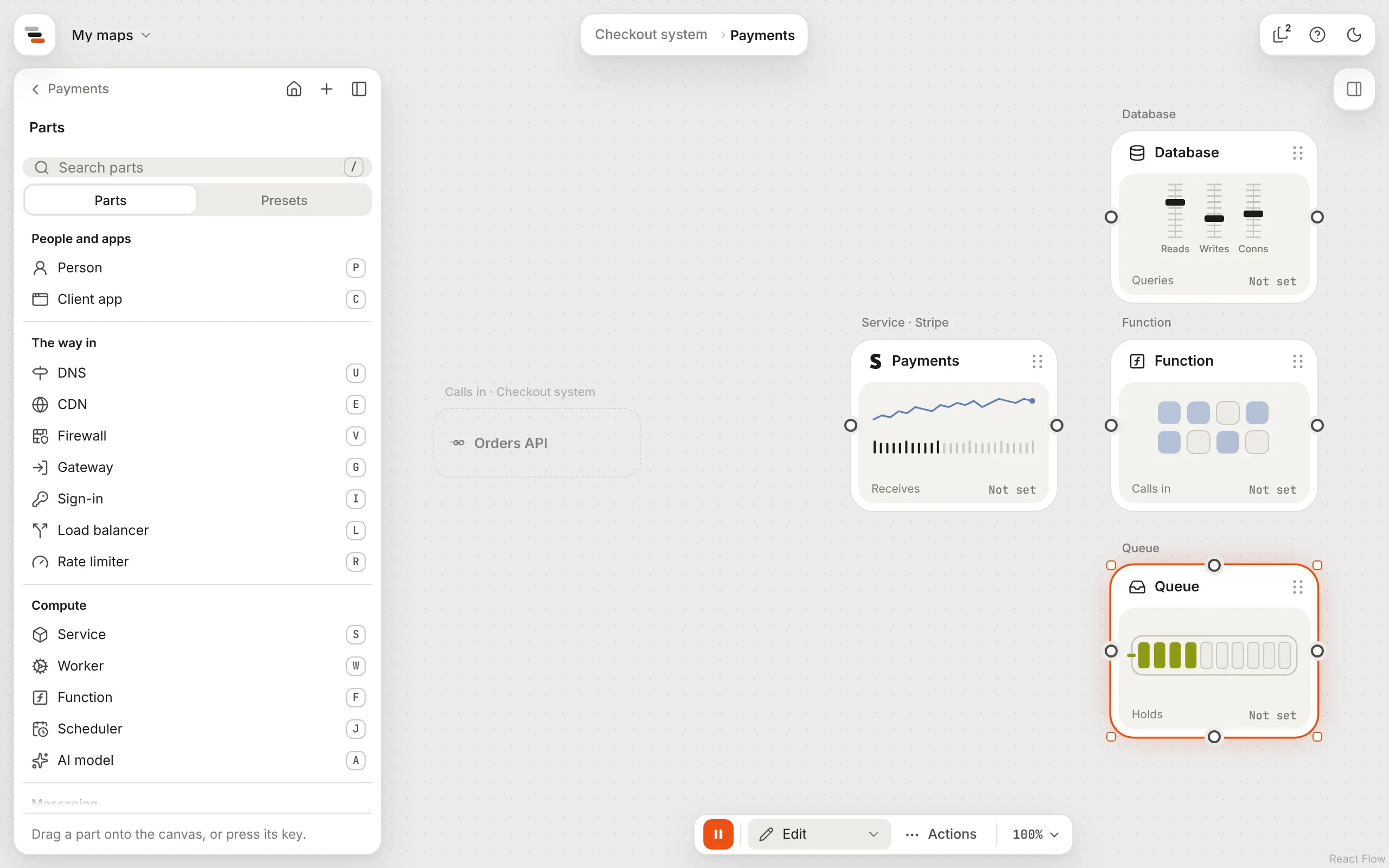
The maps above show as a trail before the map’s name at the canvas’s top left, such as Checkout system › Payments. Select one, or press ⌘↑, to go back out, with the part you came from selected. A map that several parts open goes back out the way you came in.
Presenting works the same way, so you can walk an audience from the big picture into one service and back.
How the card shows it
Section titled “How the card shows it”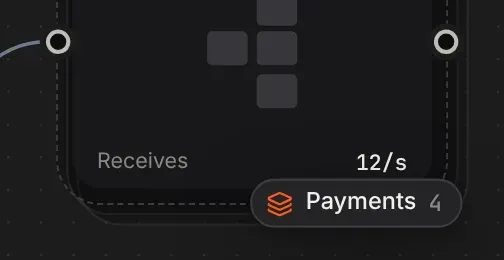
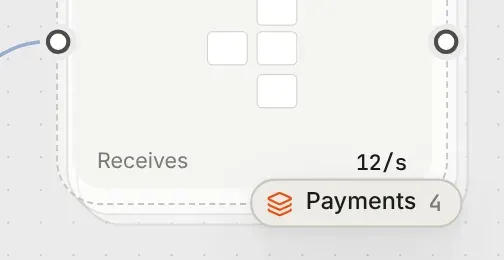
A part that opens into a map has pages stacked behind its card and a badge at its lower right, with the map’s name and how many parts it holds. Unless you picked a drawing for the part, its panel shows a small drawing of the map inside.
If the map isn’t here, such as one that was deleted or didn’t come with the file or link, the badge says Map not here. Make its map or Link a map gives the part a new one.
Give a part a map
Section titled “Give a part a map”Select the part and open its About tab. The Map inside section offers two ways:
- Make its map saves a new map in the same folder, named after the part and holding one part like it, links the part to it, and opens it. It’s one step to undo.
- Link a map picks one of your saved maps, for a service you’ve already mapped.
Once a part has a map, the section shows a small preview of it with Open inside, Unlink and Link another map. Unlink only drops the link: the map stays where it is.
Scenarios carry through
Section titled “Scenarios carry through”While a scenario runs, it plays inside the maps your parts open into too, on the same timeline. Each way into the map inside gets as much busier as the lines that reach it on the map above, so Black Friday on the shop is Black Friday inside the payment service.
- The badge says how the inside copes. It reads Tight in amber, or 2 over in red when parts inside can’t keep up, at the moment the playhead is on.
- Going in takes the scenario with you. Open the part’s map while a scenario runs and the same scenario plays there, at the same moment. The timeline names where it came from, such as Black Friday, from Checkout system. Opening the scenario panel there gives that map a scenario of its own instead.
Where it sits stays in view
Section titled “Where it sits stays in view”The part’s neighbours on the map above are drawn faded at the edges of the map inside: what calls in on the left, and what it calls on the right, with their lines. They aren’t part of this map, so they can’t be selected or moved, and clicking one takes you to it.
Each of those lines joins one part inside. Flozu works it out: a line in joins the map’s only way in, a part nothing flows into, and a line out leaves from its only way out. To choose for yourself, select the line on the map above and set Lands on or Leaves from in its About tab.
Parts for inside a service
Section titled “Parts for inside a service”The library’s Inside a service family has parts for what a service is made of: endpoints, modules, code files, interfaces, libraries and tables. A dotted uses line says one depends on another, such as a module using a library, and carries no traffic. See lines. The Inside a payment service template shows one put together.
In the Projects panel
Section titled “In the Projects panel”On a map’s own menu, Maps inside shows them in the panel. In the Projects panel, select the arrow beside a map to see the maps its parts open into, under Maps inside, with a layers mark. In their folder they’re listed there, under the map that opens them, rather than beside it; a map kept in another folder is listed in that folder too. Moving or renaming either map never breaks the link, because a part names its map by id, not by name or place.
A project’s page shows How the maps fit: each map that opens others, with the parts that open them and the maps inside, as links.