

Your maps, projects and folders
Your first map is easy to find. By your twentieth, you’ll want them sorted: the payments team’s maps in one place, each service’s map inside its system’s. Flozu sorts maps into projects, and projects into folders, and keeps the ones you’re working on open side by side.
Try it
Section titled “Try it”-
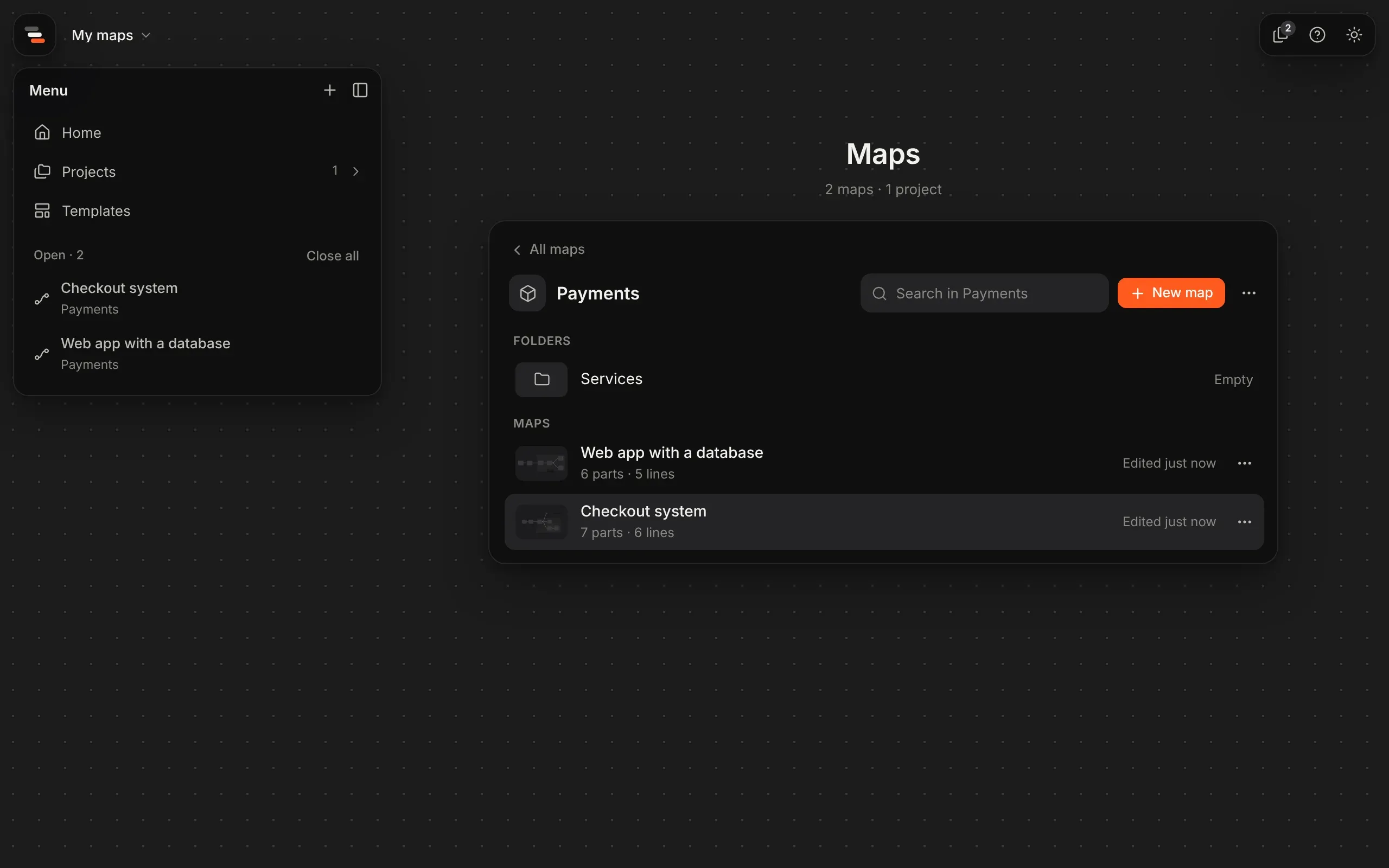
On home, select All maps and projects under the box. The Maps page opens.
-
Select + at the top of the panel on the left, choose New project and call it “Payments”. Its page opens.
-
Select New map. The map is made inside the project, and opens in the editor.
-
Go back to the Maps page with All maps and drag another map onto Payments. It moves in.
Flozu opens on home: one box in the middle of the canvas, there to type into.
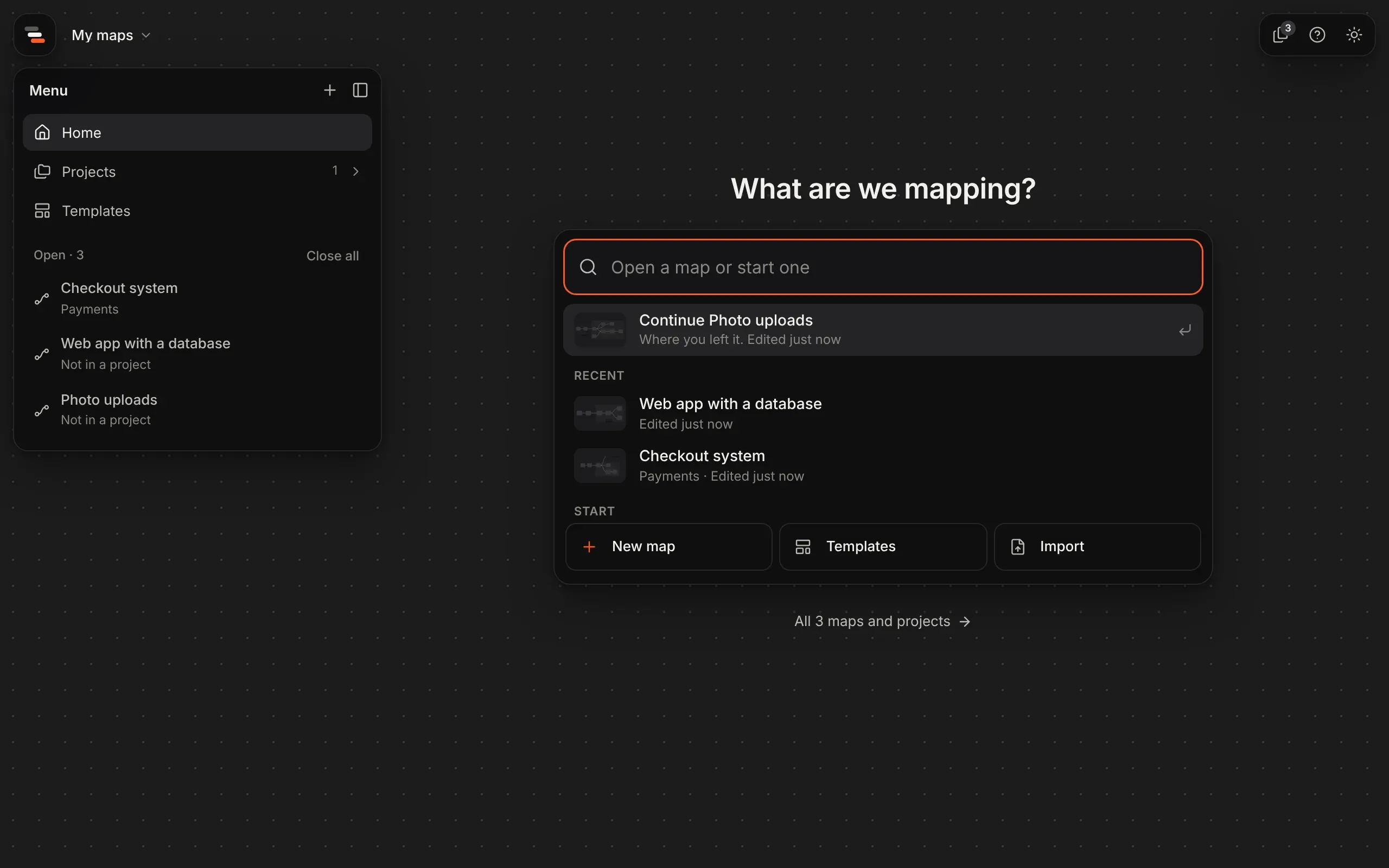
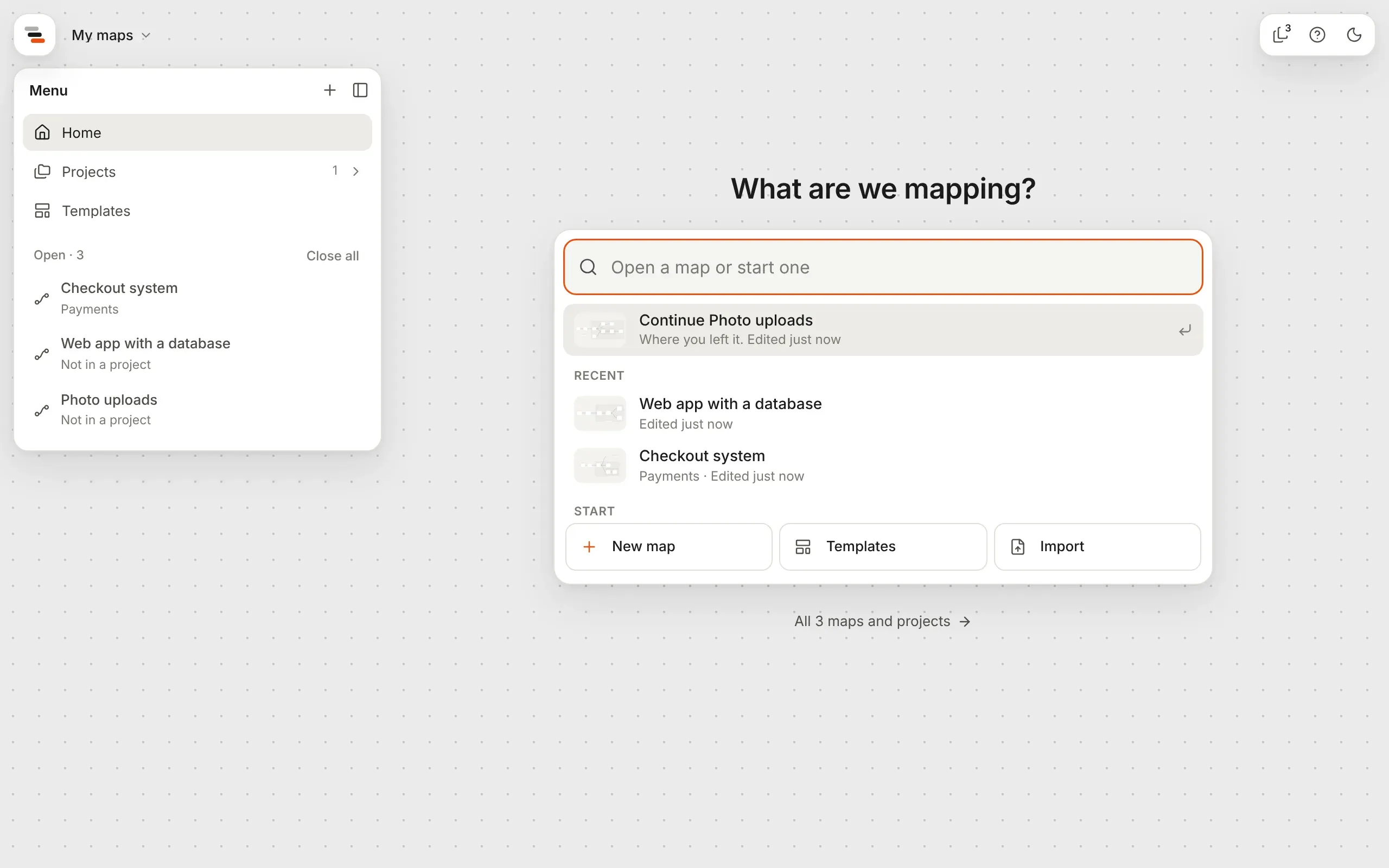
- The first row carries on with the map you last edited. Recent lists the four before it.
- Type to find a map by name. Use ↑ and ↓ to pick one and Enter to open it; Esc clears what you typed.
- New map opens a blank map in the editor. Templates starts from an example system instead; see templates. Import brings in a map or project file; see import and export. You can also drop files anywhere on home.
- With no recent maps, such as when you first sign in, home also offers three showcase maps: whole systems with scenarios, stories and a history to explore.
- In more than one workspace, such as your own and a team’s, they show as tabs over the box.
- All maps and projects, under the box, opens the Maps page.
The Maps page
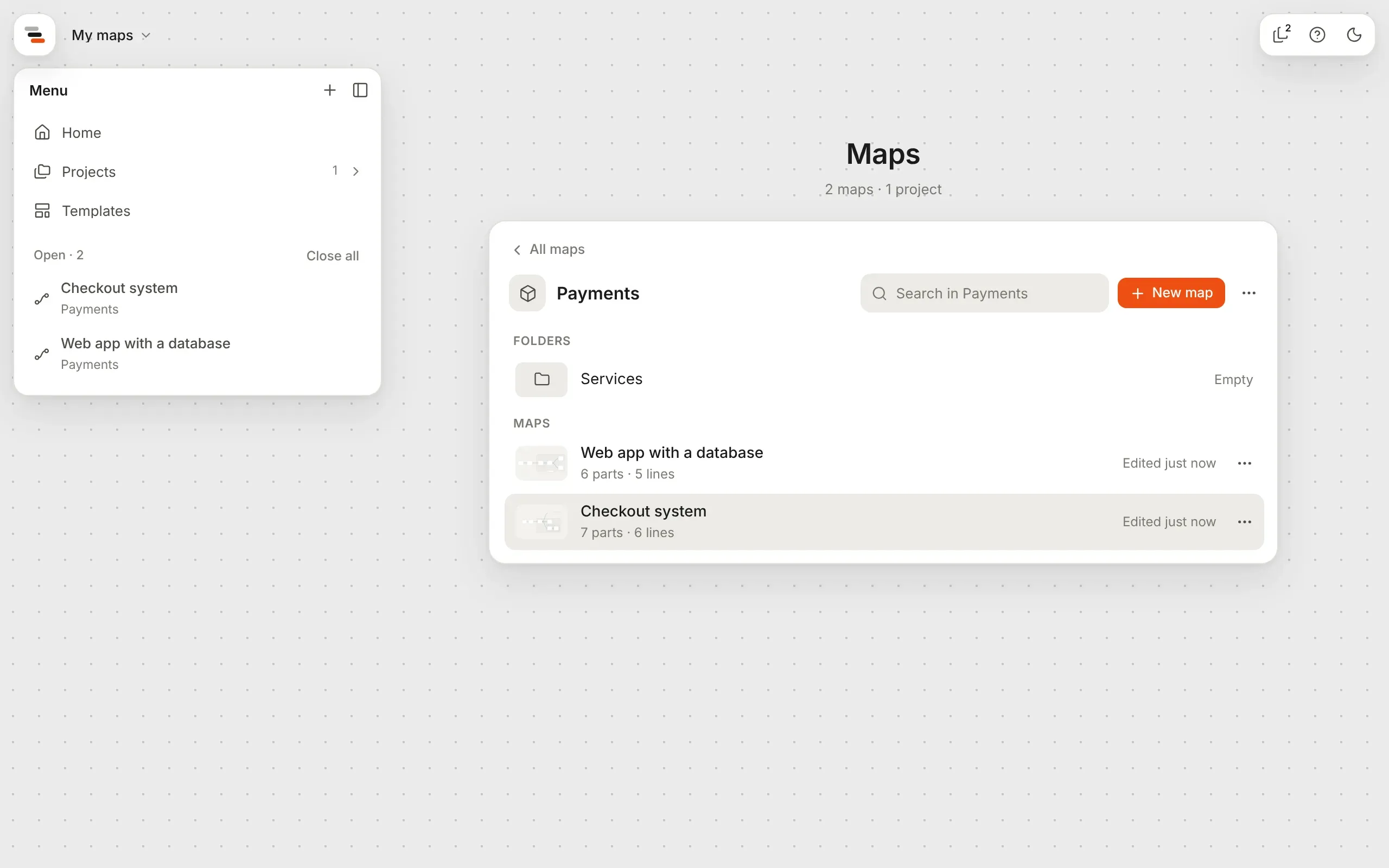
Section titled “The Maps page”The Maps page shows every map and project in one panel, one level at a time. Select a project or folder to see what’s in it, and the way back at its top to go up again. Projects, in the panel on the left, moves through the same levels.
- All maps lists your projects, then every map you’ve made, with a small drawing of it, its name, where it’s kept, what it holds and when you last edited it, most recent first.
- Search maps narrows the list by name. On a project, it looks through everything inside it.
- New map makes a map where you are. The ⋯ beside it makes a project or folder, imports, exports, and renames, moves or deletes the project or folder on show.
A map’s menu
Section titled “A map’s menu”Each map has a ⋯ menu:
| Item | What it does |
|---|---|
| Rename | Changes the map’s name. |
| Duplicate | Makes a copy beside it, such as “Checkout system copy”, with its open proposals, so its stories still compare them. |
| Move to… | Puts the map in a project or folder, or in a team. |
| Export… | Saves the map as a file, with or without its history. See import and export. |
| Delete | Deletes the map and its versions. Flozu asks first, and offers to export a copy. |
With a map open, Map settings… in the Actions menu renames or deletes it too.
Projects and folders
Section titled “Projects and folders”A project is simply a folder at the top. A map doesn’t have to be in one.
- New project, with the + beside Projects on the Maps page or at the top of the Maps panel, makes a project and opens it.
- New folder, in the ⋯ menu of a project or folder, makes a folder inside it.
- New map and Import on a project put the map straight in that project.
A project on the Maps page works like a space in a wiki: its folders, its maps, and a search that looks through everything inside it.
How the maps fit
Section titled “How the maps fit”When a project’s maps open into each other through maps inside parts, the Maps page shows How the maps fit: each top map, the parts in it that open maps, and the maps they open, a few levels down. Select any map to open it.
Move maps and folders
Section titled “Move maps and folders”- Choose Move to… from a map’s or folder’s menu, and pick where it goes.
- Or drag a map on the Maps page, or its row in the Projects panel, onto a project or folder, or onto the way back at the top of a level to move it up one.
- Drop a folder on the Projects heading on the Maps page to turn it into a project.
Moving or renaming a folder takes everything in it along. Deleting one asks first and deletes everything inside it. In the Mac app it goes to the Trash.
The Projects panel
Section titled “The Projects panel”Projects, in the menu down the left, or Maps inside on a map’s own menu, shows one level at a time, so it stays short however many maps you have.
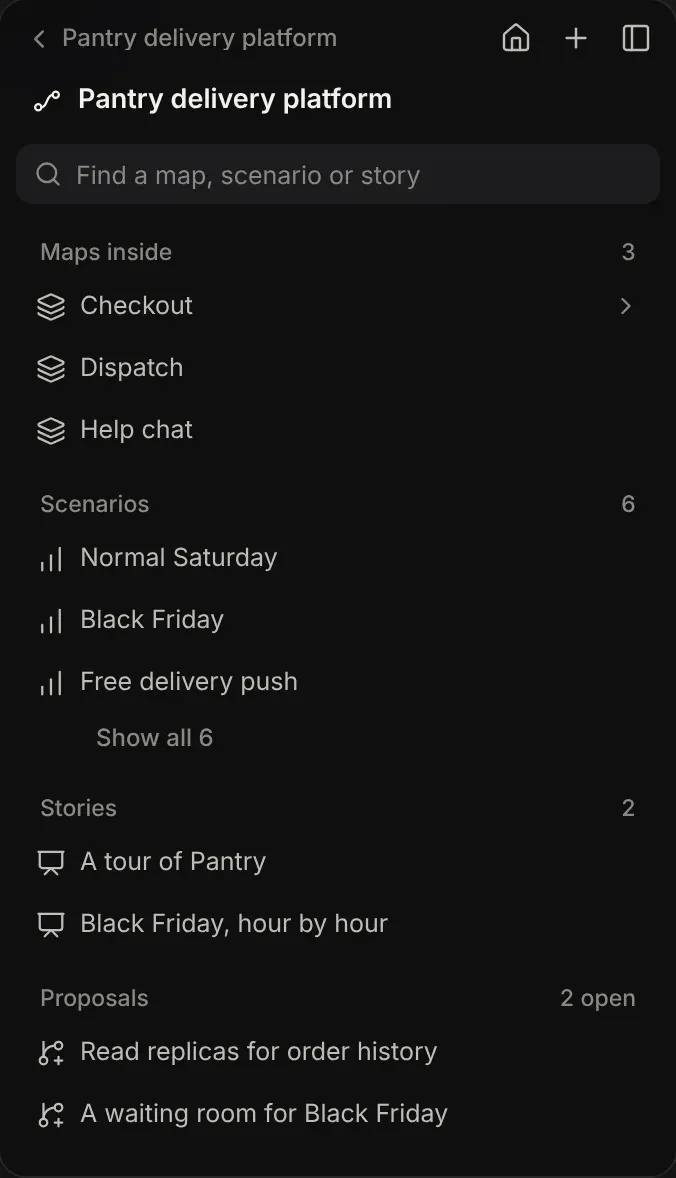
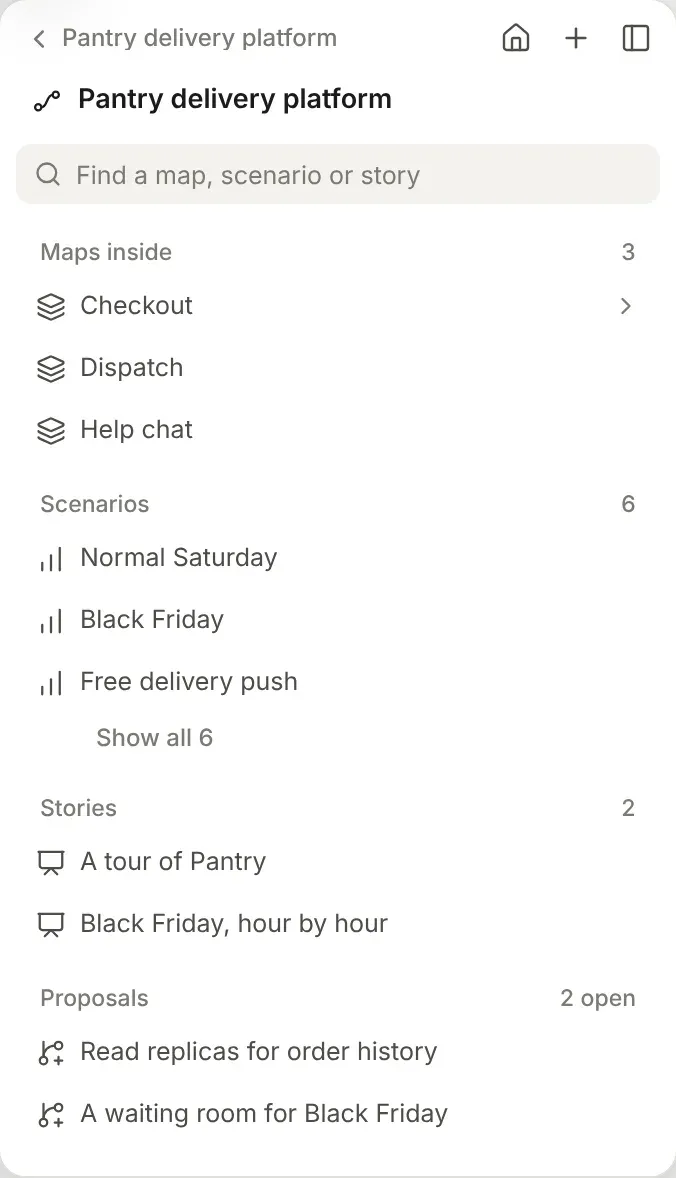
- The top lists your projects, each saying how much it holds, then the maps that aren’t in a project.
- Select a name to open that project on the Maps page, or that map. Select the arrow at the end of its row to show what’s in it, in the panel’s place.
- A project or folder lists its folders, then its maps. A map that a part opens into is listed one level down, under the map that opens it.
- A map lists the maps inside its parts, its saved scenarios, its stories and its open proposals, each with a count. Pick a scenario to open the map with it running, a story to present it, or a proposal to open it.
- The way back, at the top of a level, or Esc, goes up one level. The panel stays where you left it until you go back.
Find a map, scenario or story searches every level at once, and says where each thing it finds is.
Recent maps
Section titled “Recent maps”Recent, in the menu down the left, lists the five maps you changed last that aren’t open already, newest first. Select one to open it.
Open maps
Section titled “Open maps”The maps you open are listed under Open in the menu down the left, in place of tabs, so you can jump between the checkout and the payment service it calls without going back home. The page with a number, at the top right, lists them too, from wherever you are.
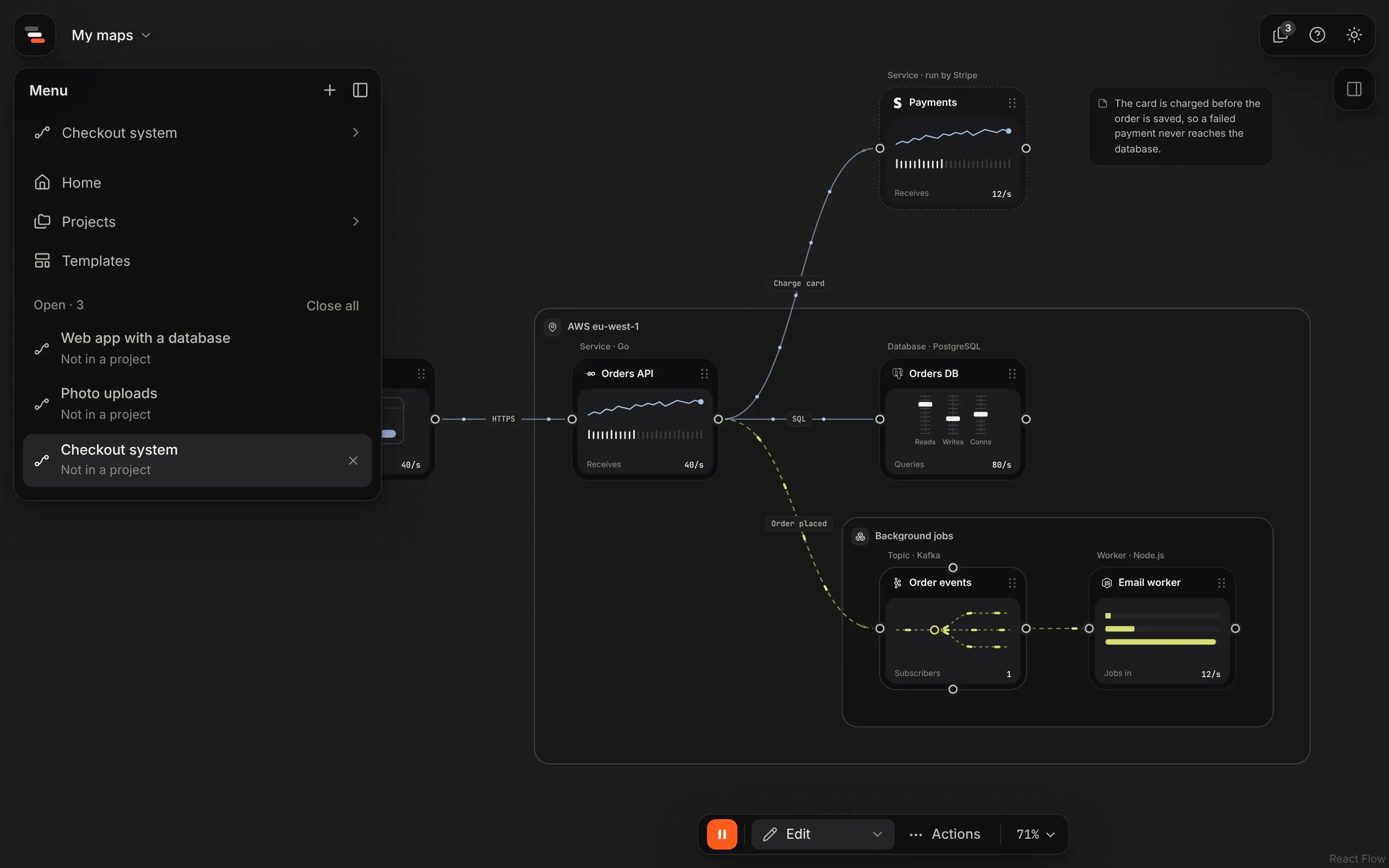
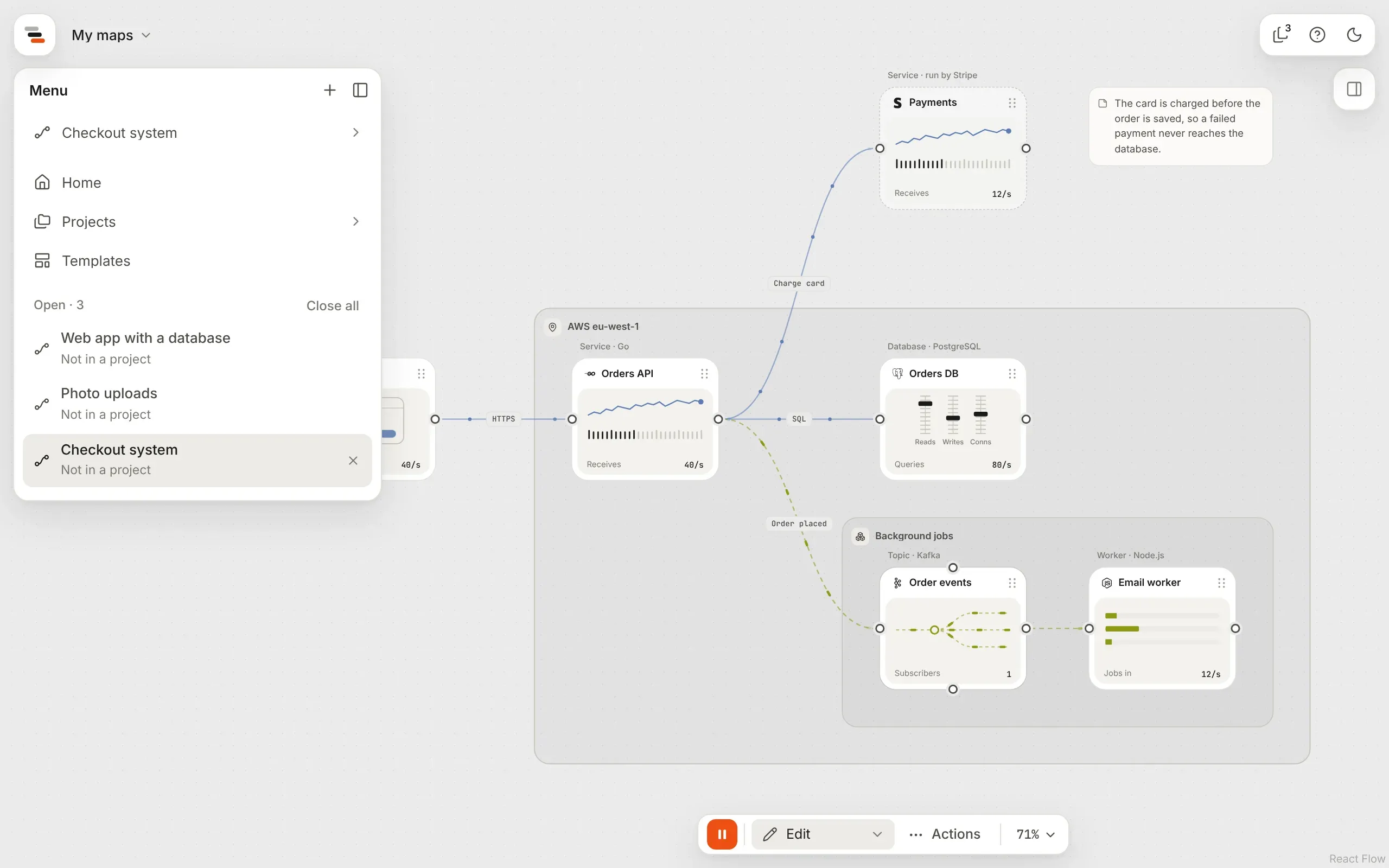
- Opening a map adds it beside the one you’re on.
- Select the page at the top right to see the same list over whatever’s on show, and pick a map to go to it.
- Close a map with its ×, or with a middle click. The one beside it takes its place, or Home when it was the last. Close all closes every one.
- Drag them in the menu to put them in a different order.
- They come back when you open Flozu again.
Each open map keeps its undo history while Flozu is open, as long as nothing else has changed the map since. In the Mac app, ⌘W closes the map on show and ⌃Tab and ⌃⇧Tab move between your open maps.
Saving
Section titled “Saving”There’s no save button. Every change saves itself a moment later, and straight away when you switch to another map or close the window.
- If a save fails, such as when you lose your connection, a notice says your latest change isn’t saved yet, and Flozu keeps trying until it is, then says so. Closing the tab while a change is still waiting asks first.
- If someone else saves the map while you’re editing it, in another tab, on another device or in your team, Flozu never saves over their work. The map shows their copy, and your changes are kept as a proposal called “Your changes from” and the time, to compare and adopt.
- If something breaks, Flozu shows a page that lets you download the map you had open before you reload, so your latest changes are never lost.
See where maps live for how and where they’re kept.
Good to know
Section titled “Good to know”- Folders nest up to six levels deep. A folder’s name can be up to 80 characters. It can’t
contain
/,\or:, can’t start with a dot, and has to be different from the other folders beside it, whatever the capitals. - Moving a map never changes the map itself. Where a map is kept belongs to Flozu’s storage, not to the map file, so an exported map doesn’t say which folder it came from. To take the folders along, export the whole project or folder as a bundle.
- Every map and project has its own address, such as
#/maps/<id>or#/projects/Payments/Services, so the browser’s back button works and you can bookmark one. - Opening a map starts a fresh undo history, unless it’s still in your open maps.
- Presenting, proposals, comparing and shared maps fill the whole window, without the panel.