
Lines
A line says one part talks to another. What matters most is whether the sender waits for an answer. A phone call waits: if nobody picks up, you know straight away. A letter doesn’t: you post it and get on with your day. Flozu’s lines work the same way, and that decides who notices when something breaks.
There are three kinds:
| Kind | Looks like | What it is |
|---|---|---|
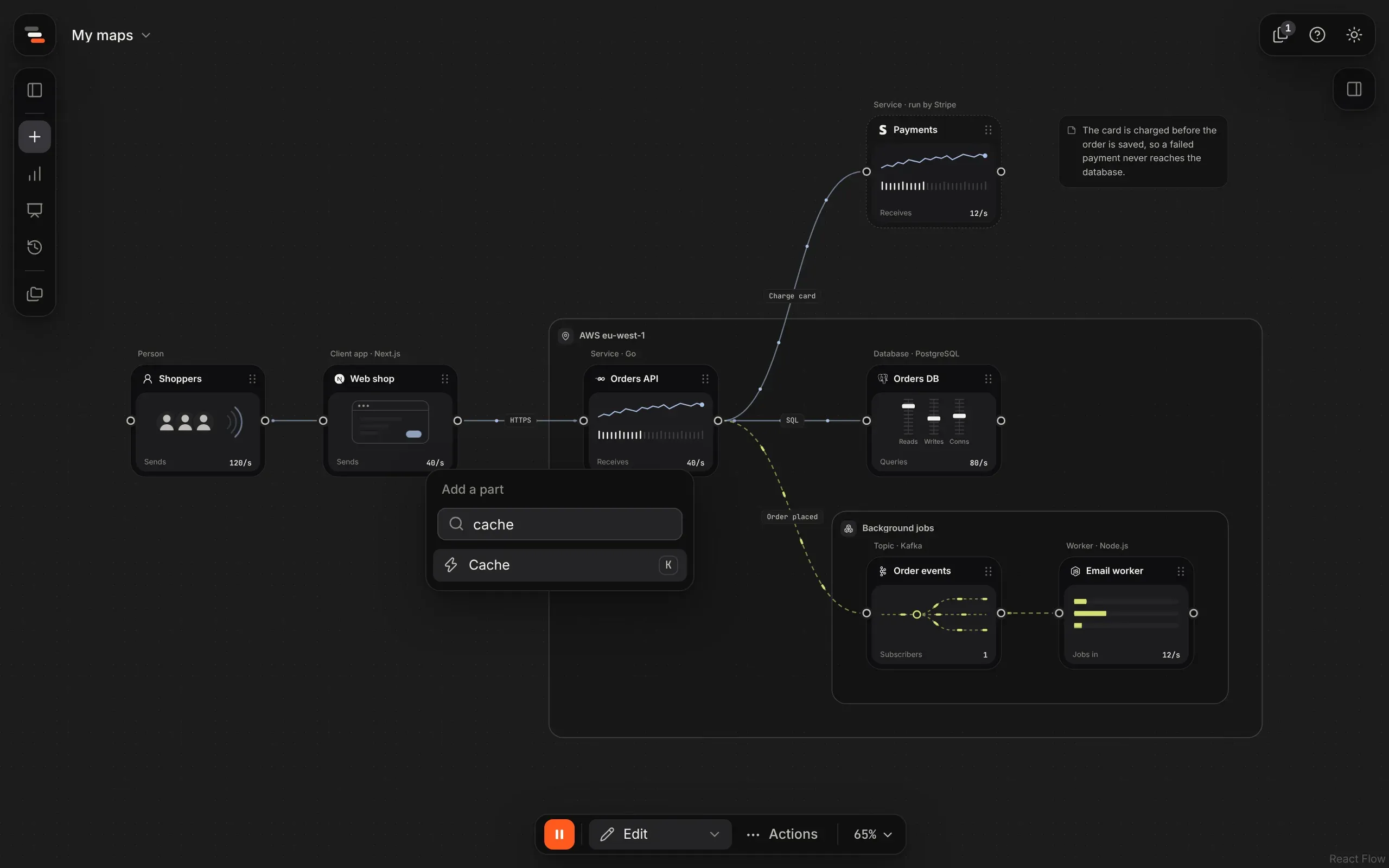
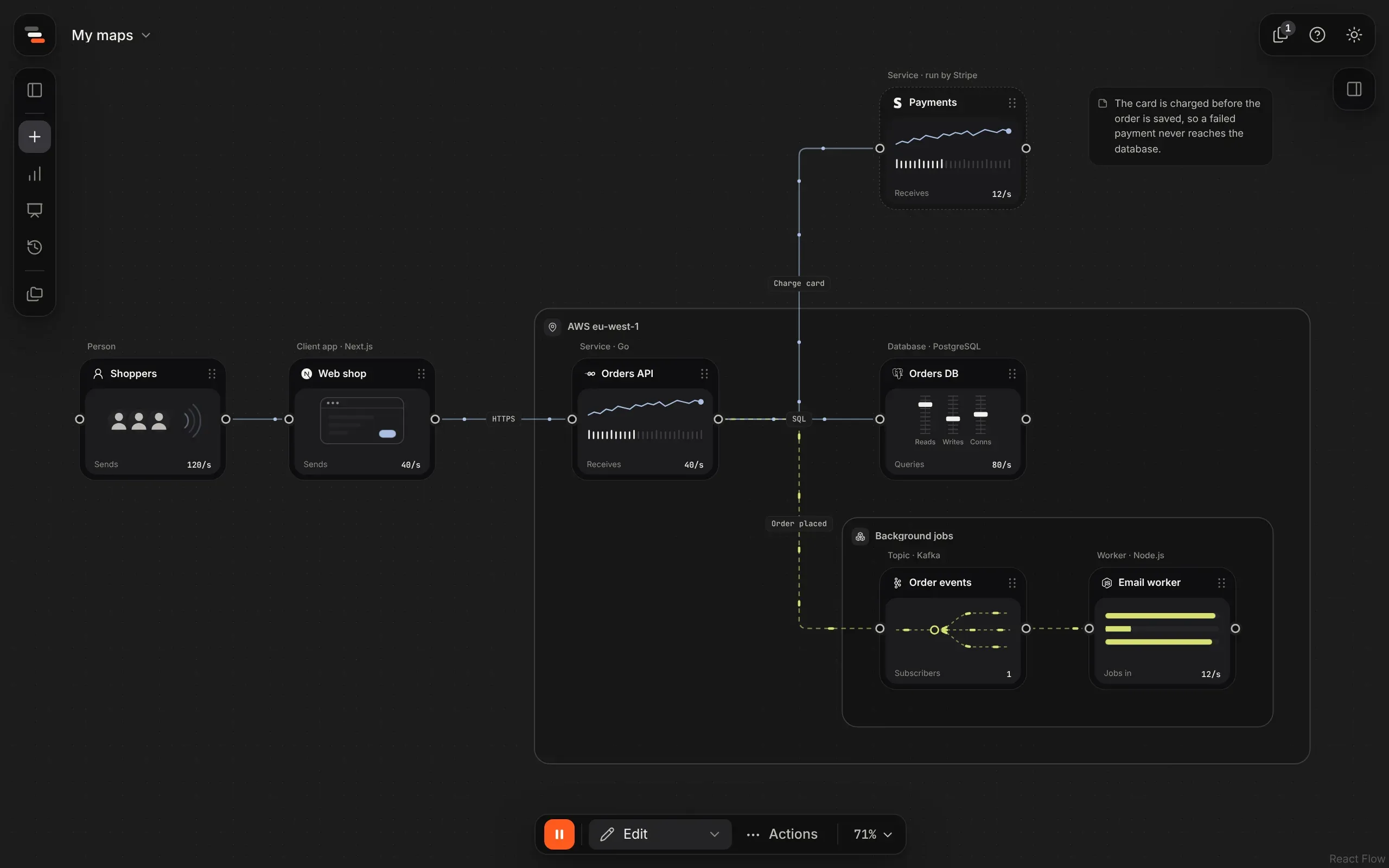
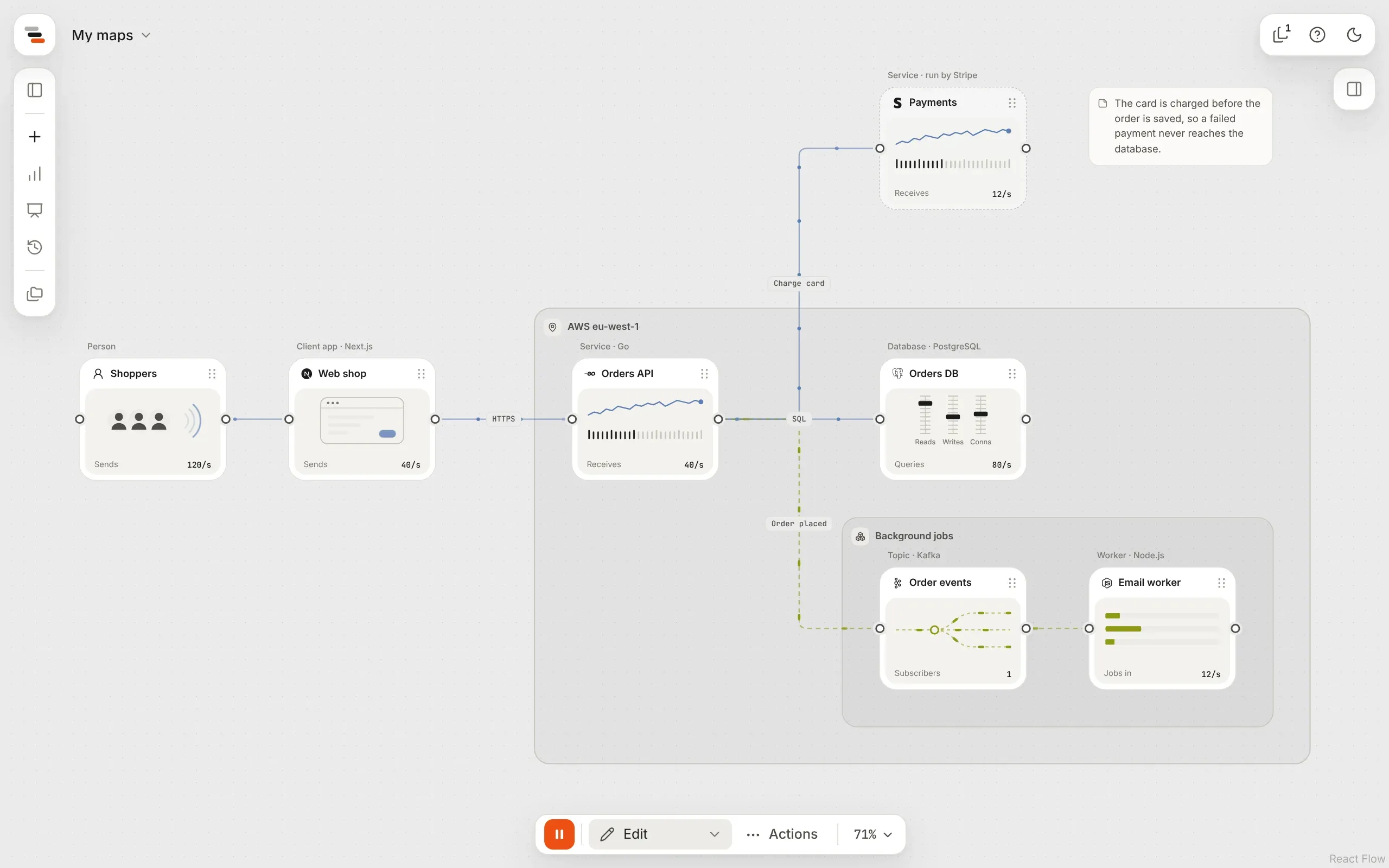
| Request | A solid pale blue line | Something that asks and waits for an answer, like an HTTP call or a database query. |
| Message | A dashed lime line | Something sent and left, like an event or a job. |
| Uses | A quiet dotted grey line | One part depends on another, like code importing a library or keeping an interface. It carries no traffic, so scenarios skip it. |
Draw a line
Section titled “Draw a line”Drag from a port on a part’s edge to another part. Every part has a port on each side: left and right always show, and top and bottom show when your pointer is on the part. As you get close to a port, the line snaps to it inside a soft orange ring, so you never have to hit the small target. Letting go on a card connects to it too, and a line from the top or bottom then arrives at the side facing it. Letting go on the part you started from cancels.
Flozu picks the kind for you: a line into a library or an interface starts as uses, a line into or out of a queue or a topic starts as a message, and so does a line out of a scheduler, since it starts a job and doesn’t wait for it. Every other line starts as a request. A uses line has no direction, protocol or Traffic tab. You can change it in the line’s About tab.
Keep going
Section titled “Keep going”Let go of a line on empty canvas and Flozu asks what comes next. It suggests the parts that usually follow, best first, and adds the one you pick already connected. It’s the quickest way to draw a path from one end of a system to the other.
Put a part on a line
Section titled “Put a part on a line”Hover a line and select the plus in its middle. Pick a part, and the line splits in two around it. Both halves keep the line’s settings. If there’s no room, everything from the line’s end rightwards moves along to make some, all in one step to undo.
Line settings
Section titled “Line settings”Select a line to edit it in the inspector.
- About: what it carries (request or message), its direction (forward, or both ways), a label such as “Charge card”, and a protocol such as HTTPS, gRPC or SQL.
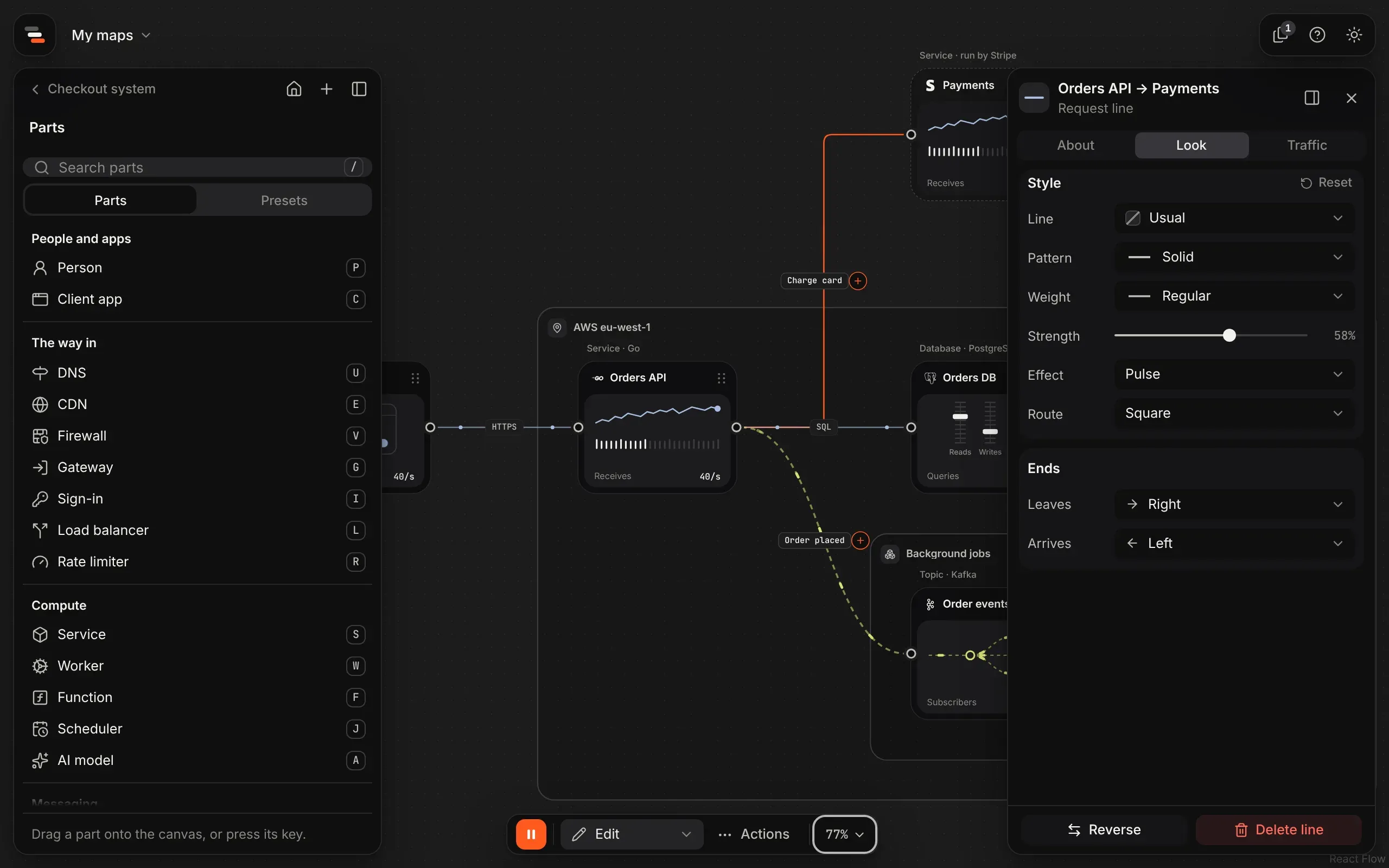
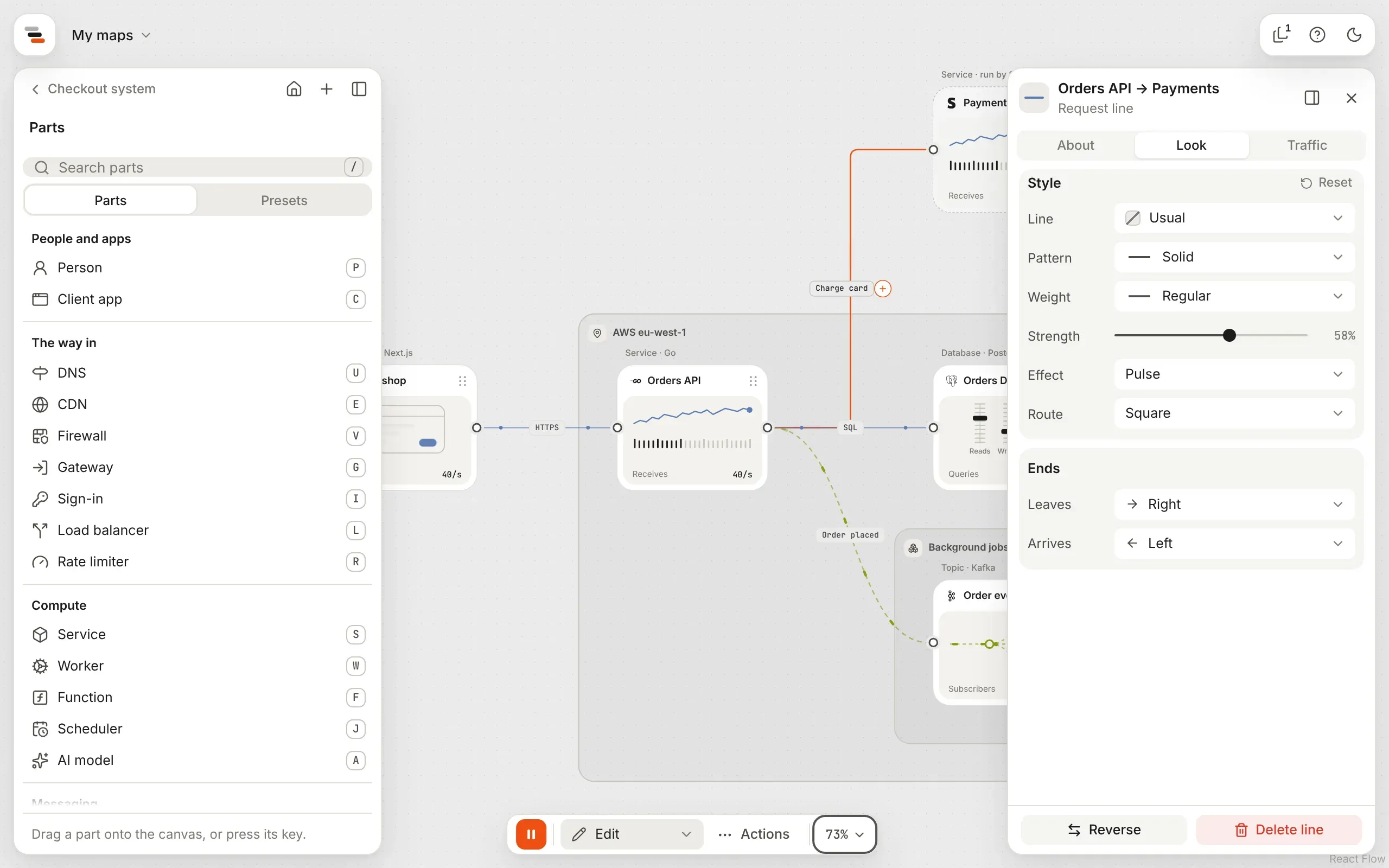
- Look: its colour, pattern and weight (see styling), what moves along it, how it runs, and which side of each part it leaves and arrives at.
- Traffic: its rate, the traffic it carries each second at the busiest moment of a normal day, and whether it’s always in use or a standby. See traffic and limits.
The selected line and its traffic turn orange.
Which sides a line joins
Section titled “Which sides a line joins”A line leaves from the right of a part and arrives at the left until you say otherwise. Draw it from another port, or move it in the Look tab’s Ends section: Leaves and Arrives each pick a side with an arrow. A line from the bottom of a part into the top of the part below runs straight down, instead of bending round.
Curved, square or straight
Section titled “Curved, square or straight”A line runs one of three ways:
| Route | Looks like |
|---|---|
| Curved | A smooth curve, the usual. |
| Square | Flat and upright runs with small rounded turns, like a circuit diagram. |
| Straight | A straight line from one port to the other. |
Set the way for every line on the map in the map’s About tab, under Lines: select an empty part of the canvas to see it. To run one line its own way, pick its Route in its Look tab. Picking the map’s way again puts it back in step with the map.
Standby lines
Section titled “Standby lines”A standby line carries nothing until a line beside it fails, like a failover to a replica or a second region. Set Use to As a standby in the line’s Traffic tab. It’s drawn faint and dashed while it rests, and says Standby in a scenario.
It stands by for the lines beside it: from the same part, of the same kind, to the same kind of part. When one of those is cut, or the part it goes to is down, the standby takes its traffic over and draws thicker. Without its own rate, it carries what the lines it stands by for would have. See failure drills.
Traffic on the line
Section titled “Traffic on the line”While the map plays, dots travel along each line at a steady speed, closer together on busier lines. Messages travel as short capsules, and a two-way line carries traffic both ways. The spacing follows a log scale, so 10 a second and 10,000 a second both read clearly.
What moves along a line
Section titled “What moves along a line”The line’s Look tab picks its Effect:
| Effect | What it shows |
|---|---|
| Traffic | Dots and capsules, as above. The usual. |
| Pulse | A soft glowing streak that runs the length of the line, quicker on busier lines. |
| Flow | Dashes that stream along the line, both ways on a two-way line. |
| None | Nothing moves. |
To show only the effect, pick No line (the crossed-out eye) under Pattern. The line itself then draws faintly only while you hover or select it, or while the map is paused, so you can still find it. Every effect stops when you pause the map.