

Quick start
This page takes you from an empty map to one you’ve tested on Black Friday. If you’d rather look around first, open a template instead.
Make a map
Section titled “Make a map”-
Open Flozu. You land on home: one box with your latest maps and the ways to start one.
-
Select New map. A blank map opens in the editor, with the parts library on the left and the inspector on the right.
-
Give the map a name. With nothing selected, the inspector shows the map itself: type its name under About.
Add parts
Section titled “Add parts”-
Press P with the pointer over the canvas. A Person appears where the pointer is. Every kind of part has a key like this, shown beside it in the library.
-
Drag Client app from the library onto the canvas, to the right of the person.
-
Press S to add a Service, then D to add a Database to its right.
-
Double-click a part’s name to rename it. Call the service “Orders API” and the database “Orders DB”.
Connect them
Section titled “Connect them”-
Drag from the port on the right edge of the person to the client app. Near another part’s port, the line snaps to it inside a soft orange ring, so you don’t have to hit the port exactly.
-
Connect the client app to Orders API, and Orders API to Orders DB.
-
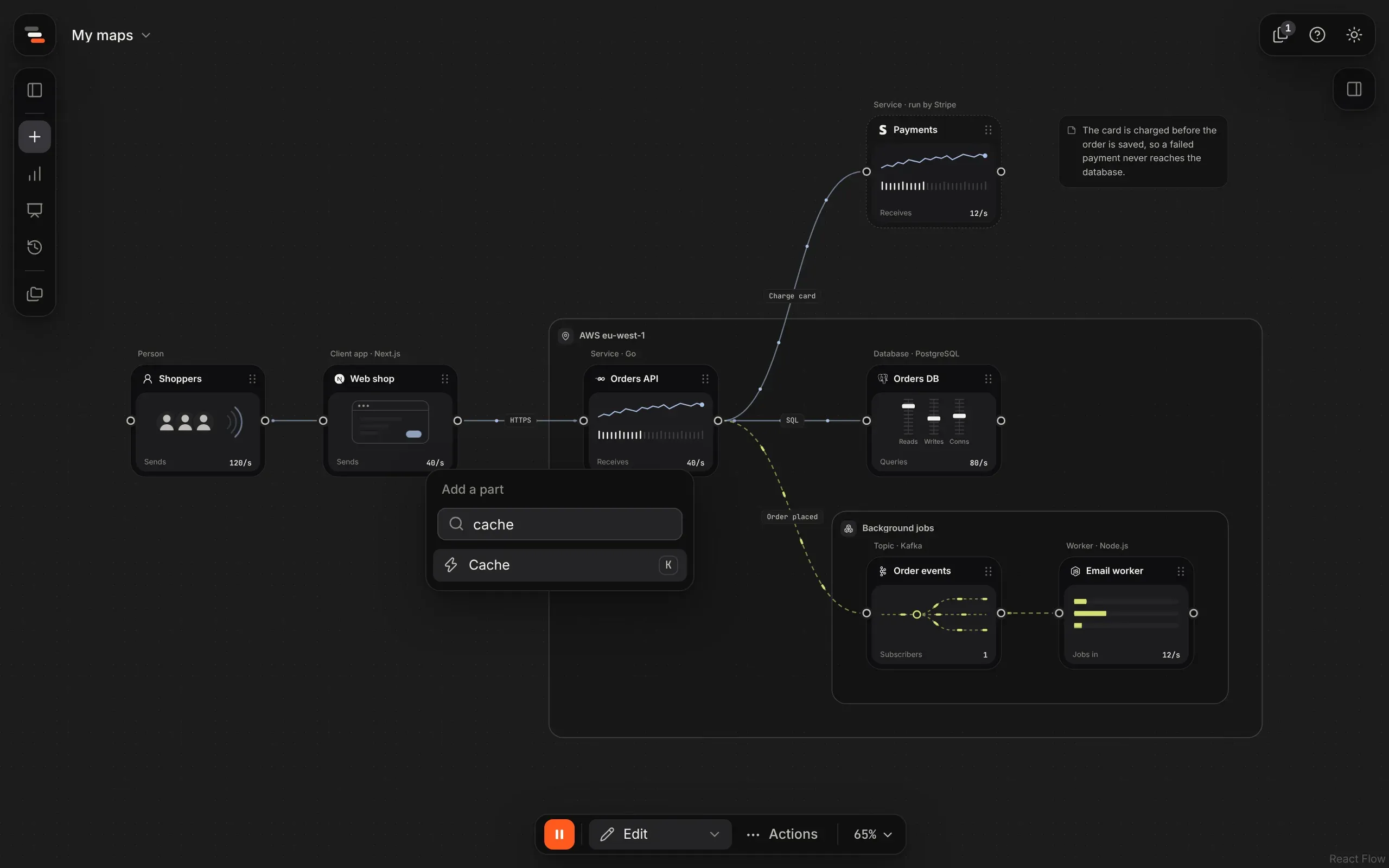
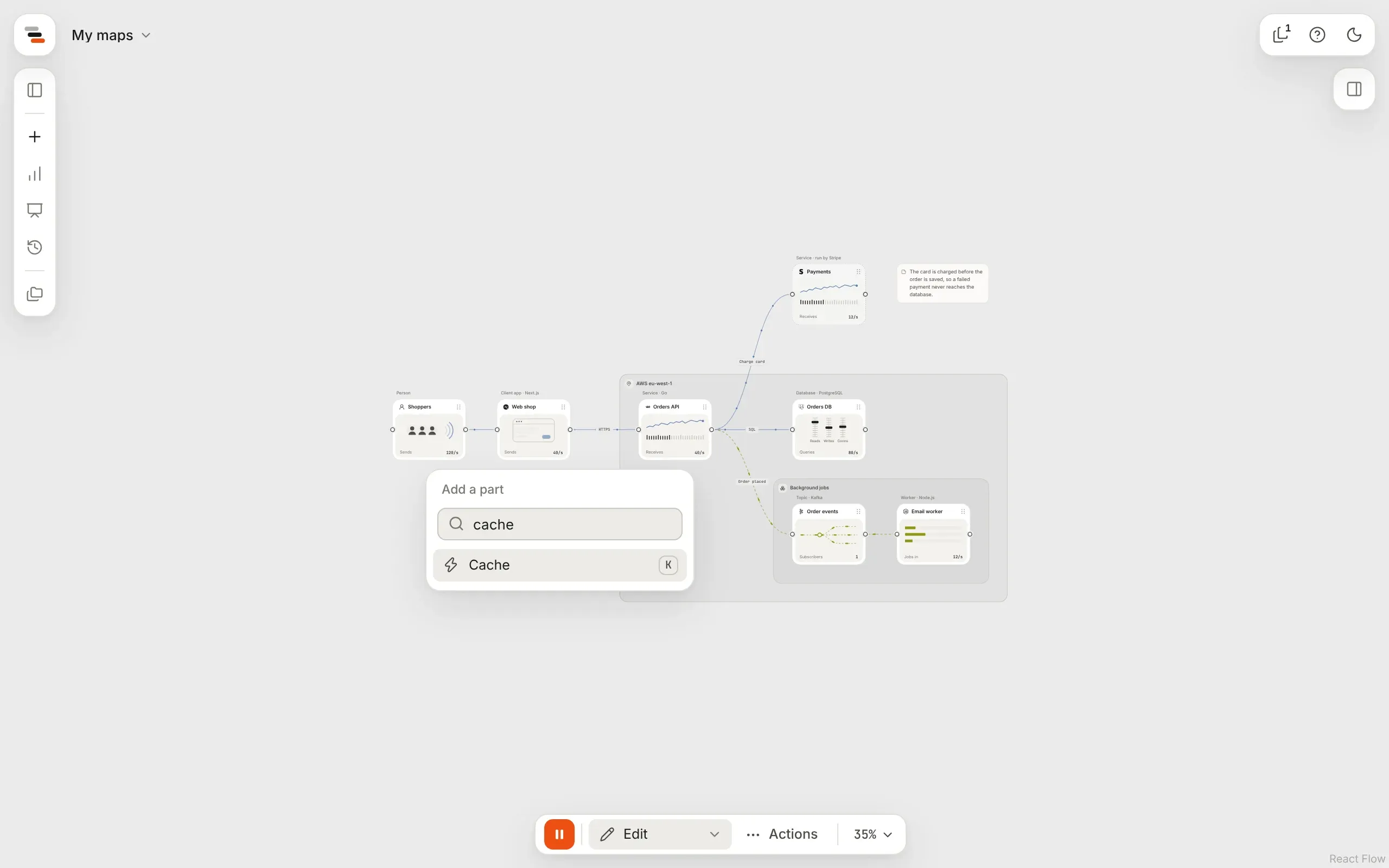
From Orders API, drag a line out and let go on empty canvas. Flozu asks what comes next and suggests parts that usually follow a service. Pick Queue, and it’s added already connected.
Give it traffic
Section titled “Give it traffic”A map comes alive once it knows its numbers.
-
Select the line from the client app to Orders API. In the inspector’s Traffic tab, set its rate to 200 requests a second.
-
Select Orders API. In its Traffic tab, set its capacity to 400 a second: what it can process.
-
Press play on the island at the foot of the canvas if the map is paused. Dots now move along each line, closer together where there’s more traffic.
Why those numbers? 200 a second into a part that can take 400 means it’s half busy on a normal day: room to spare. The rate is always the busiest moment of a normal day, so a scenario can scale it up from there. You don’t need every number to start. The rates where traffic comes in and the capacity of the part you’re worried about are enough.
Test it on Black Friday
Section titled “Test it on Black Friday”-
Open the mode menu on the island at the foot of the canvas and choose Scenario.
-
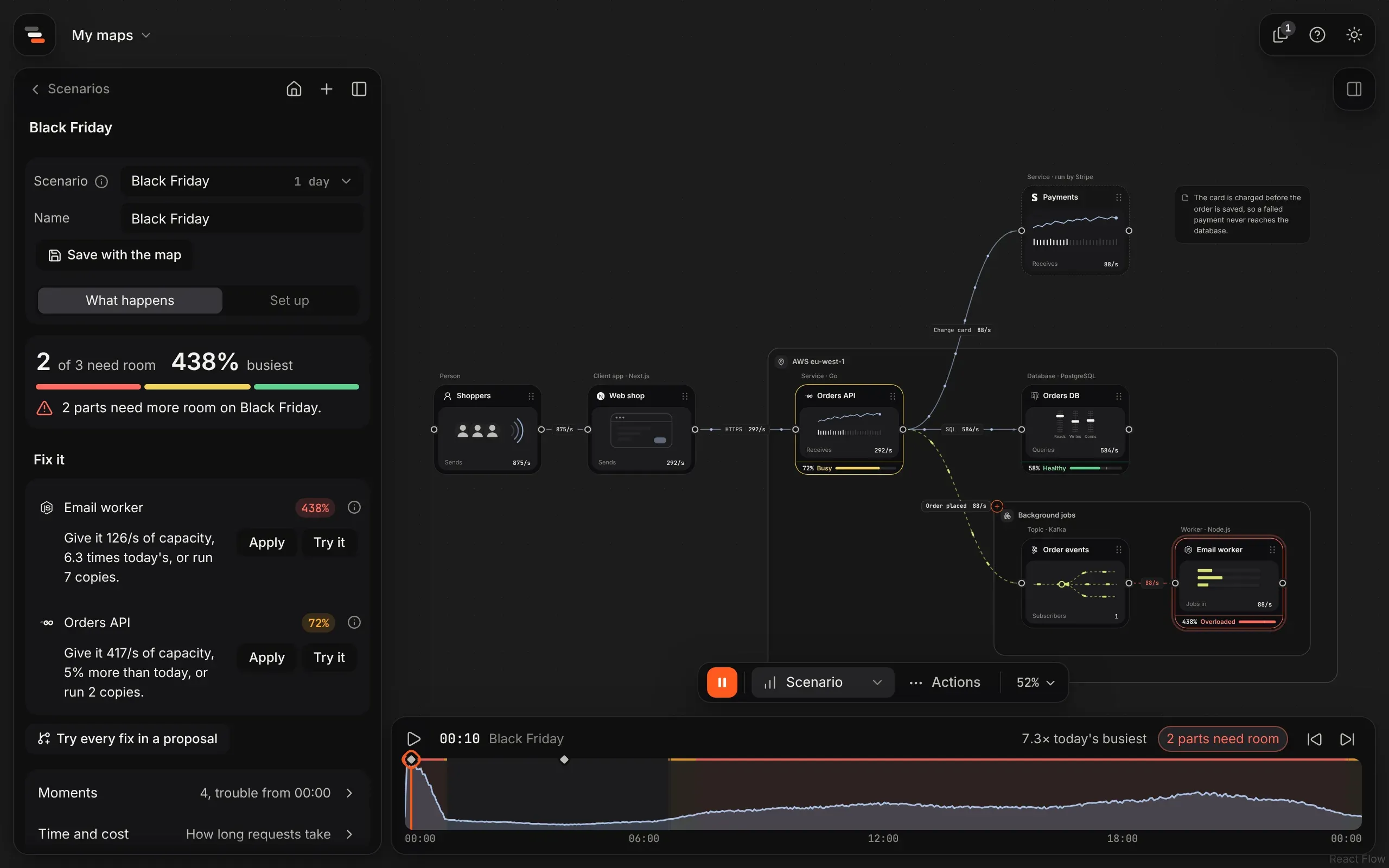
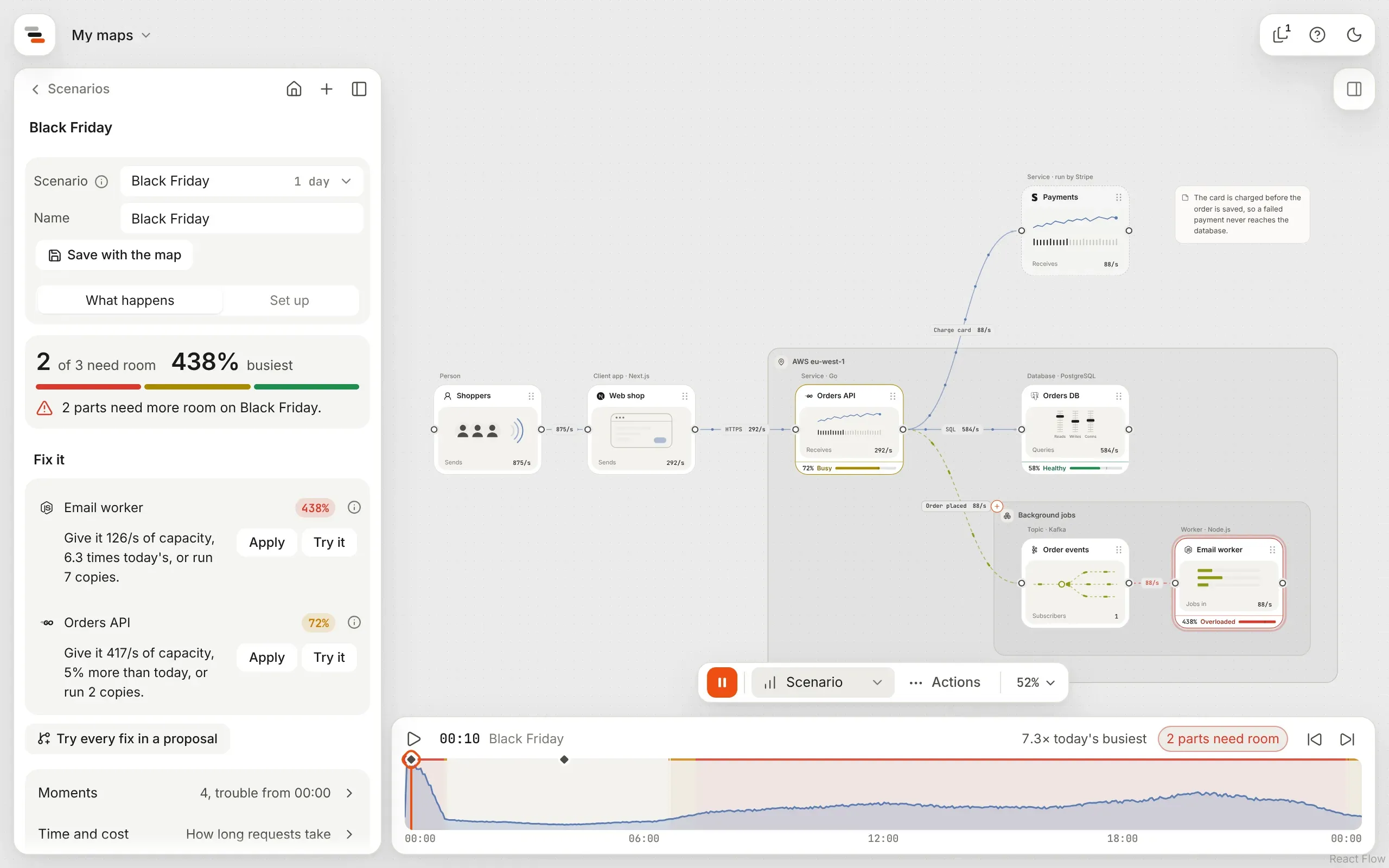
In the scenario panel, pick Black Friday. Flozu plays a whole day with a rush at midnight and four times today’s traffic after it.
-
Read What happens. Orders API is outlined in red: just after midnight, nearly 1,500 requests a second arrive, and it can take 400. Under Fix it, Flozu says to give it about 2,100 a second, five times what it has, or run 6 copies.
-
Select Apply to make that fix, and the red outline goes. One undo takes it back.
Next steps
Section titled “Next steps”- Will it survive Black Friday? does the same on a fuller shop, where the part that breaks first isn’t the one you’d guess.
- Take the tour to learn what each part of the editor does.
- Sort your maps into projects as you make more.
- Present the map to someone, or send them a link.