

Stories
A story walks people through a map one step at a time, like slides, to explain how it behaves: where the load lands first, what happens next, and how a fix helps. Every step is the live map, not a picture of it, so when someone asks “what’s that?”, you can select it and show them.
The quickest way to see one is to play one. Open the Encore ticket drop example from Templates, choose View, then Story, and step through “If eu-west-1 goes down” with the arrow keys. To make your own, see Explain your system to someone new, or read on.
A map can hold several stories, such as one for a client and one for a new developer, and they travel with it in files, copies and share links.
A step
Section titled “A step”A step has:
- A title and a few words on what’s happening.
- A focus: the parts, lines, zones and notes it’s about. While the step is on screen, the camera glides to frame them and everything else fades back. A step with no focus shows the whole map.
- A moment, optionally: a time in one of the map’s saved scenarios, such as “Black Friday at 20:00”. The map shows the load at that moment.
- Parts shown differently, optionally: other limits for this step only, such as a fix (“with three copies, it copes”), without changing the map. A part’s time and cost stay its own, so they follow the map as it changes.
- A comparison, optionally: one of the map’s proposals against where it began, with the step’s moment playing on both. See show a fix and its replay.
Make a story
Section titled “Make a story”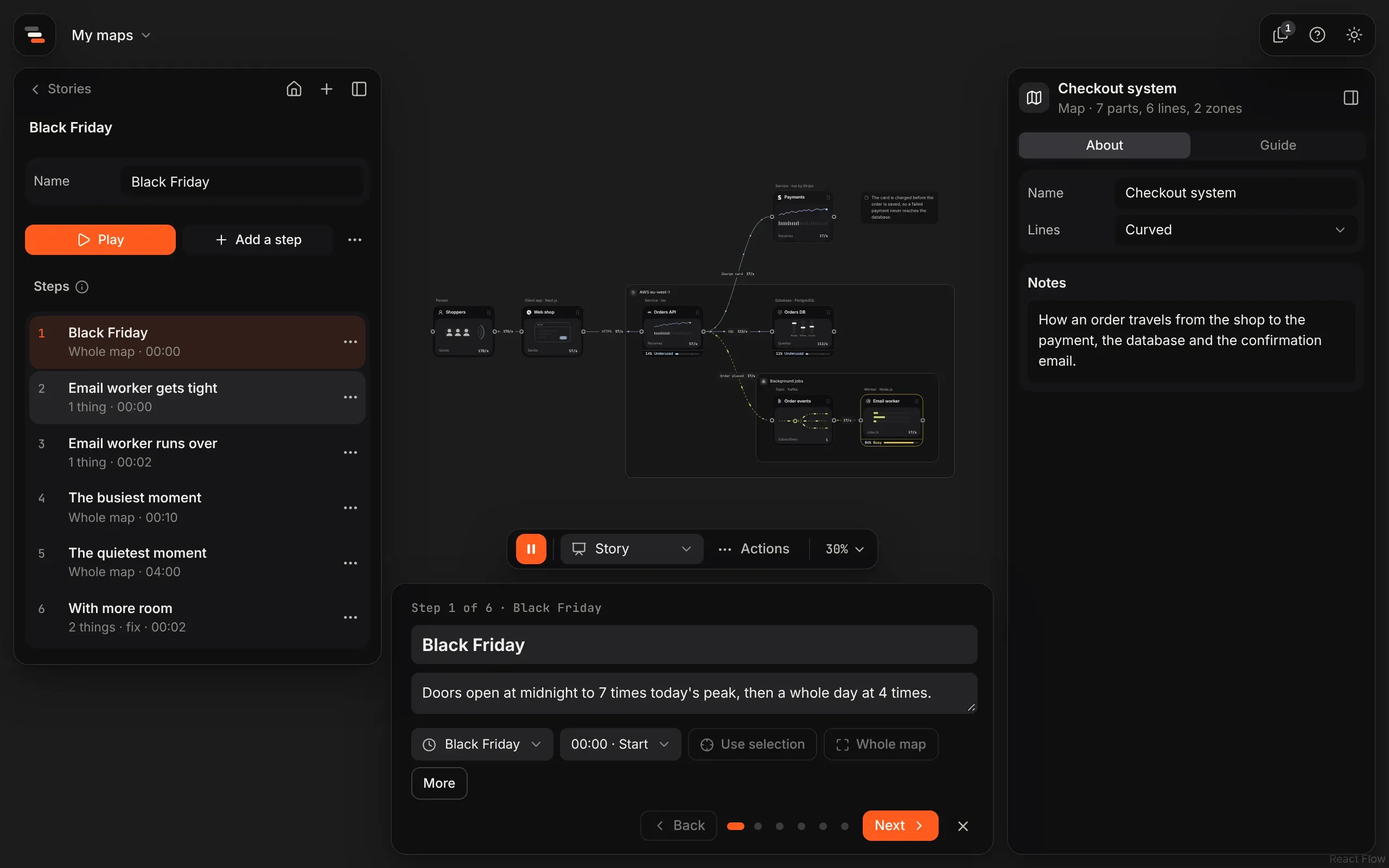
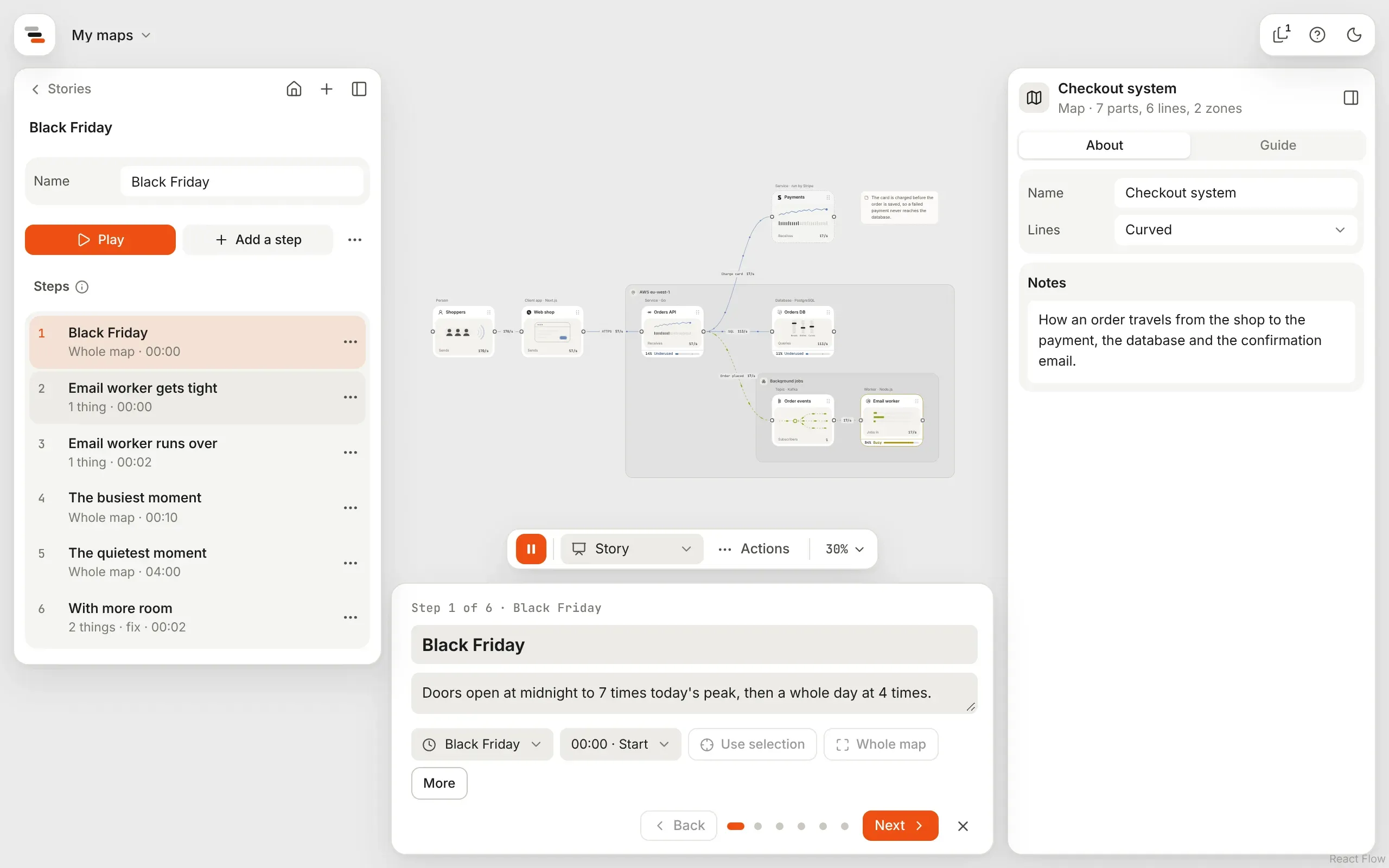
Select Stories on the map’s menu in the panel on the left. It lists the map’s stories; pick one to go in to its steps, or New story to start one. A map with no stories yet goes straight to how to start one. Choosing Story in the mode menu at the foot of the canvas goes straight in too, and Back to Stories at the top of the panel goes back to the list.
- New story starts one, with a first step about whatever is selected.
- Add a step adds one after the step you’re on, about what’s selected.
- Pick a step to see it on the canvas as it will play. You edit it on its card, below the map: the same card people see when you present, so what you type is what they read. Type its title and words in place. The i beside Steps says so too.
- Use selection sets its focus from what’s selected on the canvas. Whole map clears it.
- The scenario and moment buttons pick a saved scenario and a time in it.
- The comparison button picks a proposal to compare, once the map has one.
- More opens Shown on this step only, which picks parts to show with other limits, starting from their own. Changing a part’s copies there keeps how fast they start.
Move steps up and down, or delete them, from their menus. Every change is one step to undo. Play presents the map from the first step.
A story from a scenario
Section titled “A story from a scenario”Once a map has a saved scenario, the stories panel offers to draft a story from it: From Black Friday, say. It makes a first step at the start, a step at each moment worth stopping at, in time order, each framing the part it’s about, and, when parts run short, a last step called “With more room” that shows them with the fixes the scenario suggests. It’s all one step to undo, and a good place to start editing.
Play a story
Section titled “Play a story”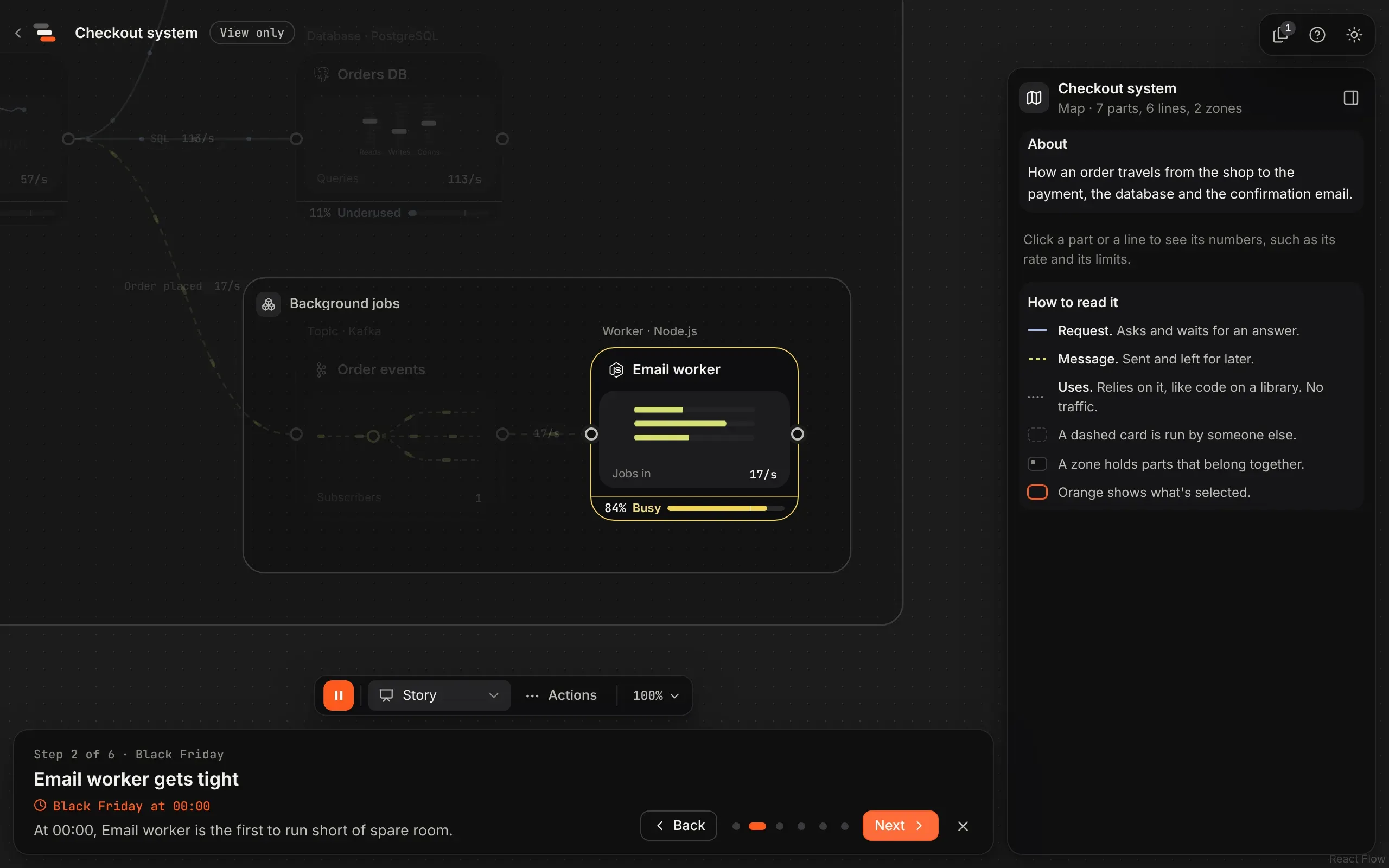
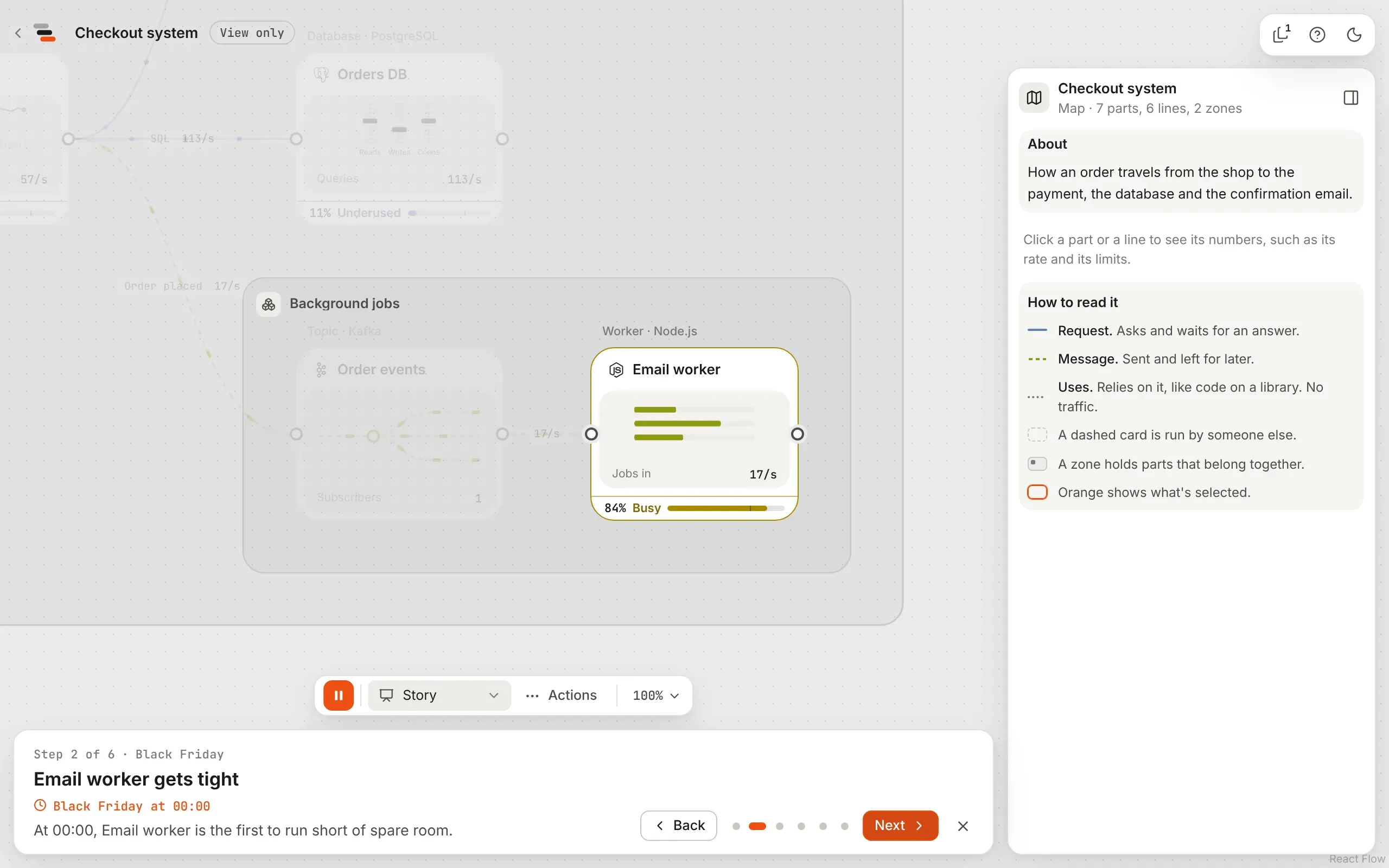
Present a map that has stories, open the mode menu and choose Story. The story’s steps take the timeline’s place along the foot of the canvas, with a picker there when there are several stories. It shows which step it is, its title and words, and any part shown differently, with Back, Next and a dot for each step. A scenario’s timeline never shows at the same time.
- The arrow keys move between steps, and so do Page Up and Page Down, which is what presentation clickers send.
- Esc or the close button leaves the story for the plain map.
Shared links and templates play stories the same way. With reduced motion turned on, the camera jumps instead of gliding.
Show a fix and its replay
Section titled “Show a fix and its replay”A step can show one of the map’s proposals against where it began, with the step’s moment playing on both: the fix, and the proof that it works. Pick the proposal with the comparison button on the step’s card.
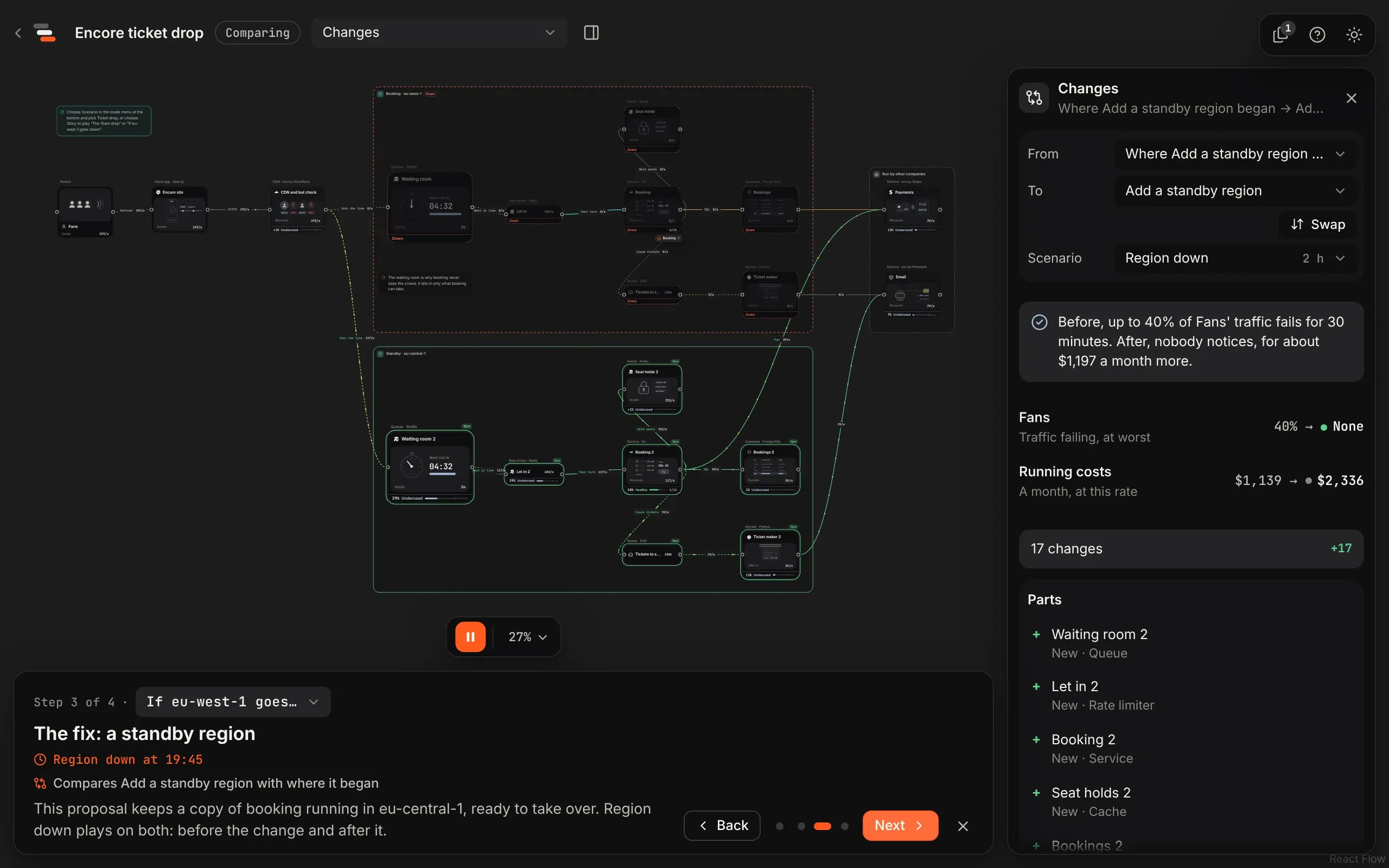
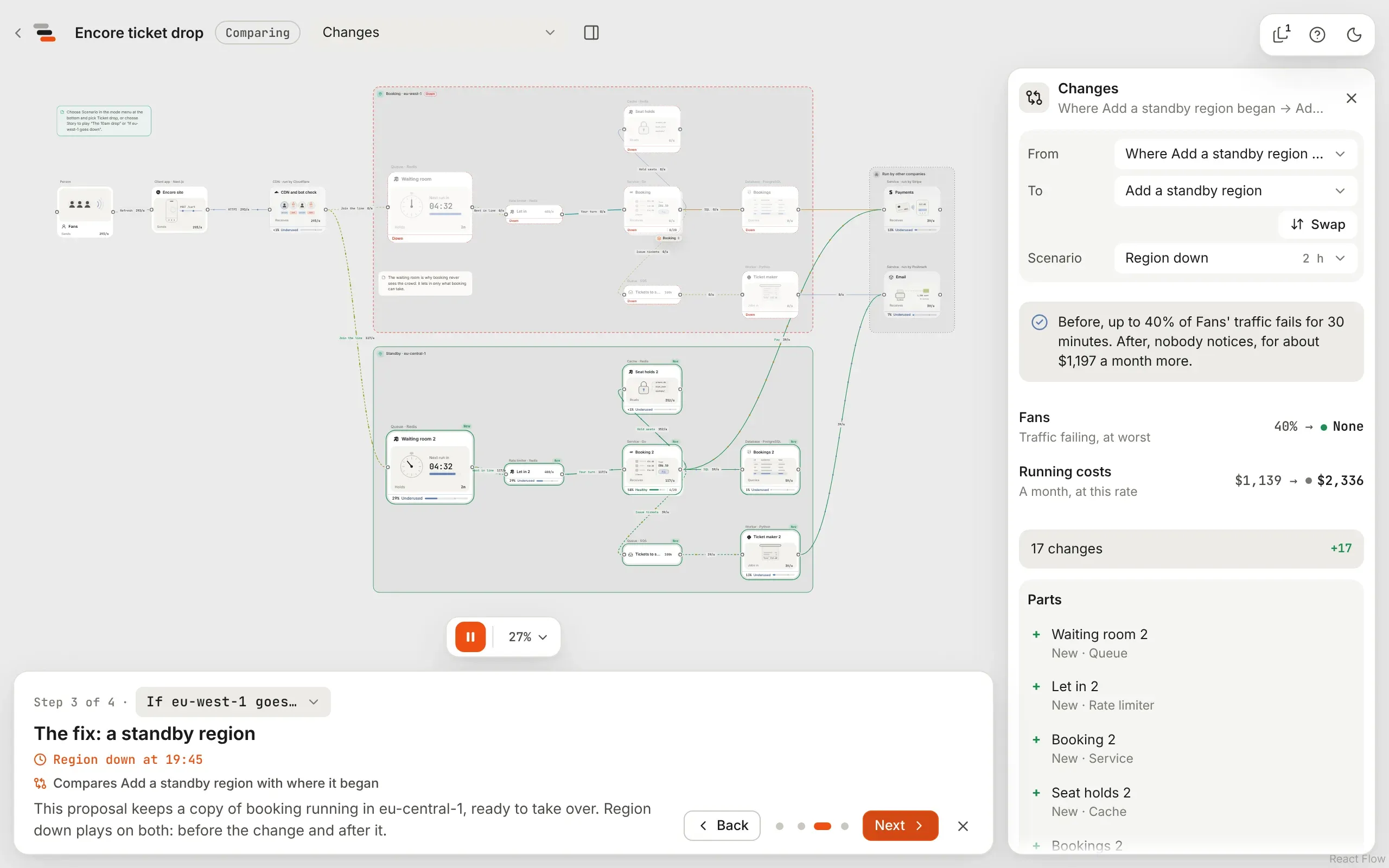
When you present the map, that step opens the comparison, with the story along the foot in the timeline’s place. Next and Back carry on through the story, back to the map for a step without a comparison. Back to the map, Esc or the close button leave the story. While you edit, the step stays on the map, and the story says what it compares, with a link to open it.
- Proposals are kept beside the map, not in it, so a shared link has none: there the step shows on the map and says its comparison isn’t in this copy. A template’s step says to use the template, since your copy comes with its history.
- Adopting the proposal keeps where it began, so the step still opens its comparison.
A story from a fix
Section titled “A story from a fix”A story can be told around a fix in one click. Compare a proposal with where it began, play one of the map’s saved scenarios on both, and choose Tell it as a story under how each copes. The map opens with a new story in the stories panel:
- the scenario from its start,
- the moment it goes wrong, framing what breaks,
- the fix, comparing the proposal with where it began at that moment,
- the moment things are well again, or the scenario’s end.
It’s one step to undo, and the words are a draft to change.
The Encore example plays one from start to end: open it from Templates and play the story “If eu-west-1 goes down”.