

Zones and notes
A zone answers two questions a box-and-arrow diagram leaves open: where does this run, and who looks after it? Draw a region around the parts in AWS eu-west-1, and a failure drill can take the whole region down. Draw a team around the parts the payments team owns, and everyone knows who to ask. A note answers the third question: why does it work this way?
A zone is a frame around parts that belong together: a cloud region, a network, a system, a team or any other boundary. Each kind of zone draws its edge its own way, with its icon and name in the top-left corner.
| Zone | For | Edge |
|---|---|---|
| Region | A cloud region or a data centre. | Solid |
| Network | A private network or a subnet. | Dashed |
| System | A product or a system, for the big picture. | Solid |
| Team | The people who look after these parts. | Dotted |
| Zone | Any other boundary. | Dashed |
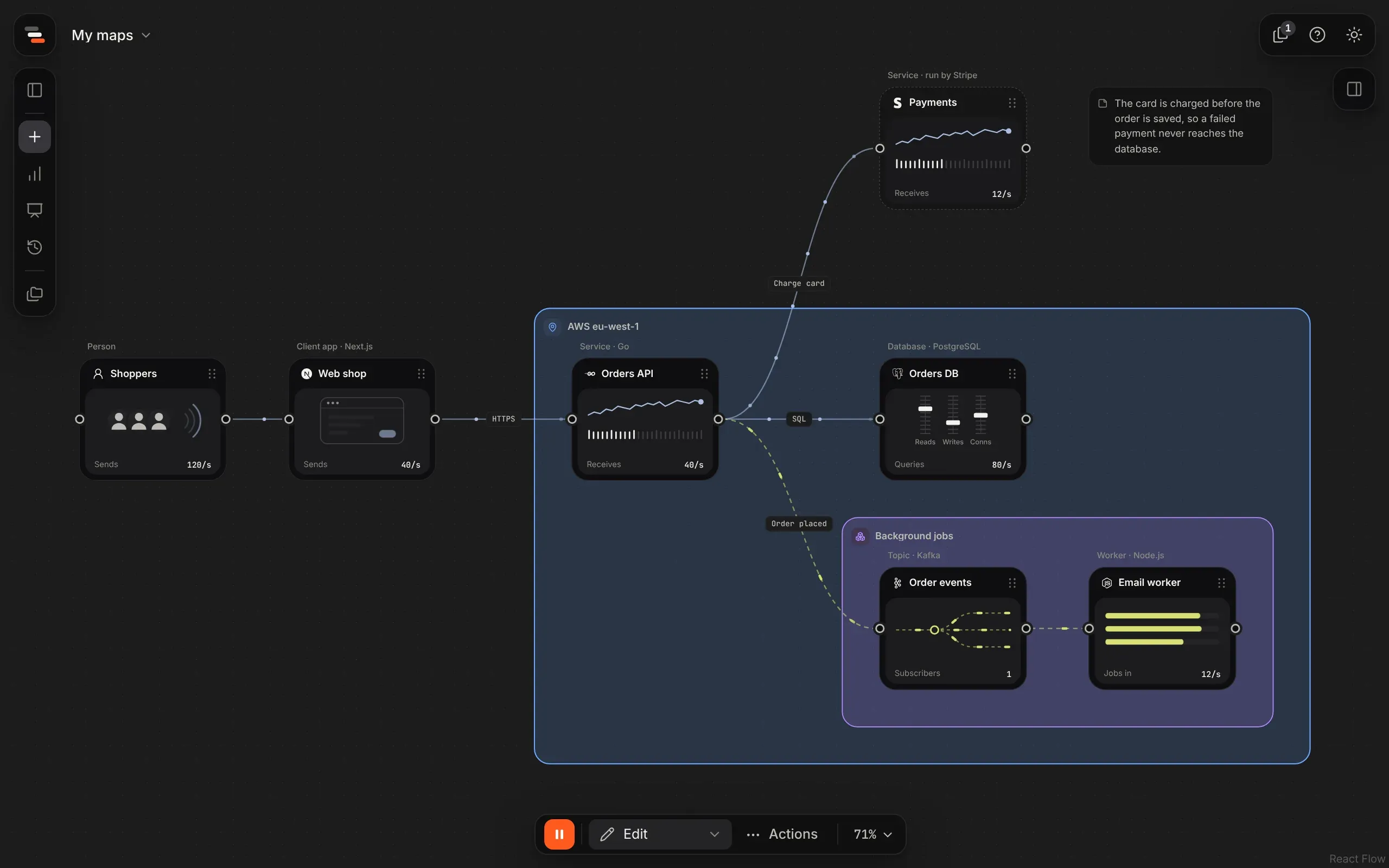
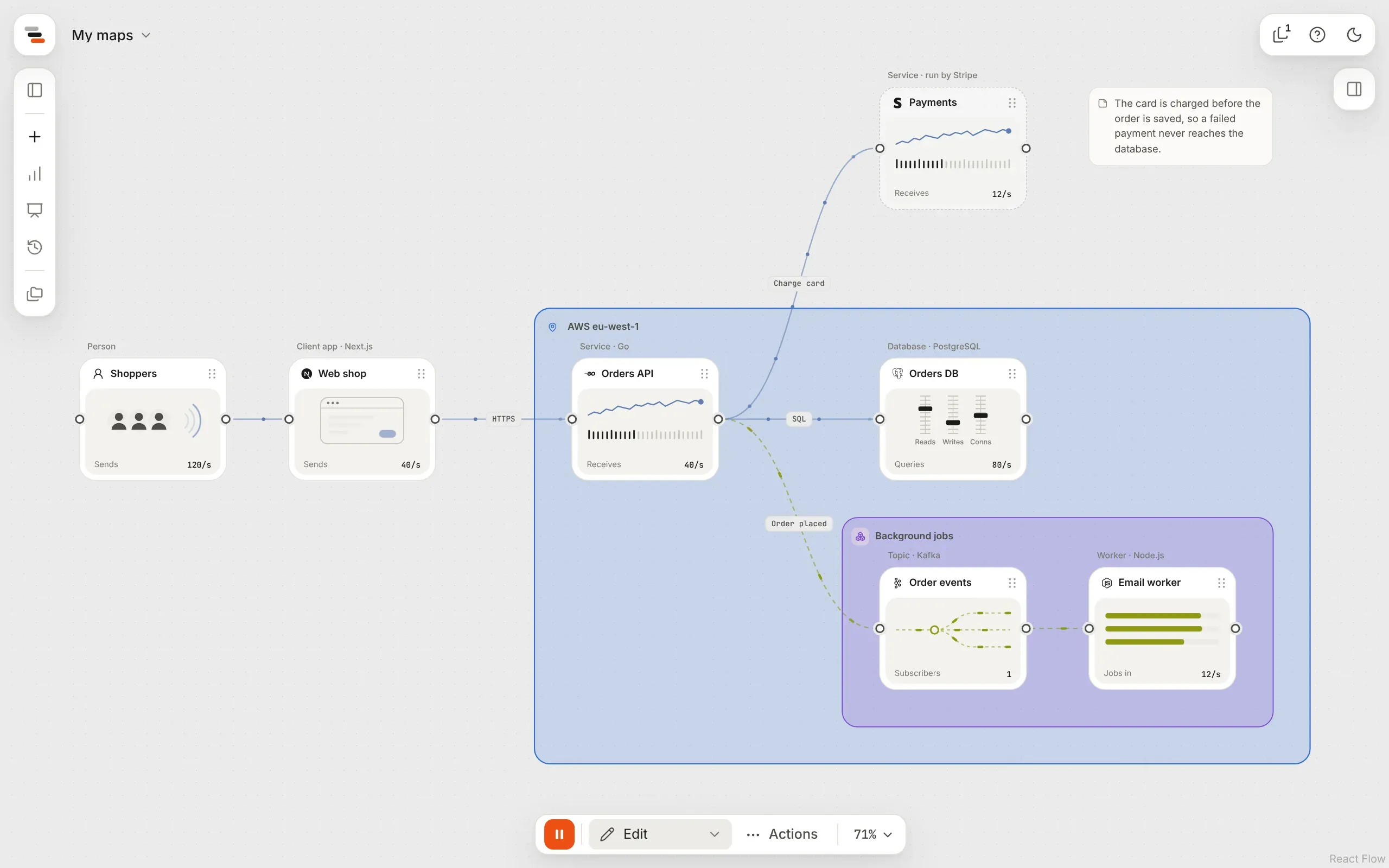
Add a zone
Section titled “Add a zone”- Select some parts and press Z. The zone is drawn around them, with room for its label.
- Or press Z with nothing selected, or drag Zone from the library, to add an empty one.
- Or select several things and choose to put them in a zone from the inspector.
What’s inside a zone
Section titled “What’s inside a zone”What you see is what the map holds. A part belongs to the smallest zone around its middle, and a zone to the smallest zone that holds all of it, so zones nest. Whatever you move, resize or add joins the zone it lands in, in the same step to undo.
- Move a zone by dragging its label or edge. Everything inside comes with it.
- Reshape it by dragging its corners and edges when it’s selected. What’s inside stays put.
- Delete a zone and what was inside stays, in the zone around it if there is one.
Only a zone’s label and edge catch the pointer, so you can still pan, select and add parts inside it. Its Inside tab lists what it holds.
A note is plain words on the canvas, such as why something works the way it does.
- Press N to write one where the pointer is, or drag Note from the library.
- Click away, press Esc or ⌘Enter to finish. A note left blank isn’t added.
- Double-click a note to edit it.
- Its height follows its words. Drag its right edge to set how wide it runs.