

Presenting and share links
Your client wants to see how their traffic flows through your platform, and what happens on their busiest day. You want them to look, play scenarios and ask questions, without dragging a database across the screen by accident. Present the map, or send a link that opens it presented.
Try it
Section titled “Try it”On the Checkout system template, choose View from the mode menu at the foot of the canvas. Select Orders DB: the details panel shows what it is, what it’s built with and how much traffic it takes, with nothing to edit. Then choose Scenario and pick Black Friday to play it, just as your client would.
Present a map
Section titled “Present a map”Choose View from the mode menu on the island at the foot of the canvas to present the map.
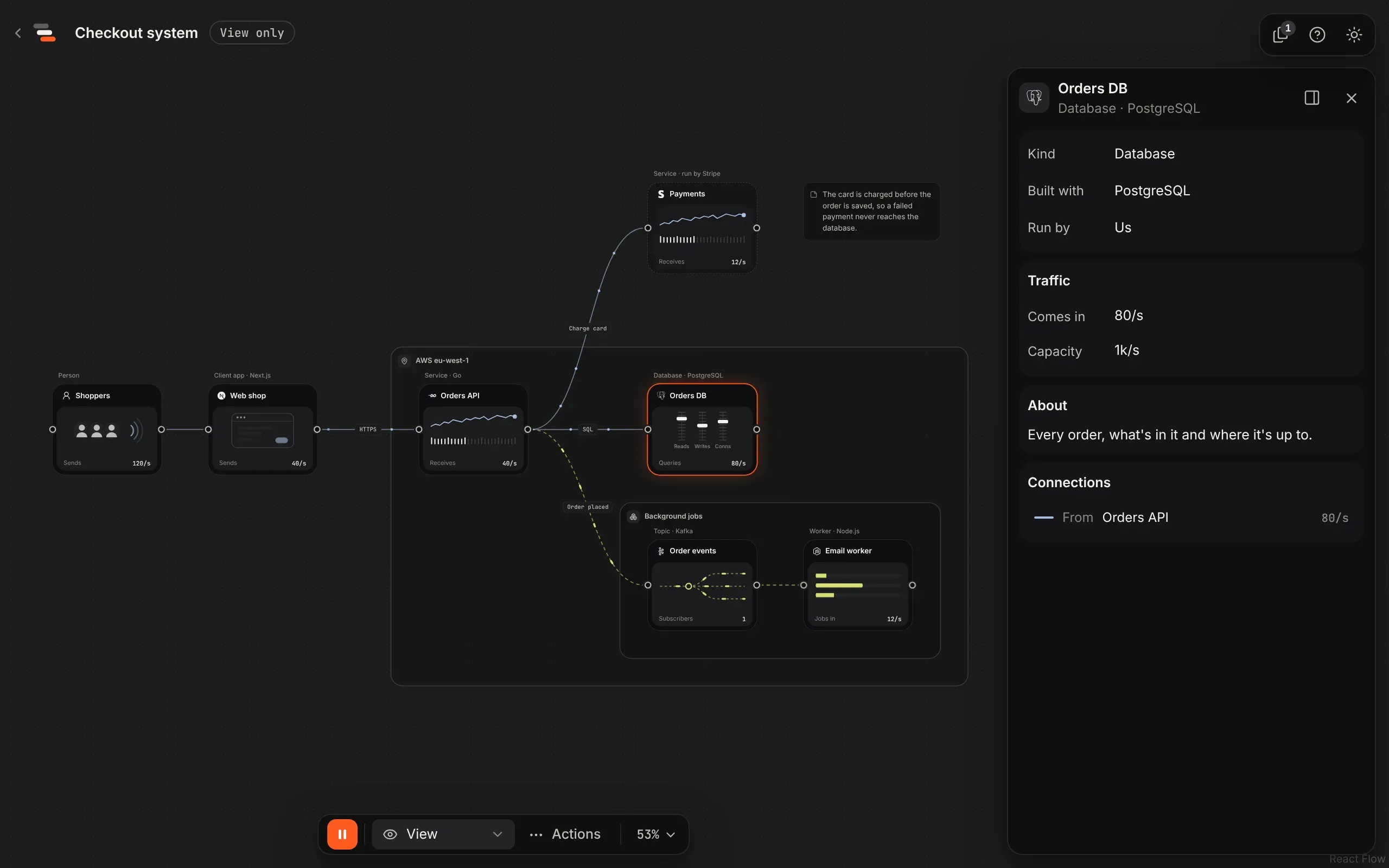
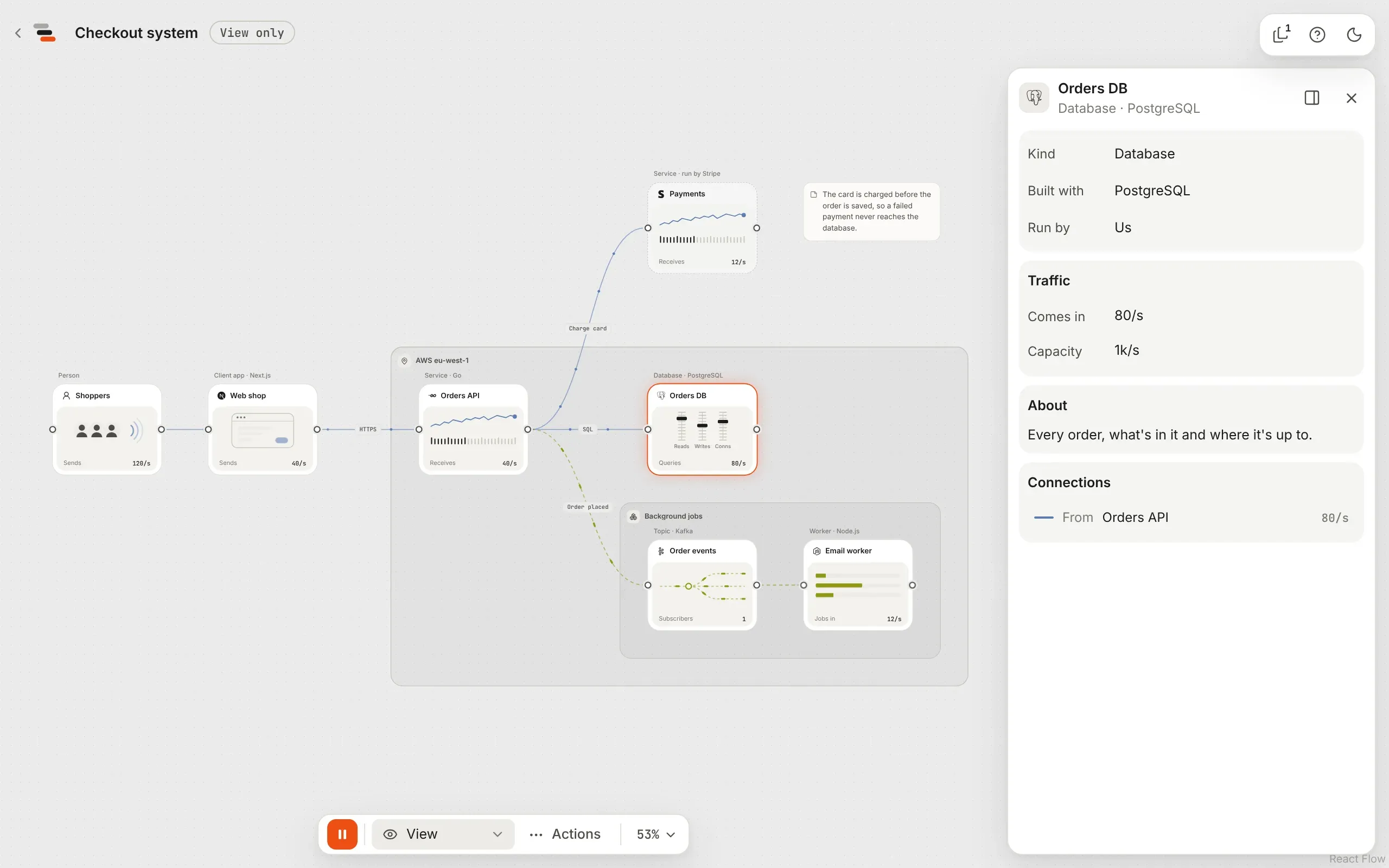
A presented map still pans, zooms, plays and selects. Nothing drags, connects, deletes, renames or adds, and the keys that edit do nothing. There’s no parts library and no undo.
The details panel takes the inspector’s place, with the same layout but values in place of fields. A part shows its kind, what it’s built with, its traffic in and out, its capacity, limit and buffer, and its lines with their rates. With nothing selected it says how to read the map.
From the mode menu on the island at the foot of the canvas you can:
- Choose Scenario to try one, such as Black Friday. See scenarios.
- Choose Story to play one, when the map has one. See stories.
- Choose Edit to go back to the editor.
Beside the mode menu you can pick a view, when the map has more than one (see views). A view only hides things, so scenarios and drills still play on the whole map. The Actions menu shares a link and shows or hides the details. A template or a shared map has Use this template or Save a copy at the end of the island.
Presenting never saves anything. Its address is the map’s own with /view on the end.
Share a link
Section titled “Share a link”Choose Share a link… from the Actions menu on the island. Flozu makes a link that carries the map itself and copies it. Anyone who opens it sees the map presented, read-only, and can save their own copy.
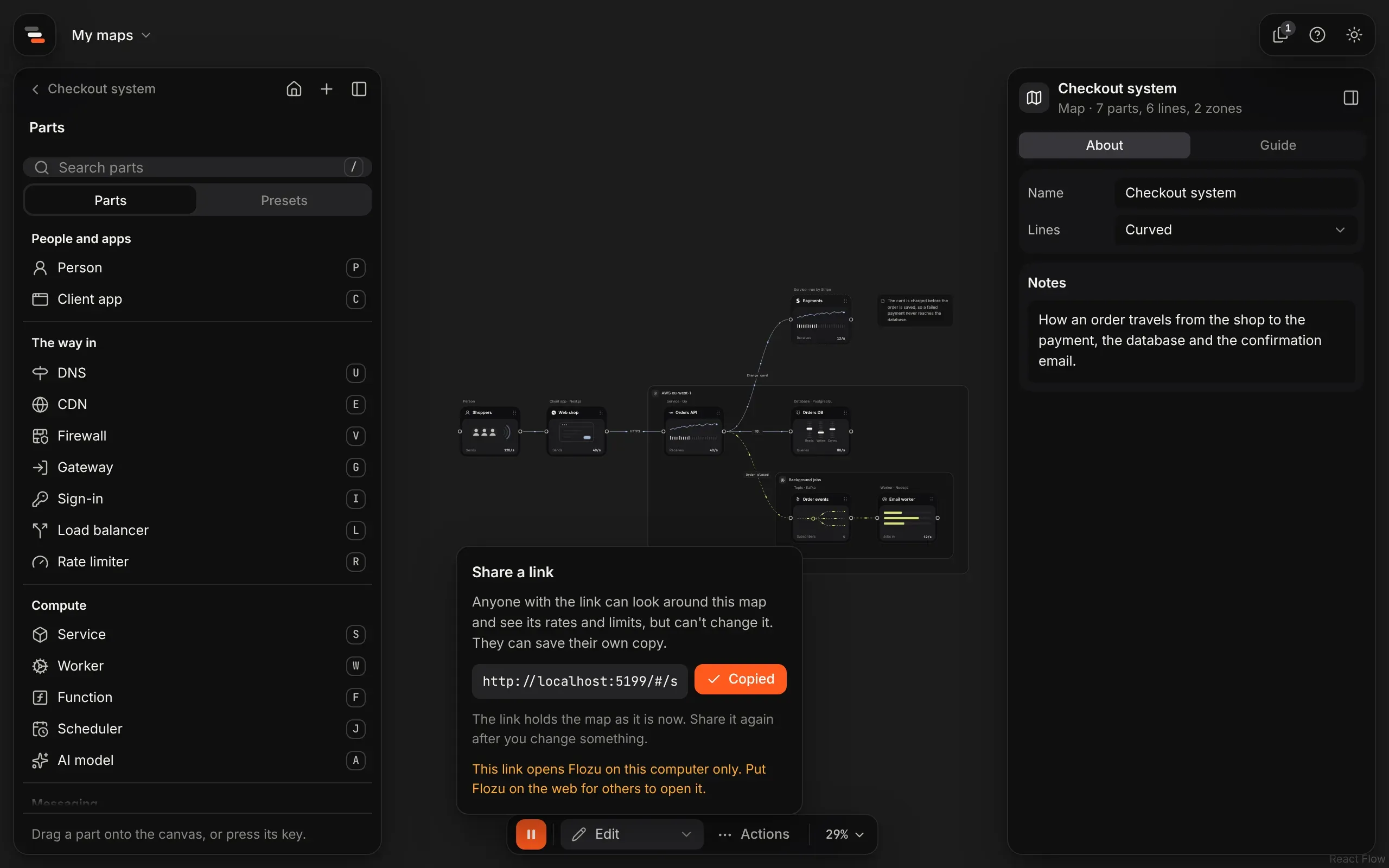
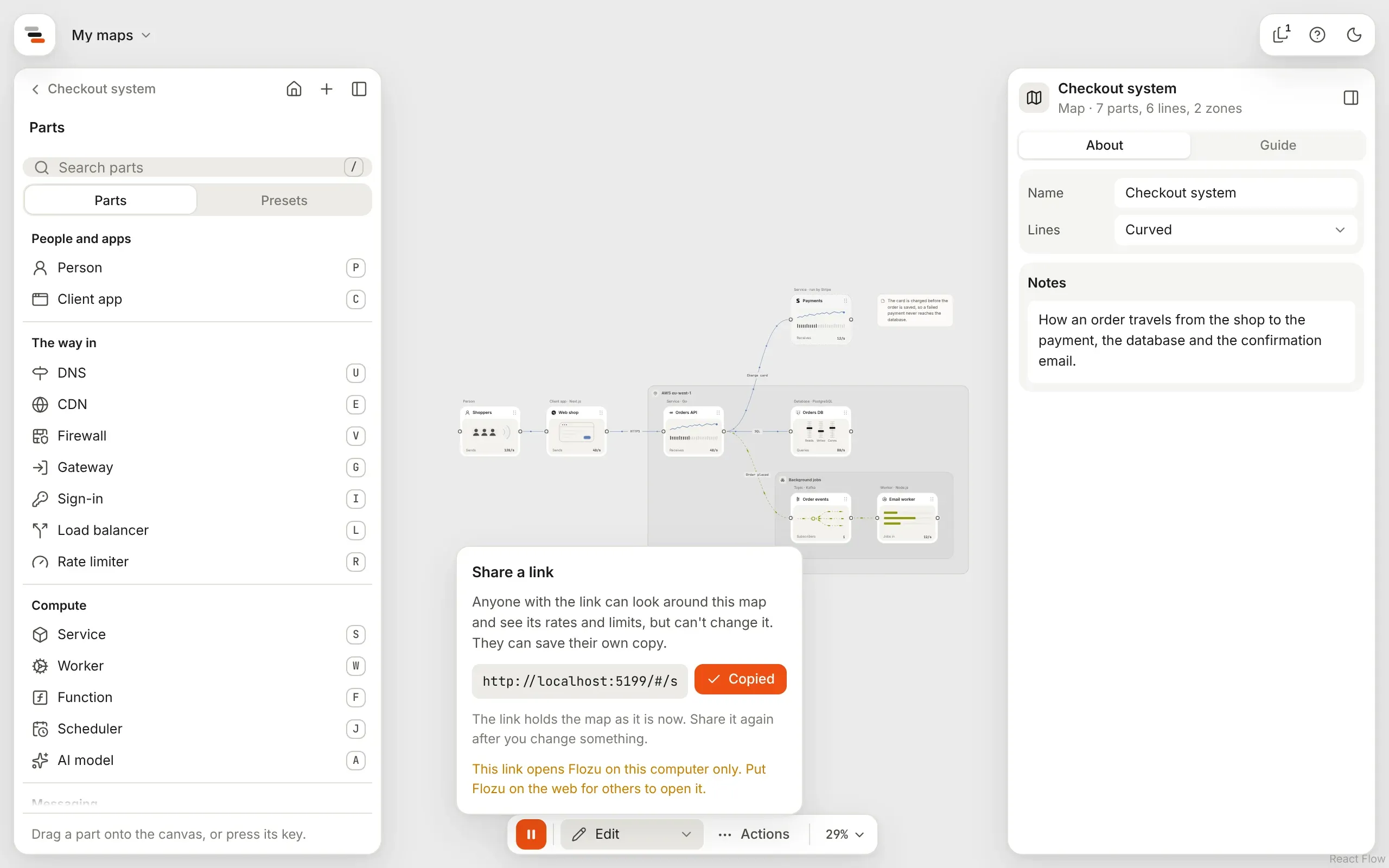
What you should know about a link:
- It needs no server. The map is packed into the link itself, after
#/shared/. That part of a link never leaves the browser, so the map isn’t sent to whoever hosts Flozu. - It’s a snapshot. It holds the map as it was when you made it. Make a new link after you change something.
- It holds only what its view shows. When you share from a view that hides parts, the link leaves them out entirely. A drill on a zone the view hides still takes down the parts that were in it.
- It carries stories and saved scenarios, so whoever opens it can play them too.
- Very large maps make long links. Links over 8,000 characters work in a browser but some apps cut them short, and Flozu says so. Export the map as a file instead.
Open a shared link
Section titled “Open a shared link”A shared map opens presented, checked and updated like any file. Save a copy keeps it as one of your own maps, beside (never over) a map you already have, and opens it in the editor. A link that’s been cut short, or isn’t a map, goes to home and says so.