

Traffic and limits
A map comes alive once it knows two numbers: how much each line carries, and how much each part can take. Traffic lives on lines, as a rate. Limits live on parts, because a limit belongs to the part that enforces it. From those two, Flozu works out how busy every part is, on a normal day and on your busiest.
Try it
Section titled “Try it”On the Checkout system template (open it from Templates with Use template):
-
Select the line from Web shop to Orders API. Its Traffic tab says it carries 40 requests a second: the orders placed at the busiest moment of a normal day.
-
Select Orders API. Its Traffic tab says it can take 400 a second, and that it’s 10% busy: underused.
-
Go back to the line and set its rate to 300. Select the Orders API again: it’s now 75% busy, past the 70% it should stay under, so it reads Busy.
-
Undo with ⌘Z to put the rate back.
That’s the whole idea. Everything else on this page is about which numbers a part can have, and how Flozu shows them.
Rates on lines
Section titled “Rates on lines”A line’s rate is how much it carries each second at the busiest moment of a normal day, such as 150 requests a second. Set it in the line’s Traffic tab. The rate sets how busy the line looks while the map plays, and it’s where every scenario starts from: Black Friday is that rate, multiplied.
Limits on parts
Section titled “Limits on parts”Select a part and open its Traffic tab. Each kind offers the limits that make sense for it:
| Limit | What it is | For example | Offered on |
|---|---|---|---|
| Capacity | The most it can handle each second. More than this backs up. | An API that handles 400 requests a second | Most parts, such as services, workers, databases and caches |
| Limit | The most it lets through each second. The rest is turned away. | A rate limiter that lets 100 requests a second through | Rate limiters, firewalls, gateways, sign-in and AI models |
| Holds | How much can wait in line before it overflows. | A Kafka topic that holds 10,000 messages | Queues and topics |
The difference between a capacity and a limit is what happens to the extra. Past its capacity, a part falls behind and work waits. Past its limit, a part says no, and the parts after it never see the extra.
People, client apps and schedulers have no limits. They set the pace with the lines they send. For a part where traffic starts, such as people or an app, the Traffic tab asks instead how many use it at once on a normal day. See people online.
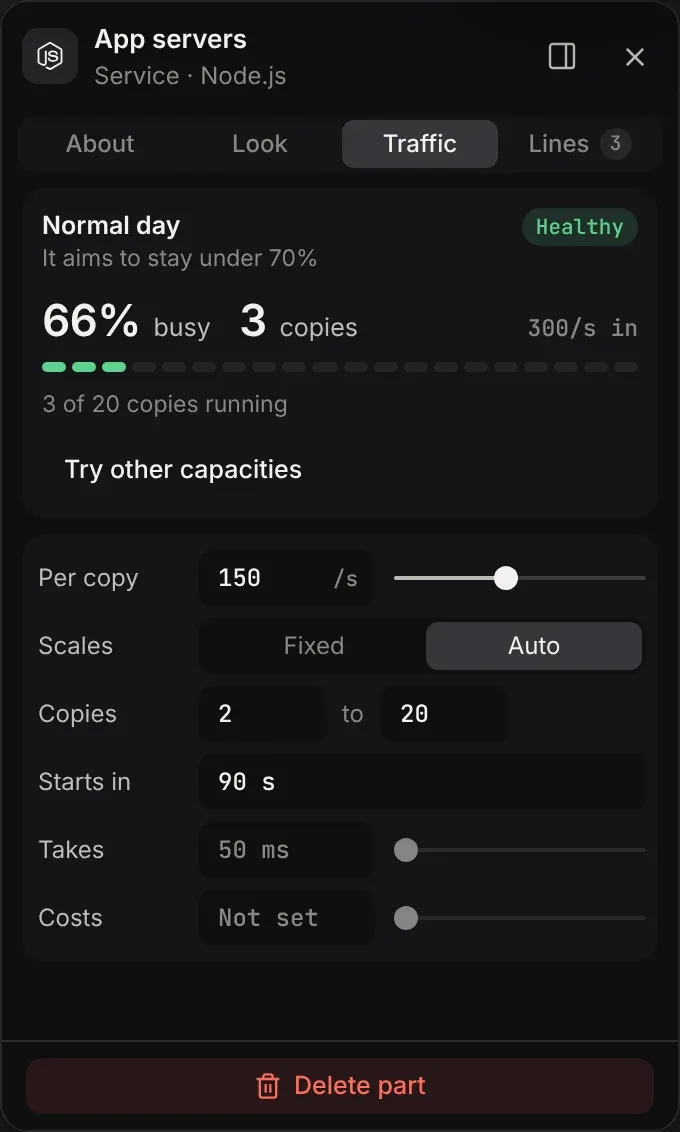
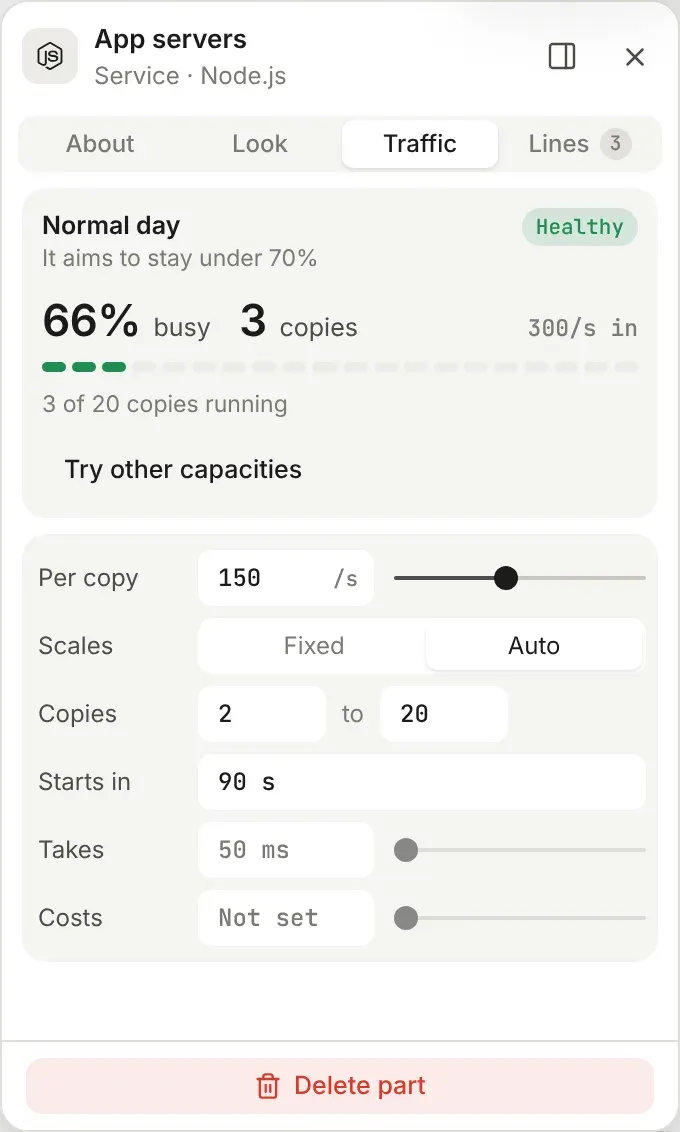
Below its limits, Takes says how long the part takes to handle one request, and Costs what it costs to run for an hour. Scenarios use them to estimate response times and cost.
How a part copes
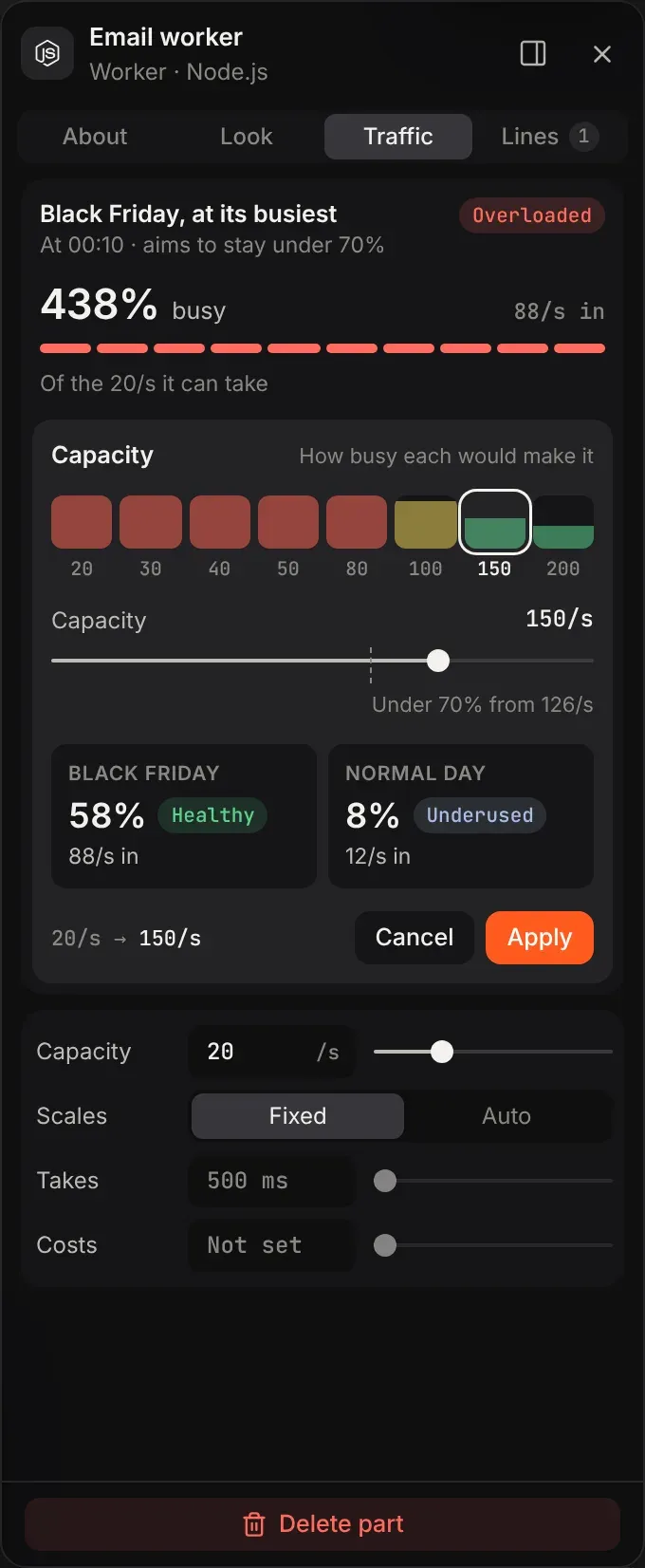
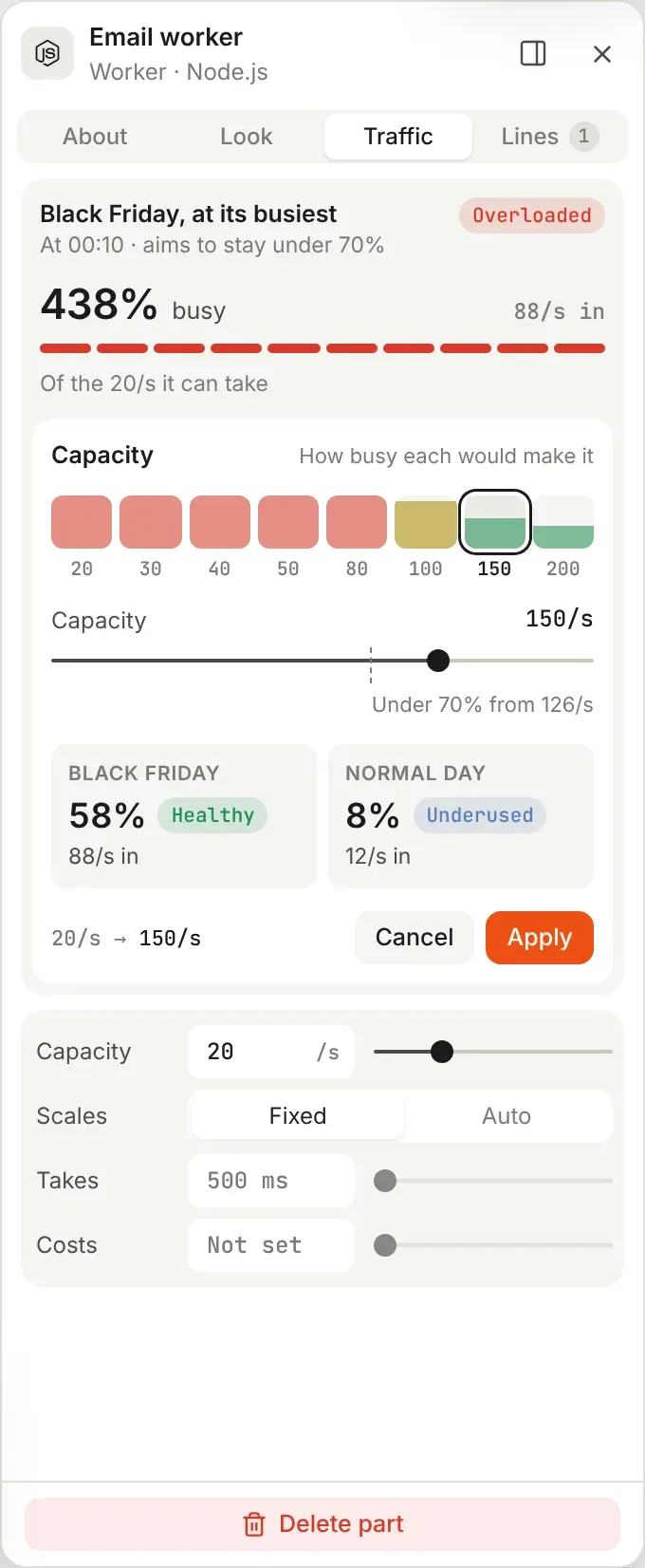
Section titled “How a part copes”Once a part has a limit and traffic reaches it, its Traffic tab opens on how it copes: how busy it is, how many copies it runs, how much comes in, and its health, from underused to overloaded. With no scenario running, that’s a normal day. While a scenario runs, it’s the part’s busiest moment in that scenario, and the tab says when that is.
Find the capacity a part needs
Section titled “Find the capacity a part needs”Choose Try other capacities. Tiles offer round numbers around today’s, each filled to how busy it would make the part, and a slider marks where the part turns healthy. Two tiles compare the moment above with a second one: a normal day while a scenario runs, or five times a normal day when none does. Nothing changes until you choose Apply, which you can undo in one step.
How it shows on the map
Section titled “How it shows on the map”While the map plays:
- Flowing. Dots move along each line at a pace set by its rate.
- Backing up. When more arrives at a part than its capacity, its buffer fills.
- Overflowing. When the buffer is full, or there is none, the extra spills over and the part says so.
- Turned away. Past a part’s limit, as at a rate limiter, the extra is turned away and never reaches the parts after it.
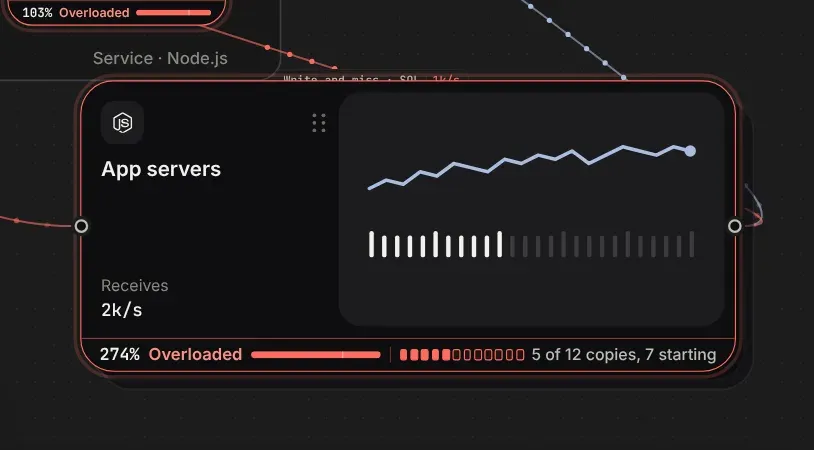
Colour only shows up when it means something: grey until there’s something to say, amber when a part is tight, red when it’s over. While a scenario runs, each part with a limit also gets a health strip along the foot of its card.
Auto-scaling
Section titled “Auto-scaling”A part that auto-scales runs more copies of itself as traffic grows and fewer as it falls, as a cloud service or a container platform would.
Say 300 requests a second arrive at your app servers, and one copy handles 150. Two copies would be flat out, at 100%. Flozu keeps each copy under 70% busy, so it runs three, each 66% busy. On Black Friday it might run twenty.
Turn it on
Section titled “Turn it on”Select a part that has a capacity, open its Traffic tab and set Scales to Auto:
- Per copy: the capacity now counts for one copy, such as 150 requests a second.
- Copies: the fewest and the most it runs, as whole numbers from 1 to 1,000.
- Starts in: how long a new copy takes before it takes traffic. It starts at the kind’s usual time: a couple of seconds for a function, 90 for a service, 10 minutes for a database or search. Type a length such as “45 s” or “3 min”.
How it scales
Section titled “How it scales”In a scenario, a part that auto-scales runs the fewest copies, between its fewest and its most, that keep each copy under the spare room you aim for, 70% busy by default. That’s what an auto-scaler aiming at that target would do. Copies change what a part can handle, never the traffic it sends on.
New copies take time to start. A spike that arrives faster than a new copy starts runs the part over until its copies are up. Running past its spare room while copies start isn’t flagged, since that’s how auto-scaling works, but running over its capacity is.
See the copies on the map
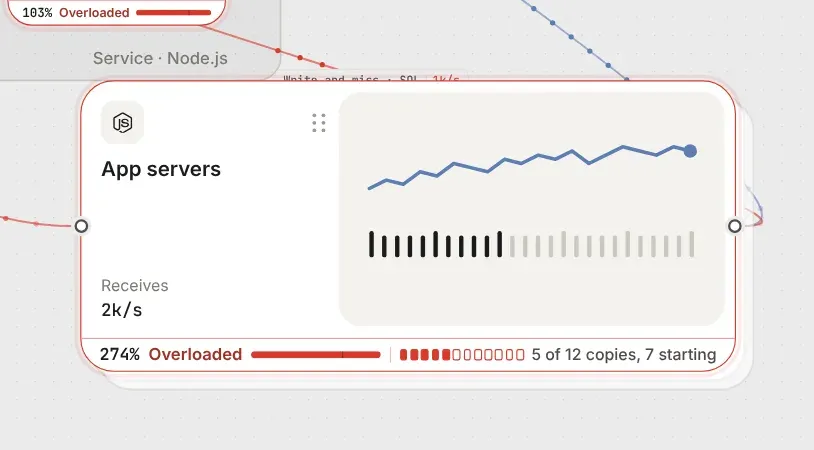
Section titled “See the copies on the map”While a scenario runs, a part that auto-scales adds its copies to its health strip: “3/10”, or on a wider card “3 of 10 copies, 2 starting”. The widest cards show a pip for each copy it may run, up to 12, filled while it runs and pulsing while it starts. The copies past its first also stack up behind its card, sliding out as they start.
What scenarios suggest
Section titled “What scenarios suggest”Scenarios check auto-scaling both ways, and each suggestion has an Apply:
- Keep more running (keep warm) when it ran over while new copies were starting.
- Let it scale in when it keeps more copies running than its quietest moment needs.
- Raise its most copies when it ran out of copies, with how many it needs.
See scenarios.