

Parts
A part is anything you’d point at on a whiteboard when you explain your system: the people who use it, an app, a gateway, a service, a queue, a database, or, inside a service, an endpoint or a module. Its kind tells Flozu how it behaves, such as whether it can run out of room or hold work in a queue.
Try it
Section titled “Try it”Draw the start of a shop’s checkout:
-
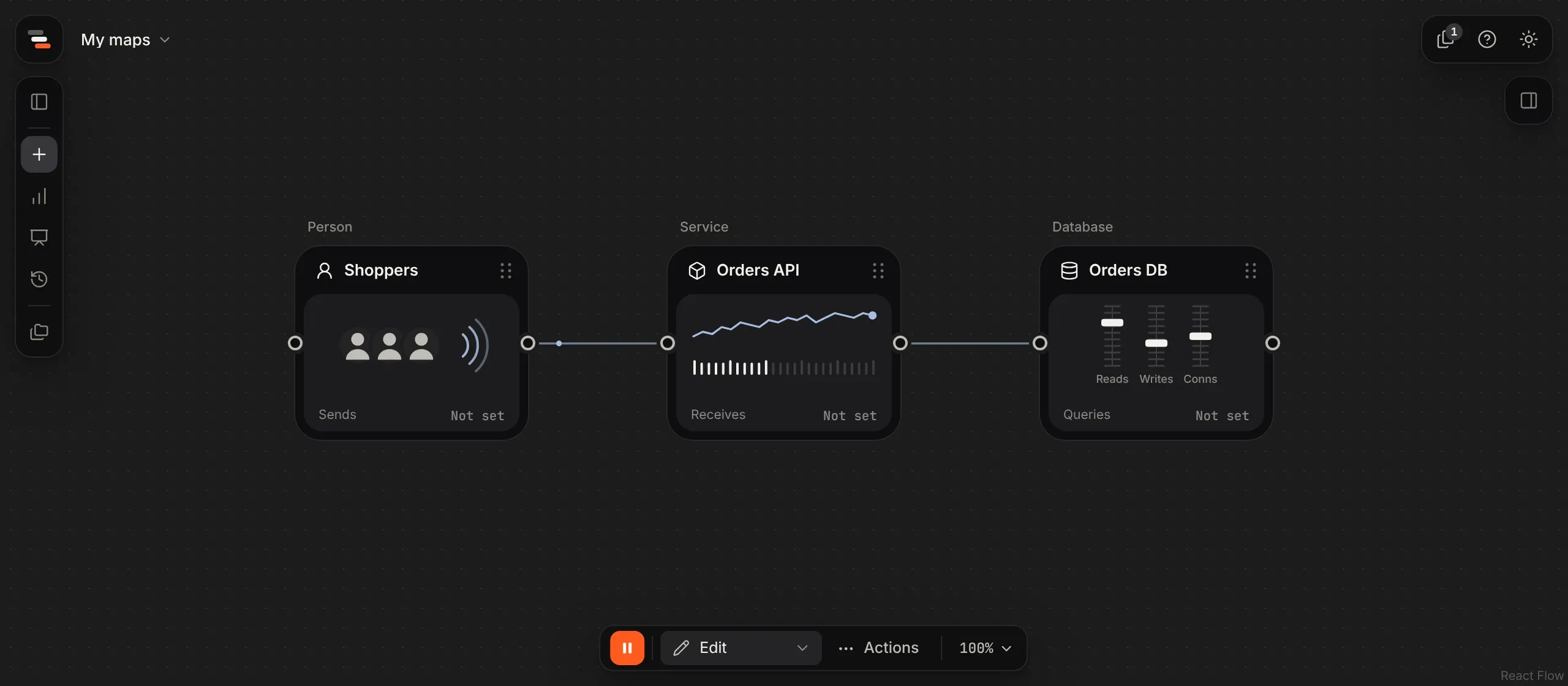
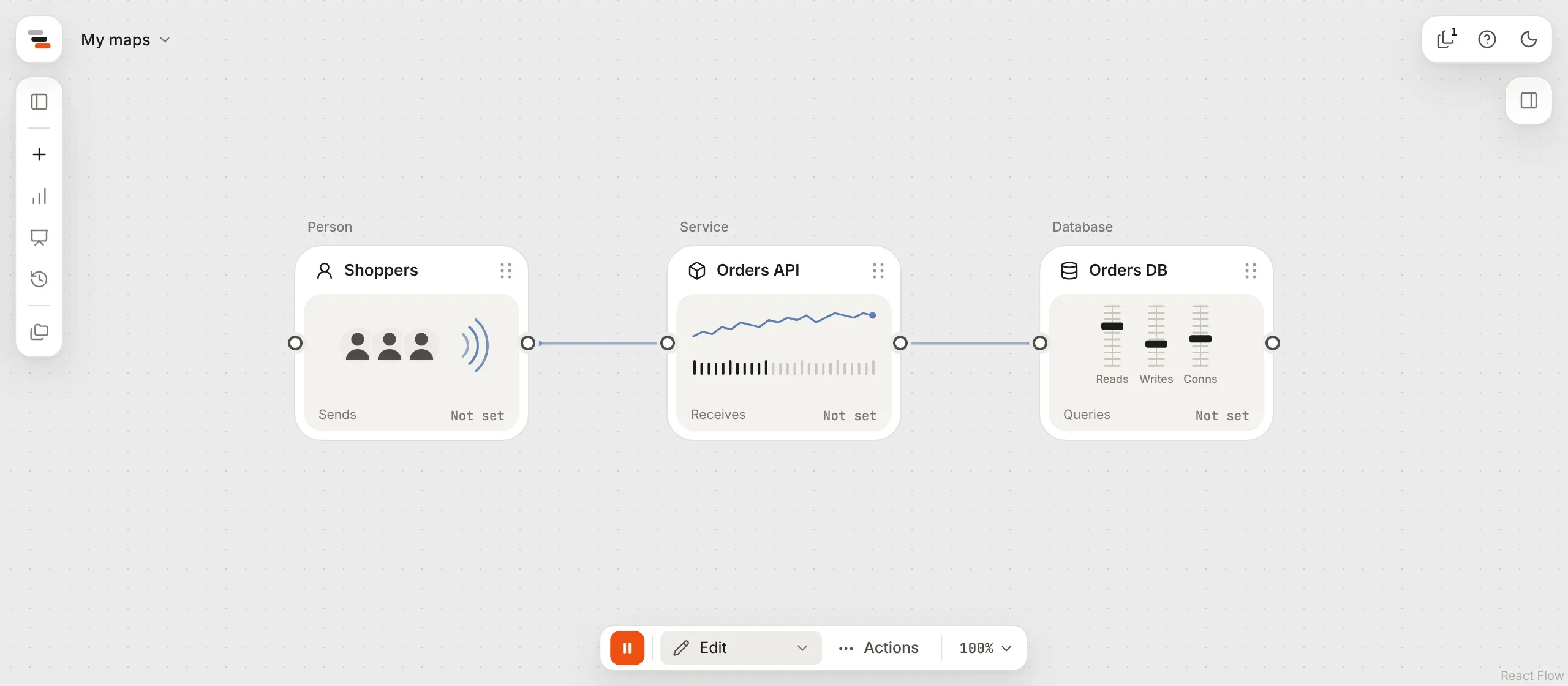
On an empty map, with the pointer over the canvas, press P for a person. Double-click its name and call it “Shoppers”.
-
Press S to the right of it for a service, and call it “Orders API”. Then press D to the right again for a database, “Orders DB”.
-
Drag from the right edge of each part to the next to connect them.
Kinds of part
Section titled “Kinds of part”Flozu has 28 kinds of part, grouped as the library groups them:
| Family | Kinds |
|---|---|
| People and apps | Person, Client app |
| The way in | DNS, CDN, Firewall, Gateway, Sign-in, Load balancer, Rate limiter |
| Compute | Service, Worker, Function, Scheduler, AI model |
| Messaging | Queue, Topic |
| Data | Database, Cache, Search, Storage, Data warehouse |
| Inside a service | Endpoint, Module, Code file, Interface, Library, Table |
| Anything else | Custom part |
Part kinds lists each one with its key, if it has one, and what it’s for. Most kinds for inside a service have no key; add them from the library or by searching.
Add a part
Section titled “Add a part”There are four ways, so use whichever is closest to hand:
- Press its key with the pointer over the canvas: S for a service, D for a database, Q for a queue. The part appears under the pointer.
- Drag it from the library (Add parts on the map’s menu down the left) onto the canvas, or click it to add it mid-screen.
- Double-click empty canvas and search for it.
- Drop a line on empty canvas. Flozu suggests the parts that usually come next (a database or a queue after a service) and adds the one you pick already connected.
A new part settles into place with a soft orange ring, and a new line glows orange for a moment, so you can see where they landed. The selected part has an orange edge and a soft glow.
The library’s Presets shelf has 117 parts ready to go, such as Cloudflare DNS or a Redis cache. See start from a preset.
Describe it
Section titled “Describe it”Select a part, and its About tab in the inspector holds what it is:
- Name. Or double-click the name on the card to rename it in place.
- Kind. Change it any time. A kind decides how a part behaves, such as which limits it can have, but not how it has to look.
- Technology. What it’s built with or bought from, such as PostgreSQL or Stripe. Pick from the suggestions or type anything. When Flozu knows the technology, its logo becomes the part’s mark.
- Run by. Us, or Someone else for a part another company runs, such as a payment provider. A part someone else runs has a dashed outline.
- Notes. Anything a reader should know about it.
The caption above a card says its kind and technology, such as “Database · PostgreSQL”.
How a card reads
Section titled “How a card reads”Every part is a card. Its header shows its mark and name, and its panel shows a small live drawing of what it does, with one figure underneath, such as a database’s queries a second or a queue’s size. Its ports sit halfway down: in on the left, out on the right, so a map reads left to right.
Change how a part looks, from its card to its drawing and size, in its Look tab. See make it look right.
Select, move and delete
Section titled “Select, move and delete”- Select a part by clicking it. Hold ⌘ (or Ctrl) to add to the selection, or drag across empty canvas with Shift held to select an area.
- Move what’s selected by dragging it, or a grid step at a time with the arrow keys.
- Delete what’s selected with Delete or Backspace. A part takes its lines with it.
- Let go of the selection with Esc.
With several things selected, the inspector can put them in a zone, style them all at once, or delete them together.