

Will it survive Black Friday?
Your shop copes on a normal Tuesday. On Black Friday, seven times as many people arrive at midnight, and four times as many stay all day. Something will run out of room first. This walkthrough finds out what, by how much, and what to change, before the day comes.
You’ll use the Checkout system template: shoppers, a web shop, an orders API, a database, card payments, and a worker that sends the confirmation email.
1. Open the checkout
Section titled “1. Open the checkout”-
Open Templates and find Checkout system. Select Use template. A copy opens in the editor, so nothing you change here touches the template.
-
Press play if the map is paused. Dots move along each line, closer together where there’s more traffic.
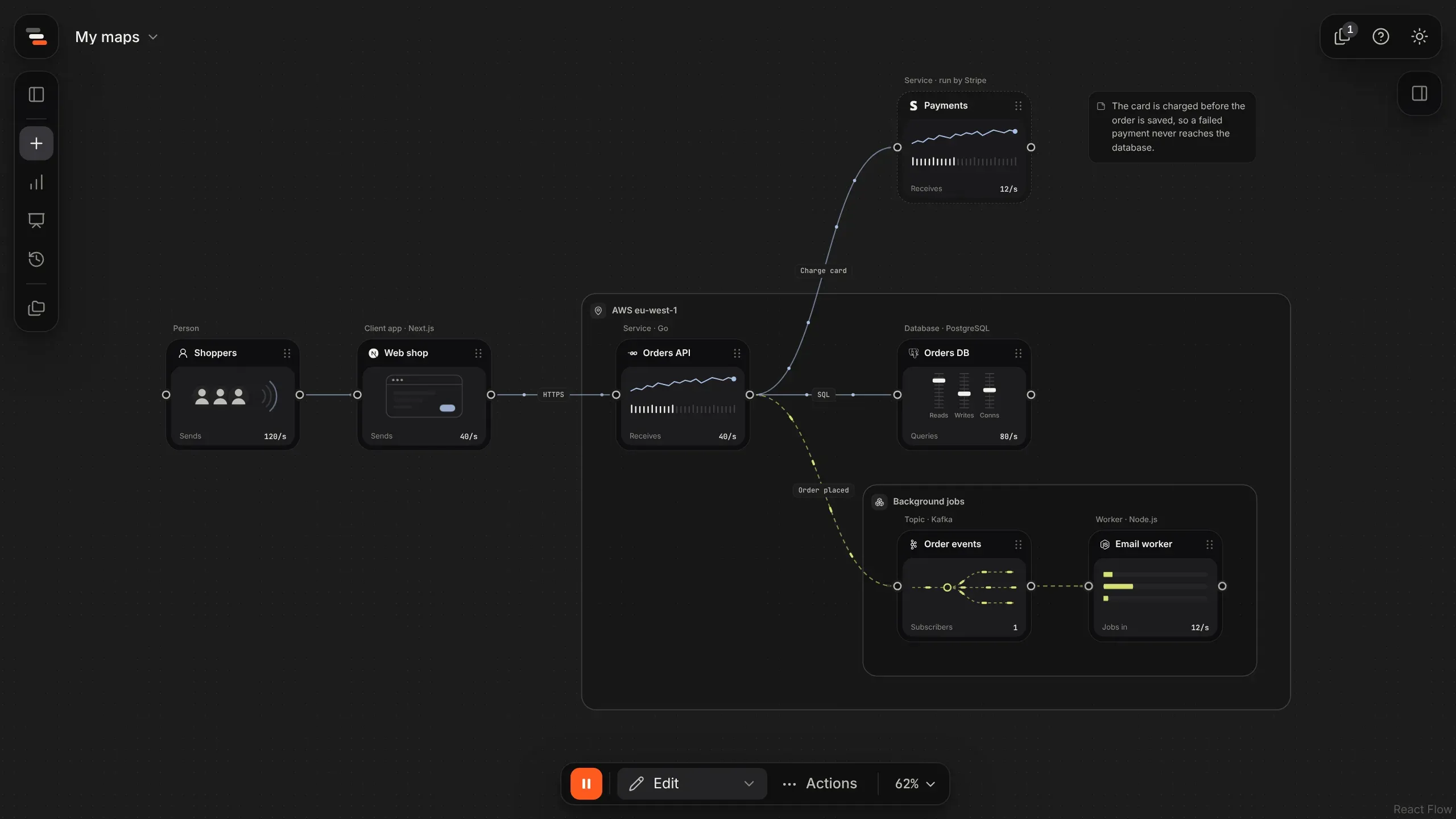
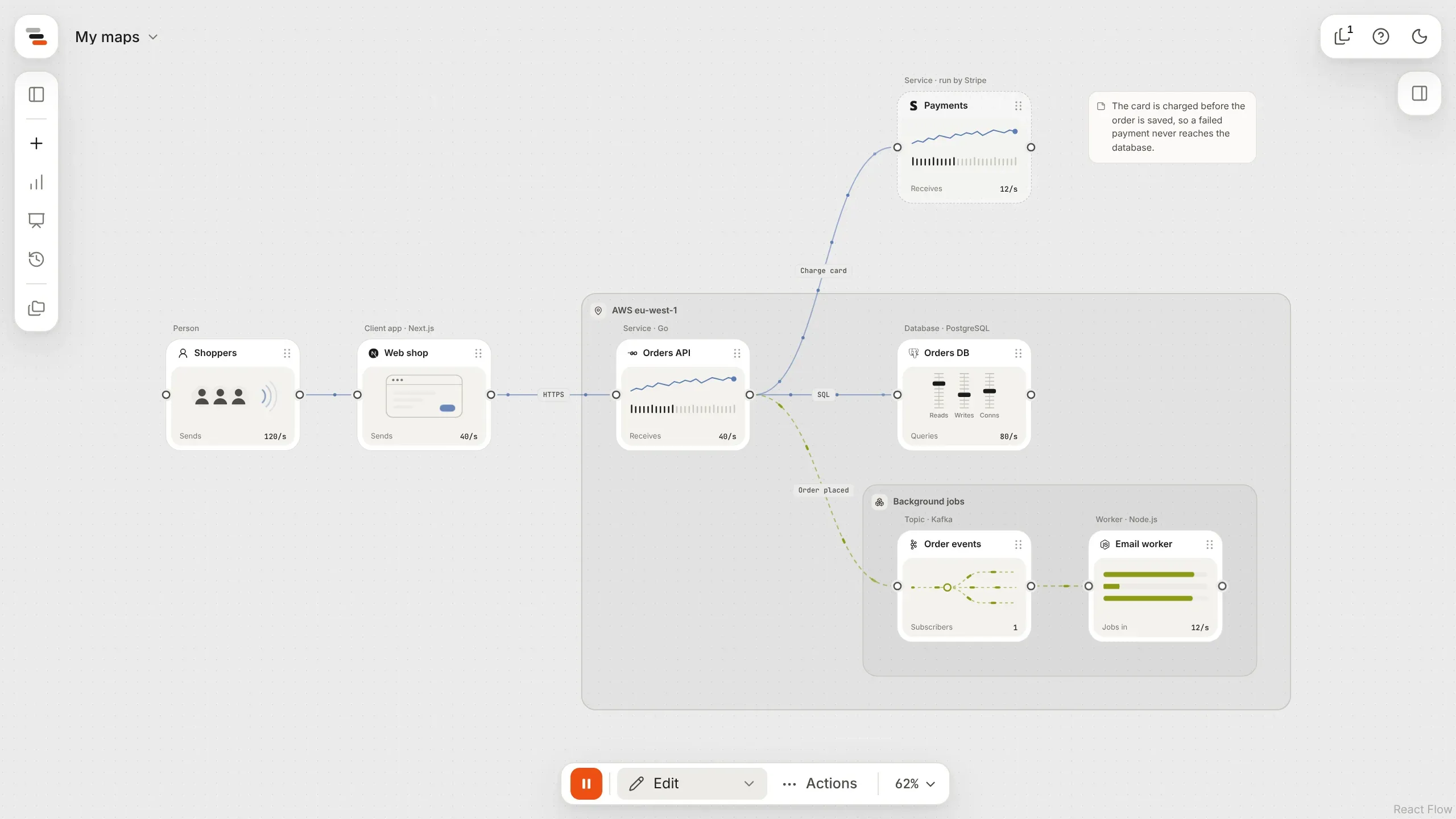
The map already has its numbers. Select a few things to see them in the inspector’s Traffic tab:
| What | On a normal day | It can take | So it’s |
|---|---|---|---|
| Web shop → Orders API | 40 orders a second | ||
| Orders API | 40 a second | 400 a second | 10% busy |
| Orders DB | 80 queries a second | 1,000 a second | 8% busy |
| Email worker | 12 emails a second | 20 a second | 60% busy |
Every part has room to spare. The Email worker has the least: 60% busy before anything unusual happens. Keep an eye on it.
2. Play Black Friday
Section titled “2. Play Black Friday”-
Open Scenarios and pick Black Friday. A timeline appears along the bottom, and the map shows the busiest moment.
-
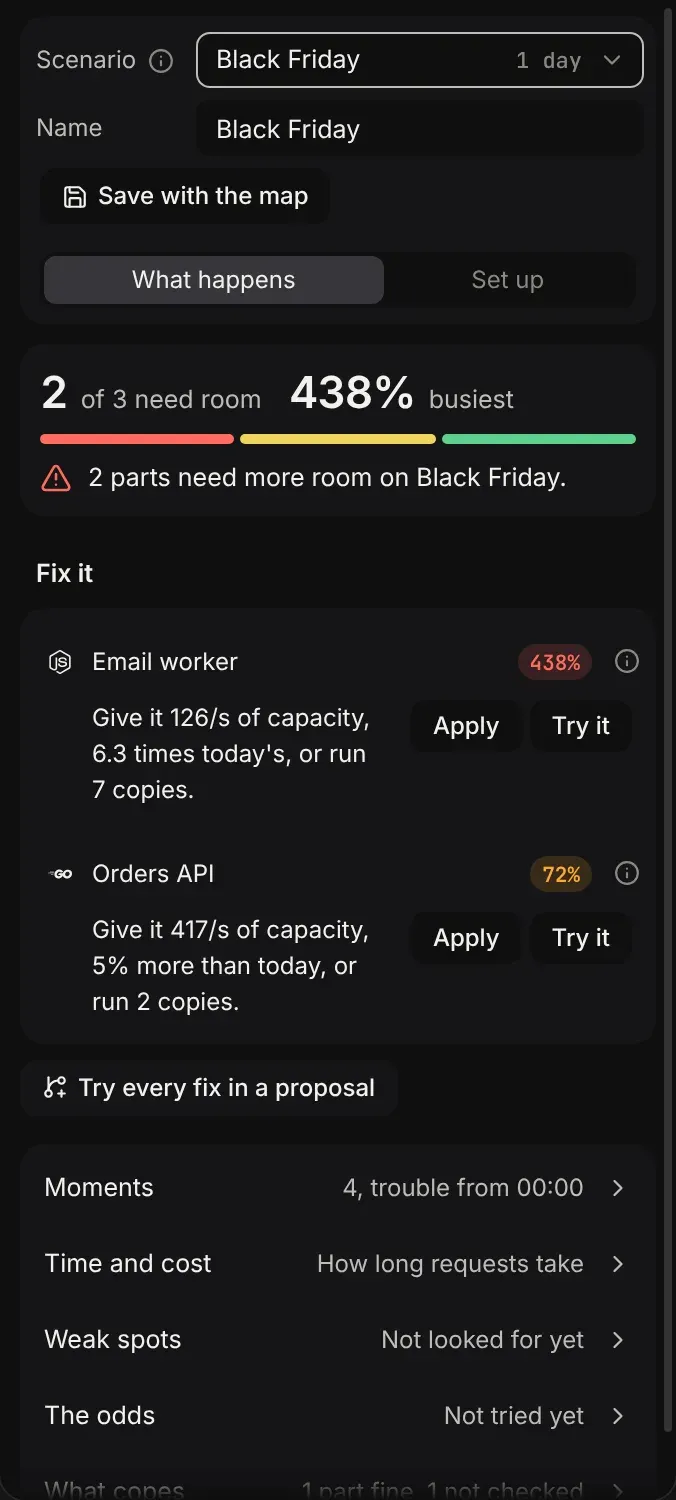
Read the card at the top of What happens: two parts need more room.
-
Look at the canvas. The Email worker is outlined in red, and its strip says it’s over.
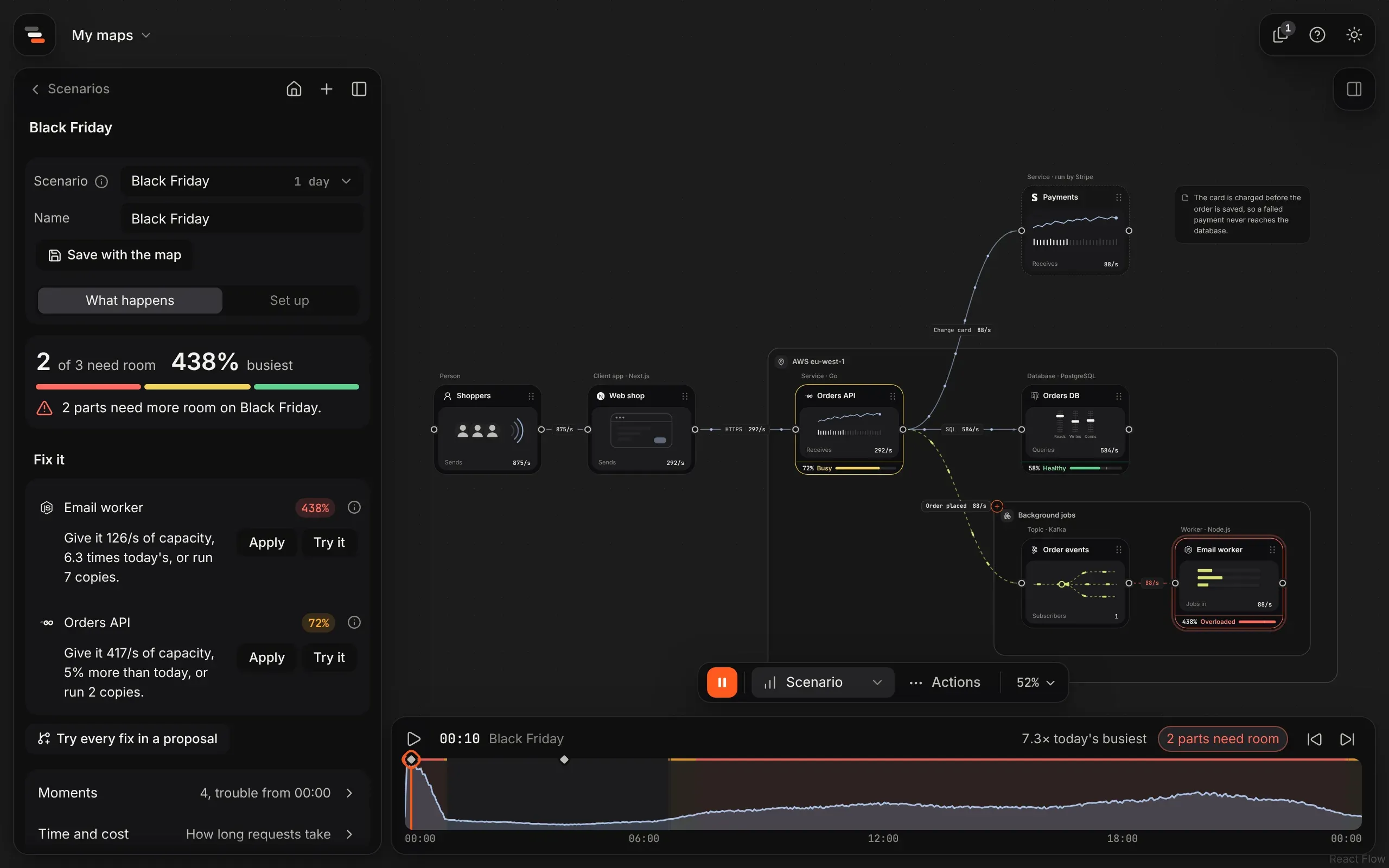
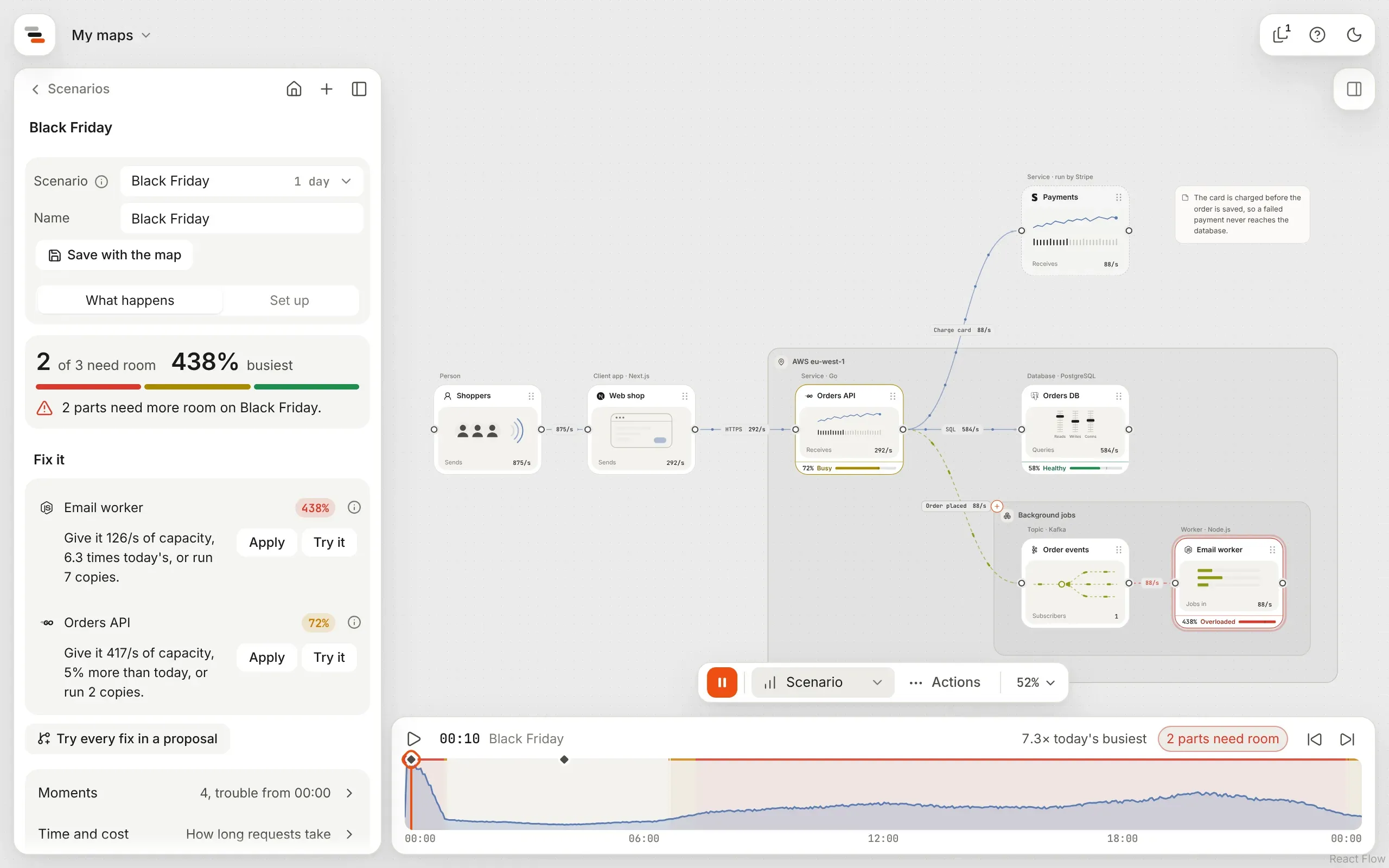
Here’s what happened at ten past midnight, the busiest moment:
| Part | Arrives | It can take | Busy | What Flozu says |
|---|---|---|---|---|
| Orders API | about 290 a second | 400 a second | 72% | Tight: past the 70% it should stay under |
| Email worker | about 88 a second | 20 a second | 438% | Over: it can’t keep up |
| Orders DB | about 580 a second | 1,000 a second | 58% | Fine |
The Email worker is tight from the first minute and over by the second. That’s the part that breaks first.
3. Watch it happen
Section titled “3. Watch it happen”Drag the playhead along the timeline, or press Space to play the day in about 30 seconds. The red line along the top of the timeline marks the stretch where a part is over. Moments in the panel lists when things change: the Email worker gets tight at 00:00, runs over at 00:02, and the busiest moment is 00:10.


4. Fix it
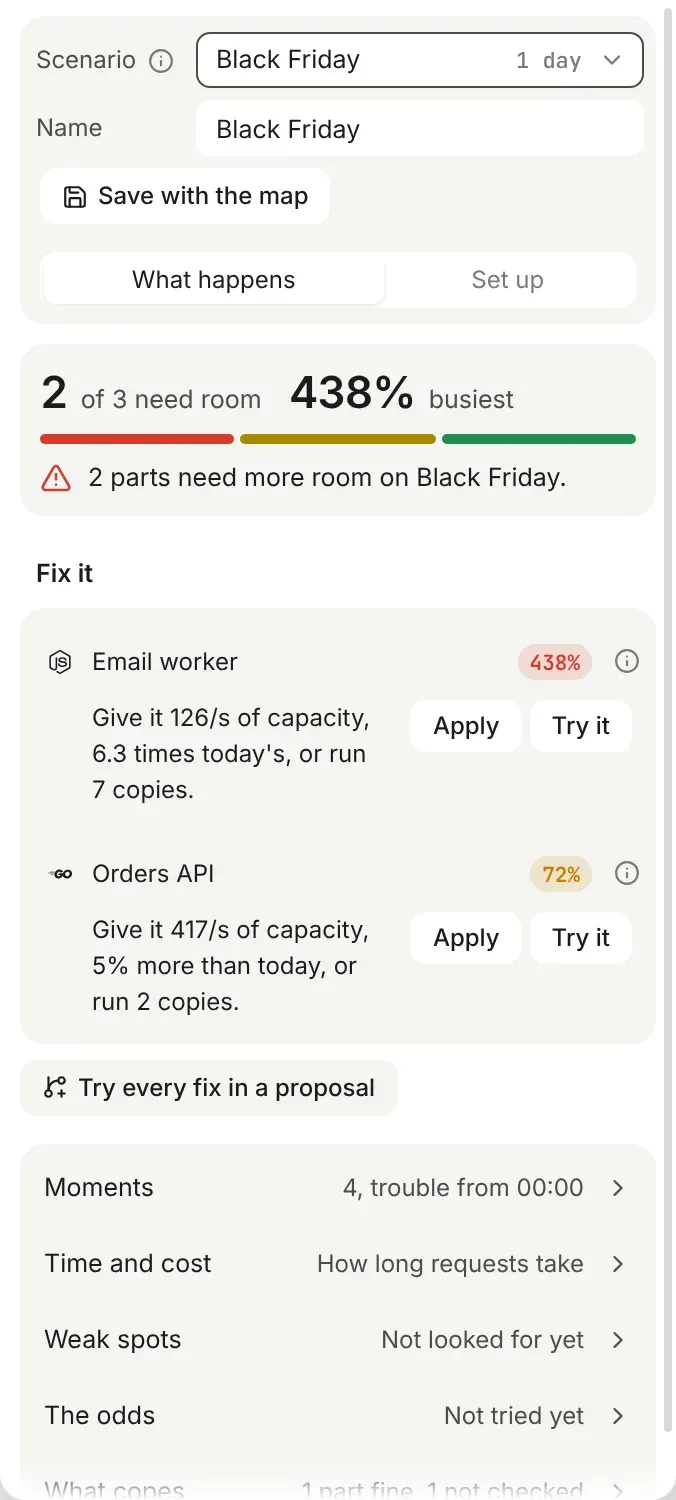
Section titled “4. Fix it”Under Fix it, each part that needs room comes with the fix that would let it cope:
- Email worker: give it 126 a second, 6.3 times what it has, or run 7 copies.
- Orders API: give it 417 a second, 5% more than it has, or run 2 copies.
Flozu sizes each fix so the part stays under 70% busy at its worst moment, leaving room for a surprise.
-
Select Apply beside each fix. Each is one change you can undo. (Try it makes the fix in a proposal instead, so you can compare before you commit. The next walkthrough uses it.)
-
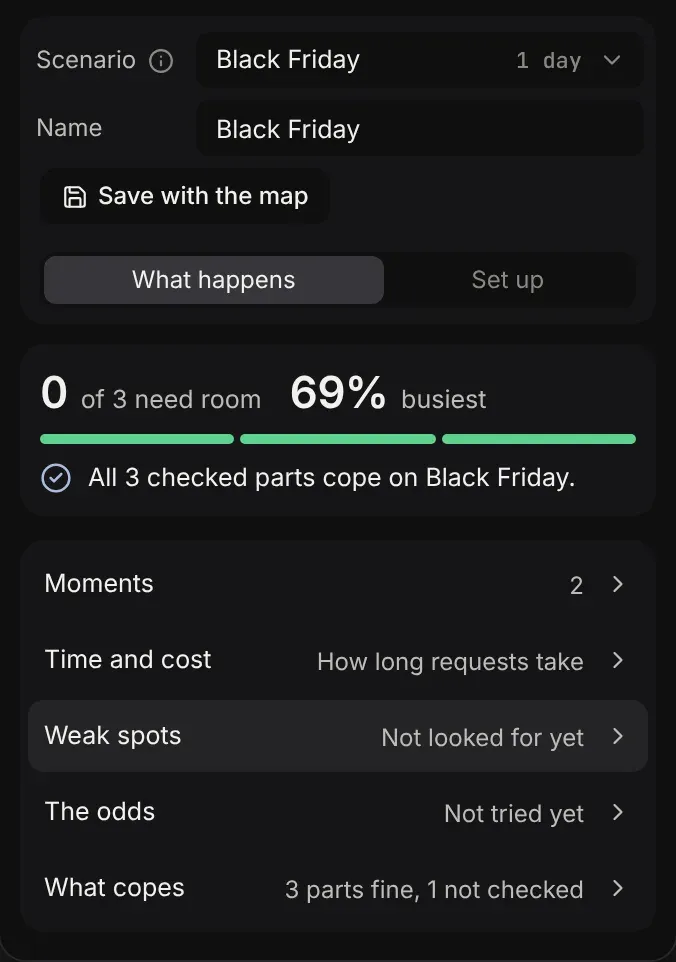
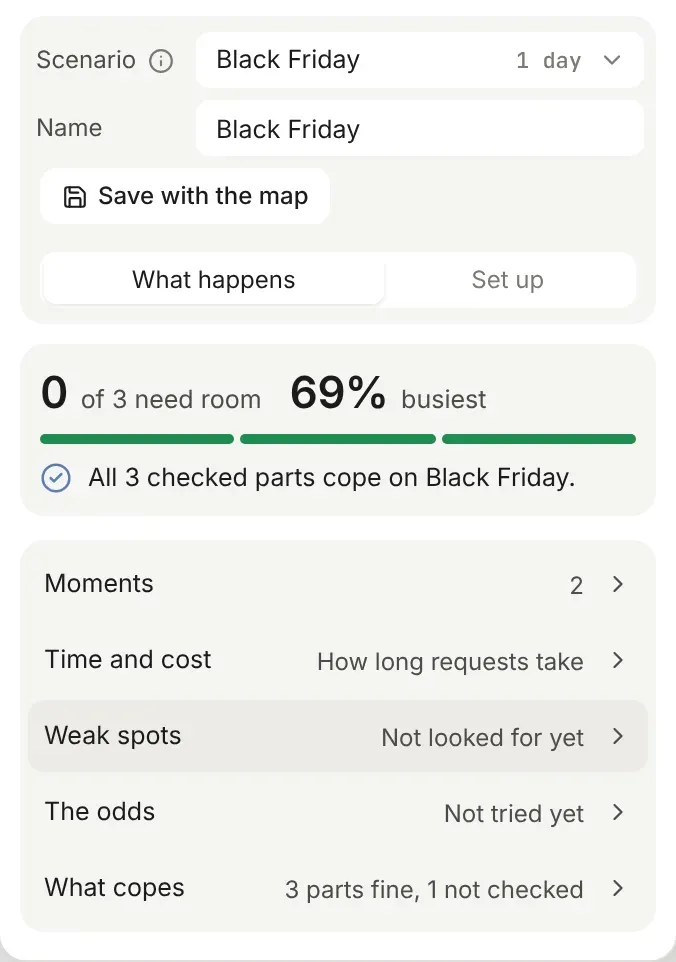
Watch the canvas: the red outline goes, and the card at the top of What happens says everything copes. At the busiest moment the Orders API is now 70% busy and the Email worker 69%.
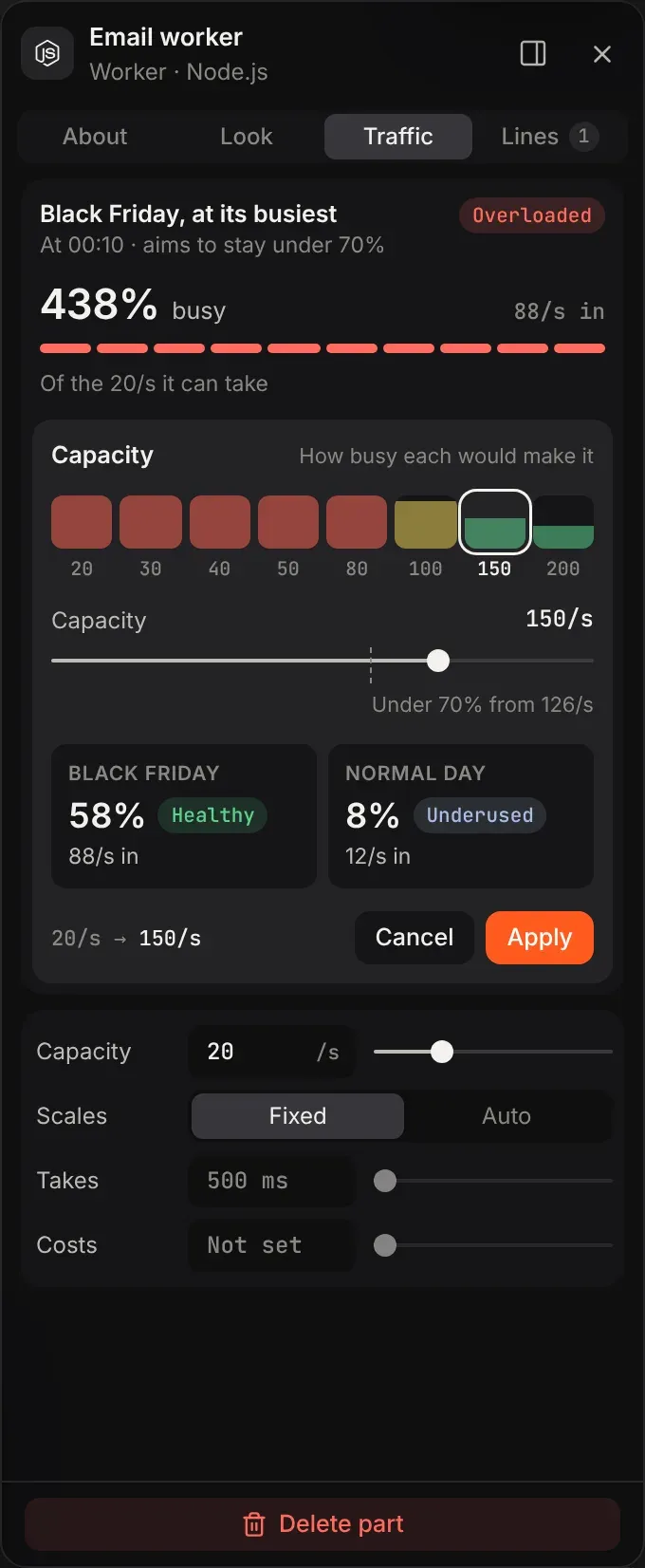
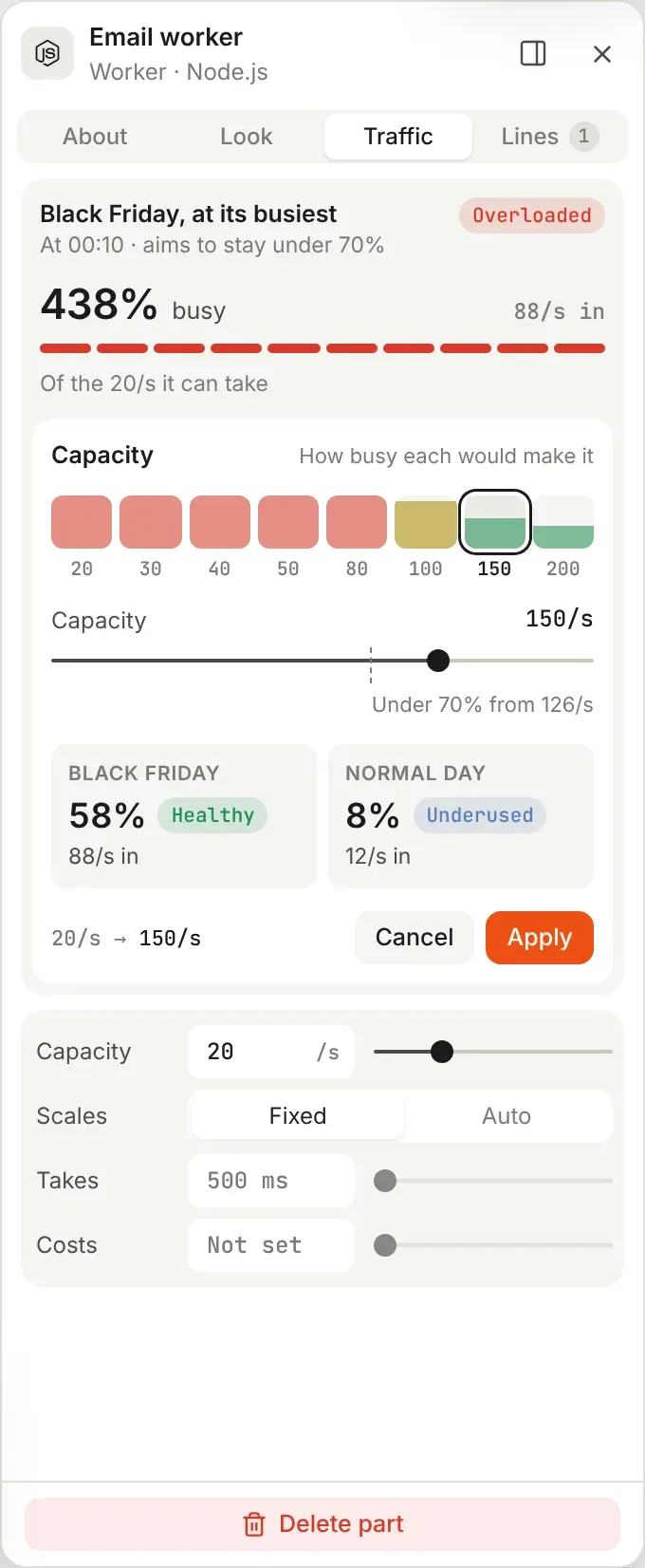
Not sure 126 is right? Select the Email worker and choose Try other capacities in its Traffic tab. Tiles show how busy each round number would make it, on Black Friday and on a normal day, so you can see what a smaller fix would leave you with.
5. Keep it
Section titled “5. Keep it”-
Choose Save with the map in the scenario panel. Black Friday now travels with the map, in files and share links, and you can come back to it after the next change.
-
To show someone, choose Share a link… from the Actions menu. Whoever opens it can play Black Friday too.
What you learned
Section titled “What you learned”- Rates live on lines and limits on parts. That’s all a scenario needs to work out who runs short. See traffic and limits.
- The first part to break isn’t always the obvious one. The Orders API looked like the bottleneck, but the Email worker had the least room to start with.
- Message lines hide problems from shoppers, which is good for them and easy to miss for you.
- What if something breaks? takes a part down on the same map.
- Scenarios covers making your own, from a TV ad to steady growth.